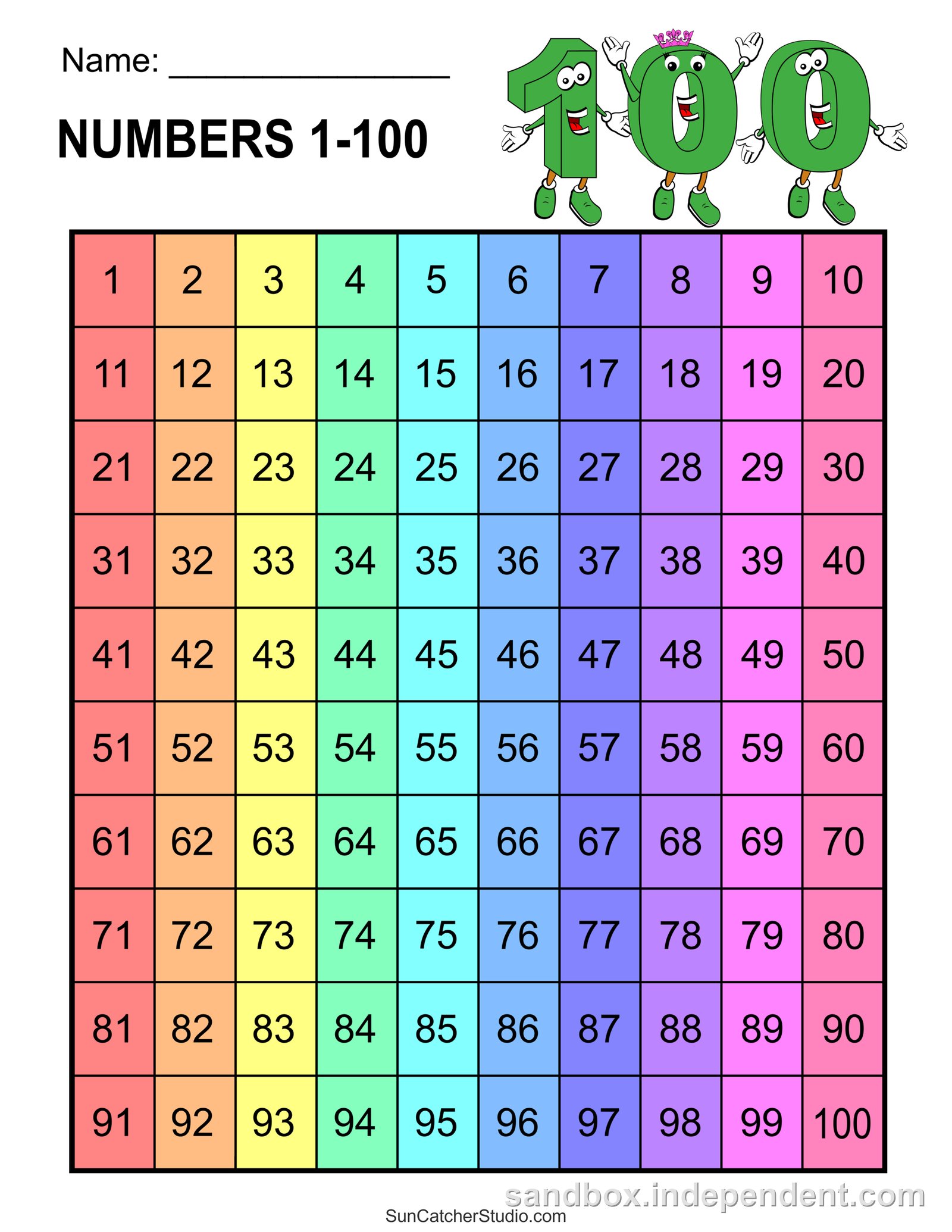










Activity Sheet Subtraction Kinder Overview
Home renovation services can be a daunting prospect for many homeowners, but it's a necessary step for those wanting to upgrade their living space. Whether it's a bathroom remodel or an entire house addition, these services offer a way to transform your home into your dream space. So, let's break down what home renovation services entail and how to navigate this process effectively.
Understanding the Basics
Home renovation services cover a wide range of construction and remodeling projects. From simple installations like new kitchen cabinets to complex structural changes, these services cater to various needs. It's important to know that the cost of renovations can vary greatly depending on the scope of work. Factors like the size of the project, the materials used, and the labor required all influence the final price. When comparing quotes, ensure you're getting an accurate assessment of the work needed and the associated costs.
Hiring the Right Team
Finding the right contractor or company is crucial for a successful renovation. Research and recommendations are key here. Check online reviews, ask for references from past clients, and ensure the company is licensed and insured. When requesting quotes, be specific about your project and ask detailed questions about their process, timeline, and any potential challenges. A good quote should provide a clear breakdown of costs and a realistic timeline.
Company Names and Branding
For those in the construction business, choosing a name is an important step. A good name should be memorable, reflect the nature of your work, and be unique. It's a balance between creativity and practicality. Some example names could be:
- Build & Bloom
- Home Revampers
- Crafted Spaces
- Renovo
- Constructive Solutions
- Creative Renovations
Remember to check the availability of these names and secure the relevant domains and local registrations.
Jobs and Opportunities
The home renovation services industry offers a range of job roles, from general contractors to specialized estimators. These roles often involve managing projects, coordinating with clients, and ensuring the smooth execution of renovations. Many construction jobs are advertised through online job boards and local classifieds. It's a competitive field, so highlighting your skills and experience is key when applying.
Industry Tools and Data
Tools like RSMeans provide valuable data for the construction industry. These databases offer cost information, helping contractors and businesses estimate project expenses accurately. They also provide insights into labor and material costs, which can be useful for budgeting and planning.
Large vs. Small Firms
The home renovation services industry caters to various scales of operations. Large firms often have the resources to take on extensive projects and may offer a wider range of services. They might have specialized teams for different aspects of construction. On the other hand, smaller firms can provide a more personalized approach, often with a focus on local projects.
Final Thoughts
Home renovation services can be a rewarding investment, but it's important to do your research and plan effectively. From choosing the right team to understanding the costs, each step is crucial. Remember, a well-planned renovation can transform your home and enhance your living experience. So, take the time to explore your options and create a space you'll love coming home to.
Related: match formula excel easy guide for data lookups
Match formula Excel can save you hours when you need to find something in a long list. Say you’ve got a sheet with hundreds of product IDs, and you need to know the position of a specific one. Instead of scrolling forever, you type in =MATCH(lookup_value, lookup_array, [match_type]), and Excel does the heavy lifting. It’s not just for numbers—it works with text, dates, and even wildcards if you set it up right.
It’s one of those formulas that feels like a secret weapon once you get the hang of it. Sure, XLOOKUP is flashier, but match formula Excel is faster for grabbing a position, not a value. Plus, it plays well with INDEX for more advanced lookups. If you’re still manually searching for data, this is your cue to stop.
Find positions, not just values
The match formula in Excel is all about locating where something sits in a list. It’s perfect for anyone who needs to map data between sheets or check if an item exists. Marketers use it to match campaign IDs to results, inventory managers track stock locations, and HR teams map employee IDs to departments.
Set up your sheet with two columns: one for your lookup list (e.g., product IDs) and one for the data you’re matching against (e.g., sales numbers). Keep the lookup list sorted if you’re using match_type 1 (exact or next smallest). Add a third column for the formula itself, and a fourth for any error handling with IFERROR.
| Product ID | Sales | Position | Formula |
|---|---|---|---|
| 101 | 250 | =MATCH(101, A2:A100, 0) |
|
| 102 | 300 | =MATCH(103, A2:A100, 1) |
|
| 103 | 150 | =MATCH("104", A2:A100, 0) |
The first formula returns 1 because 101 is the first item in the list. The second returns 5 since 103 isn’t there, but 105 is the next smallest. The third returns #N/A because "104" (as text) doesn’t match 104 (as a number).
Common mistake: Using match_type 1 on unsorted data. Excel won’t throw an error, but it’ll give you wrong results. Fix it by sorting the lookup array or switching to match_type 0 for exact matches.
Pair it with INDEX for dynamic lookups
The real power of match formula Excel comes when you combine it with INDEX. Together, they let you pull values from a table based on a lookup, without hard-coding cell references. This is how you build dynamic dashboards or reports that update automatically.
Create a table with Ctrl+T, then add a separate cell for your lookup value (e.g., "Q1 Sales"). Below it, set up a formula like =INDEX(table_array, MATCH(lookup_value, lookup_column, 0), return_column). Use IFERROR around it to catch missing data.
| Quarter | Region | Sales | Formula |
|---|---|---|---|
| Q1 | East | 500 | |
| Q1 | West | 700 | |
| Q2 | East | 600 |
Formula in D2: =IFERROR(INDEX(B2:B4, MATCH("Q1", A2:A4, 0), 2), "Not Found"). Returns 500 for Q1 East sales.
Common mistake: Forgetting to lock cell references with $. If you drag the formula down, A2:A4 should be $A$2:$A$4 to keep it anchored.
Handle errors and wildcards
Match formula in Excel breaks if it can’t find what you’re looking for. Wrap it in IFERROR to show a custom message instead of #N/A. If you’re working with partial matches, use wildcards by switching to match_type 0.
Add a data validation dropdown in your lookup cell to avoid typos. Go to Data > Data Validation > List, and point it to your lookup array. This keeps inputs consistent.
| Item | Price | Lookup | Result |
|---|---|---|---|
| Apple | 1.50 | p | 1 |
| Banana | 0.75 | n | 2 |
| Cherry | 2.00 | Peach | Not Found |
Formula in D2: =IFERROR(MATCH(C2 & "", A2:A4, 0), "Not Found"). For p, it returns 1 because "Apple" contains “p”.
Common mistake: Storing numbers as text. If your lookup value is 101 (number) but your array has "101" (text), the formula fails. Fix it with Data > Text to Columns > Finish to convert.
Build a lookup tracker
Turn match formula Excel into a reusable tracker by adding conditional formatting and filters. This works great for inventory logs, expense trackers, or project checklists. Highlight matches with Home > Conditional Formatting > New Rule > Use a formula.
Set up a filter on your lookup column (Ctrl+Shift+L) so you can narrow down results. Freeze the top row (View > Freeze Panes) if your sheet is long.
| Task ID | Status | Due Date | Priority |
|---|---|---|---|
| 001 | Done | 2023-10-15 | High |
| 002 | Pending | 2023-10-20 | Medium |
| 003 | Done | 2023-10-25 | Low |
Formula in E2: =IF(ISNUMBER(MATCH(A2, $A$2:$A$4, 0)), "Found", ""). Add conditional formatting to highlight “Found” cells.
Common mistake: Merging cells in your lookup array. Merged cells break formulas. Unmerge them with Home > Merge & Center > Unmerge Cells.
Try building a simple inventory tracker next. Use match formula Excel to flag low-stock items, and pair it with COUNTIFS to tally quantities.
Related: A Quick Guide to Lung Volume Chart
Many people overlook the lung volume chart as a simple diagram, but it's actually a powerful tool with a wealth of information. So, let's set the record straight: the lung volume chart is not just a basic reference; it's a detailed guide to understanding your respiratory health. This chart, often found in medical settings, provides an easy-to-read breakdown of various lung measurements, including tidal volume and vital capacity. While the specific values may vary depending on the context, the lung volume chart offers a consistent framework to interpret respiratory function tests and spirometry measurements.
A Quick Overview
A lung volume chart is a visual guide that helps us understand and measure the capacity of our lungs. It provides a reference for different lung volumes and their associated measurements, offering a simple yet effective tool for respiratory assessments.
Comparing the Options: Standard Reference Ranges
The chart typically displays various lung volume categories, including tidal volume, vital capacity, and residual volume. Each category represents a specific aspect of lung function and is measured in liters or milliliters. Standard reference ranges are provided to compare an individual's results with typical values.
Step-by-Step Guide: Using the Lung Volume Chart
To use the chart effectively, follow these steps:
Identify the lung volume category you want to measure or assess. This could be your tidal volume, which is the amount of air you breathe in and out during normal breathing, or your vital capacity, which is the maximum amount of air you can exhale after a deep inhalation.
Find the corresponding category on the chart. Each category will have a range of values, often presented as a bar or line graph.
Compare your measurement with the reference range. If your result falls within the typical range, it indicates normal lung function for that category. If it's outside the range, it may suggest an abnormality or a need for further evaluation.
Consider any additional factors. The chart provides a general guide, but individual variations exist. Factors like age, height, and underlying health conditions can influence lung volumes. Adjust your interpretation accordingly.
Common Misreadings and How to Avoid Them
It's essential to read the chart accurately to avoid misinterpretations. Here are some common pitfalls:
Misinterpreting the scale: Ensure you understand the unit of measurement and the scale used on the chart. Some charts use liters, while others may use milliliters.
Confusing categories: Each category represents a specific lung volume. Be sure to match your measurement with the correct category to avoid confusion.
Neglecting individual variations: Remember that the reference ranges are general guidelines. Individual factors can significantly impact lung volumes, so consider these variations when interpreting results.
Key Factors Affecting Accuracy
Several factors can influence the accuracy of lung volume measurements and their interpretation:
Age: Lung capacity tends to decrease with age, so age-specific reference ranges are crucial for accurate assessments.
Height and body size: Taller individuals often have larger lung volumes. Adjustments may be necessary to account for these variations.
Health conditions: Respiratory diseases, such as asthma or COPD, can affect lung function. Consider the impact of any underlying health issues when interpreting results.
Environmental factors: Exposure to pollutants or extreme altitudes can impact lung function temporarily. Be mindful of these external influences.
Choosing the Right Format for Your Needs
Lung volume charts come in various formats, and selecting the appropriate one is essential:
Standard charts: These provide general reference ranges suitable for most individuals. They offer a quick and easy assessment of lung function.
Age-specific charts: For more precise evaluations, especially in pediatric or geriatric populations, age-specific charts are valuable. They account for the normal variations in lung capacity at different life stages.
Customized charts: In certain cases, customized charts may be necessary. These are tailored to specific populations or unique circumstances, ensuring accurate assessments for unique needs.
Keeping Your Reference Reliable
To ensure the reliability of your lung volume chart and its measurements:
Regularly update your chart: Reference ranges can evolve, so stay informed about any updates or revisions to the standard charts.
Calibrate your equipment: If you're using spirometry or other measurement tools, ensure they are properly calibrated to provide accurate results.
Seek professional guidance: Consult healthcare professionals or respiratory specialists for expert advice and interpretation, especially if you notice any abnormalities or have concerns about your lung function.
Lung volume charts are a handy tool, offering a quick reference guide to help you understand and interpret lung capacity. With various formats and standards available, it's essential to choose the right one for your needs and ensure accuracy.
Remember, these charts provide a great starting point, but your specific context and requirements might vary. So, take a moment to double-check the exact values and ensure they align with your goals. It's a simple step that can make a big difference!
Consider bookmarking this page for future reference. It's a practical guide that you can quickly access and refer to, ensuring you have the right information at your fingertips when you need it most.