
Activity Sheets 6 Year Old Overview
A DVC points chart is a handy tool for Disney Vacation Club members, offering a clear and concise way to visualize and understand their points system. This guide will take you through the essentials, covering what you need to know to navigate and utilize the DVC points chart effectively.
It's a simple yet powerful resource, providing an at-a-glance overview of your points and their potential, with variations depending on your region and membership type.
Understanding the DVC Points Chart
The DVC points chart is your guide to navigating the Disney Vacation Club (DVC) points system. It's a handy tool that helps you understand the value of your DVC points and how they can be used across different Disney resorts and accommodations. This chart is a reference for members to plan their vacations and make the most of their points.
Comparing Point Values and Categories
The DVC points chart typically displays point values for various Disney properties, categorized by resort and room type. You'll find columns for different resorts, with rows indicating the point cost for each room category. These categories might include standard rooms, preferred rooms, or even villas, each with its own point value. It's important to note that point values can vary based on the resort's location, amenities, and demand.
Reading the Points Chart: A Step-by-Step Guide
Start by identifying the resort you're interested in. Each resort will have its own column on the chart. Next, locate the specific room category you prefer. The corresponding point value will be displayed in that cell. For example, if you want a standard room at Resort A, find "Resort A" on the chart, then look for the "Standard Room" category. The point value in that cell is what you'll need for your stay. Remember, these points are flexible and can be used across different resorts, so you have options!
Avoiding Common Misreadings
One common pitfall is assuming that all resorts and room types have the same point values. This is not the case; each resort's point values are unique. Another mistake is not considering the time of year. Point values can fluctuate based on seasonality and demand, so always check the chart for the specific dates you're planning to travel. It's also important to note that the DVC points chart may not cover every single resort or room type. Some specialty accommodations or unique experiences might have their own point values, so it's wise to double-check with Disney or a DVC guide for these exceptions.
Factors Affecting Point Variations
Point values on the DVC points chart can vary due to several factors. Here are some key influences:
- Resort Location: Resorts in high-demand areas, like popular theme park locations, often have higher point values.
- Seasonality: Point costs can increase during peak travel seasons, such as school holidays or summer months.
- Room Amenities: Rooms with special features, like a balcony or a better view, may require more points.
- Resort Facilities: Resorts with extensive amenities, like water parks or multiple dining options, might have higher point values.
- Room Size and Capacity: Larger rooms or those accommodating more guests usually require more points.
Adapting the Chart for Your Needs
While the standard DVC points chart is a great starting point, you might need to adapt it for your specific vacation plans. Here are some tips:
- If you're planning a large family vacation, consider the room's capacity and ensure it aligns with your needs.
- For a more luxurious stay, look for resorts with higher-end amenities and check their point values.
- If you're flexible with dates, you can save points by choosing off-peak travel periods.
- Use a DVC points calculator or consult a Disney points conversion guide to estimate the points needed for your desired resort and room type.
- Keep an eye on vacation club points charts for any updates or changes, especially if you're planning far in advance.
Well, there you have it! A comprehensive guide to navigating the world of DVC points. We've covered the basics, compared the options, and provided a step-by-step process to ensure you're on the right track.
Remember, every situation is unique, so be sure to tailor these insights to your specific needs. Double-check the factors that impact your context, and you'll be well on your way to making informed decisions. This chart is a handy reference, so bookmark this page for future use. It's always good to have a quick reminder when you need it!
Related: Understanding Auburn's Depth Chart
If you're here, you're likely seeking a quick reference or a straightforward guide to understanding the depth chart Auburn. This practical tool, often used in sports, provides a visual representation of a team's roster, offering a clear view of player positions and roles. "Depth chart Auburn" can vary in format and detail, but its core purpose remains the same: to provide an at-a-glance overview of the Auburn Tigers roster and starting lineup.
What is a Depth Chart?
A depth chart is a valuable tool used in sports, particularly in American football, to visually represent a team's roster and the hierarchy of players at each position. For Auburn University's football team, the depth chart is an essential reference for coaches, players, and fans alike, offering a clear snapshot of the team's current lineup and player rankings.
Key Details and Categories
The depth chart auburn typically features two main columns: player positions and player names. Positions are organized by offensive and defensive roles, with special teams roles sometimes included. Each position is further divided into tiers, indicating the player's status within that position group. Common tiers include starters, backups, and reserves, with some charts also featuring developmental players or walk-ons.
Reading and Applying the Depth Chart
To read and understand the depth chart auburn, follow these steps:
Start by identifying the position groups. These are typically organized by offense (e.g., quarterback, running back, wide receiver) and defense (e.g., defensive line, linebackers, defensive backs).
Within each position group, look for the players listed under the "Starters" tier. These are the players who are currently expected to start the game.
Below the starters, you'll find the backups and reserves. Backups are often the next in line to replace a starter if needed, while reserves are typically further down the depth chart but still part of the team's roster.
Pay attention to any notes or additional information provided alongside the player names. These notes might indicate injuries, eligibility issues, or other factors that could impact a player's status.
Use the depth chart as a reference when discussing the team's strategy, analyzing player performance, or predicting game outcomes. It provides a snapshot of the team's current strengths and weaknesses at each position.
Variations and Differences
While the basic structure of a depth chart remains consistent, variations can occur across different teams and leagues. For instance, some depth charts may include more detailed information, such as player heights, weights, and jersey numbers. Additionally, the specific position groups and their organization can vary depending on the team's offensive or defensive schemes. It's important to note that depth charts are dynamic and can change frequently due to injuries, player performance, or coaching decisions.
Common Mistakes and How to Avoid Them
One common mistake is assuming that the depth chart is set in stone. It's essential to remember that depth charts are subject to change, especially in the fast-paced world of college football. Coaches may make last-minute adjustments based on game plans or player availability. Therefore, it's crucial to regularly update your knowledge of the depth chart and stay informed about any recent changes.
Practical Tips for Accurate Results
To ensure you're using the depth chart auburn accurately, consider these tips:
Familiarize yourself with the team's roster and player positions. Understanding the basic roles and responsibilities of each position will enhance your ability to interpret the depth chart effectively.
Keep track of any notable injuries or player absences. These factors can significantly impact the depth chart and the team's overall performance.
Stay connected with reliable sources of information, such as official team websites or reputable sports media outlets. These sources often provide the most up-to-date depth charts and player news.
Double-Checking and Handling Exceptions
While the depth chart auburn is a valuable tool, it's important to remember that it represents a snapshot of the team's current lineup. To ensure accuracy, consider the following:
Cross-reference the depth chart with recent game statistics and player performance. This can help you identify any discrepancies or unexpected changes in the lineup.
Be aware of positional flexibility. Some players may be listed at multiple positions on the depth chart, indicating their ability to play different roles. Understanding these flexibilities can provide insights into the team's strategic options.
Stay vigilant for any last-minute changes or surprises. College football games often bring unexpected twists, so it's essential to remain adaptable and informed.
It's always a good idea to familiarize yourself with the depth chart, ensuring you have a solid understanding of the team's structure and dynamics. Remember, while this guide provides a comprehensive overview, every team and context is unique, so be sure to double-check the specifics for your situation.
Consider bookmarking this page for future reference; it's a handy resource to have at your fingertips when you need a quick reminder or a deeper dive into the Auburn depth chart. Happy exploring!
Related: remove duplicates excel Easy guide for clean data
Ugh, duplicates in Excel. We've all been there, staring at a massive spreadsheet with rows and rows of data, only to realize there are multiple entries for the same thing. Remove duplicates Excel to the rescue! Let's get into how this handy feature works and why it's a lifesaver for anyone dealing with data.
So, you've got your Excel sheet open, and it's a mess of similar entries. Maybe it's a list of contacts, products, or sales data, and you need to clean it up. The "Remove Duplicates" feature is like a magic wand, but it's not as simple as clicking a button. You've got to set it up right to get the results you need.
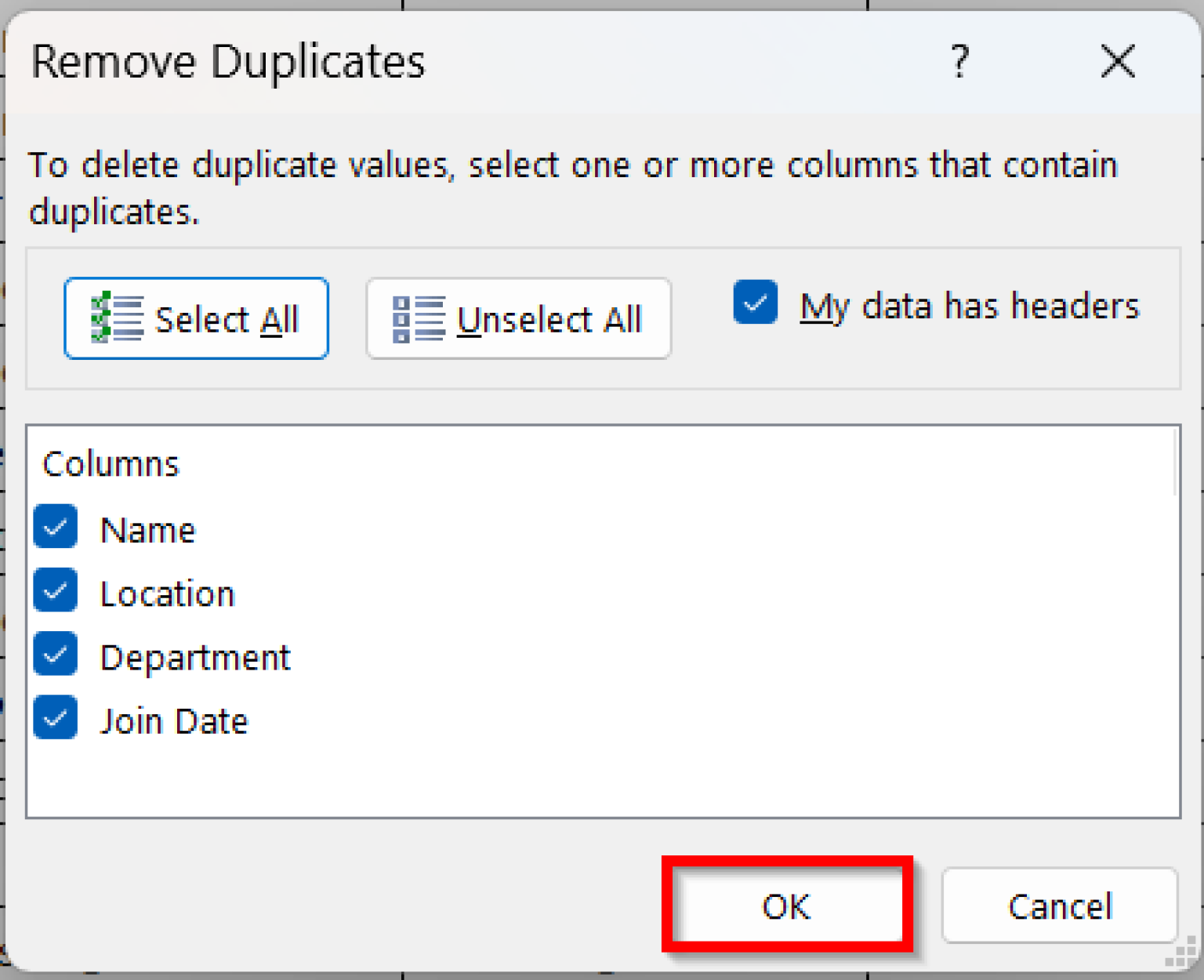
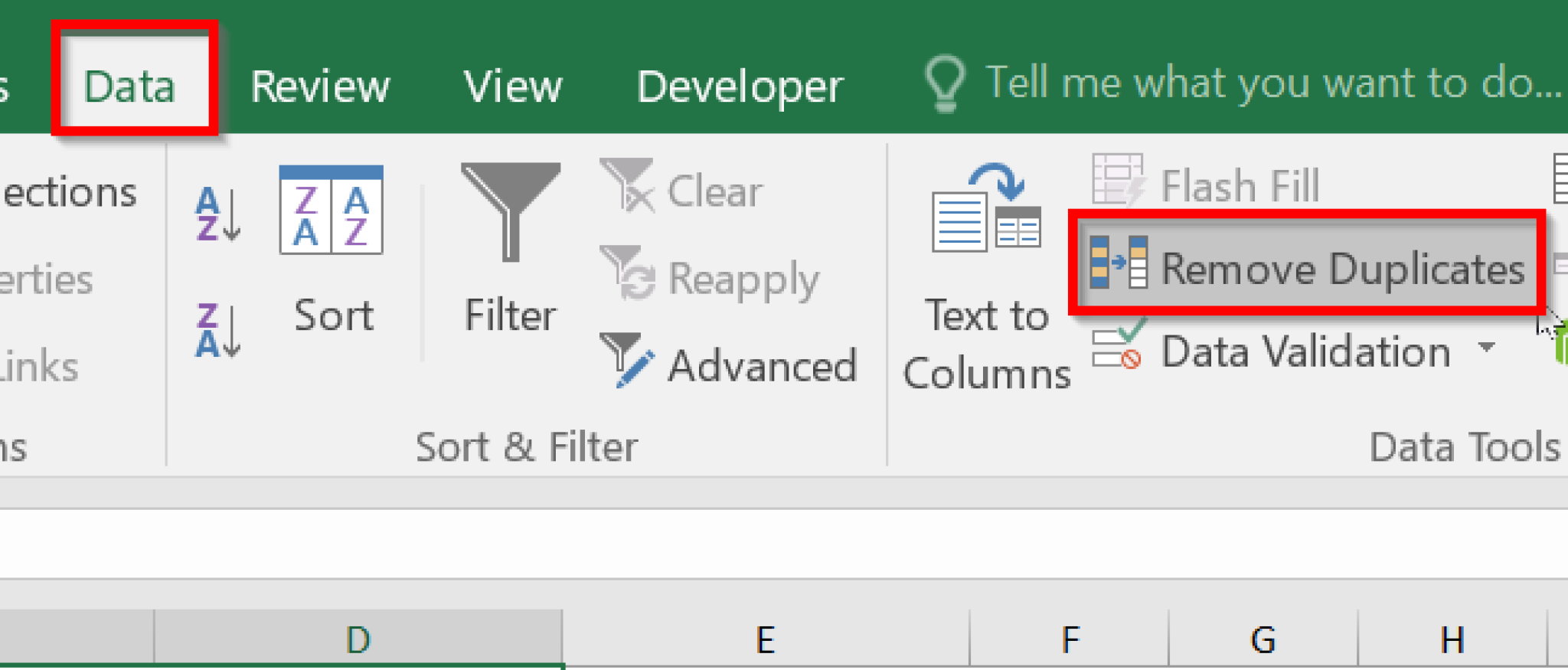
First, let's talk about how Excel identifies duplicates. It looks at the values in the cells and compares them. But here's the catch: by default, it only checks the active column. So, if you have duplicate entries across multiple columns, you need to tell Excel which columns to consider. You do this by selecting the range of cells you want to check, then heading to the "Data" tab and clicking "Remove Duplicates." A pop-up will appear, showing you the columns Excel will check. Make sure to select all the relevant columns, and voila! You're on your way to a cleaner sheet.
Setting it Up: A Step-by-Step Guide
Now, let's get into the nitty-gritty. After selecting your range, click "Remove Duplicates," and that pop-up will appear. Here, you can choose which columns to check. But be careful! If you have multiple columns with similar data, Excel might remove entries you want to keep. For example, if you have a contact list with names and email addresses, and someone has the same name but a different email, Excel might see it as a duplicate and remove one entry. To avoid this, you can use a formula like =IF(ISERROR(MATCH(B2,$B$2:$B$100,0)),"","Duplicate") in a helper column. This formula checks if the email address in column B is a duplicate within the range B2 to B100. If it is, it returns "Duplicate"; otherwise, it leaves the cell blank. This way, you can easily identify and keep the entries you need.
Another tip: before removing duplicates, consider using conditional formatting to highlight potential duplicates. This way, you can visually inspect the data and make sure you're not losing important entries. Excel's "Conditional Formatting" feature lets you format cells based on their values, so you can quickly spot and address any issues.
Keeping Your Data Clean
Maintaining a tidy spreadsheet is crucial, and remove duplicates Excel is just one tool in your belt. Regularly review and clean your data to avoid messy formatting and broken cells. Use Excel's built-in tools like SUMIFS for quick calculations and XLOOKUP for finding specific values. These formulas, along with drop-down lists and other features, can keep your sheet organized and efficient.
In a nutshell, remove duplicates Excel is a powerful feature, but it's just one part of the Excel toolkit. With a bit of practice and these tips, you'll be a pro at managing your data and keeping your spreadsheets shipshape. So, next time you open that massive contact list, remember these tricks and tackle those duplicates like a boss!