




Blank Auto Repair Invoice Template Overview
"I've been putting off those house repairs for too long, but I really need to get them done. Time to find a contractor for house repair!"
All About Hiring a Contractor
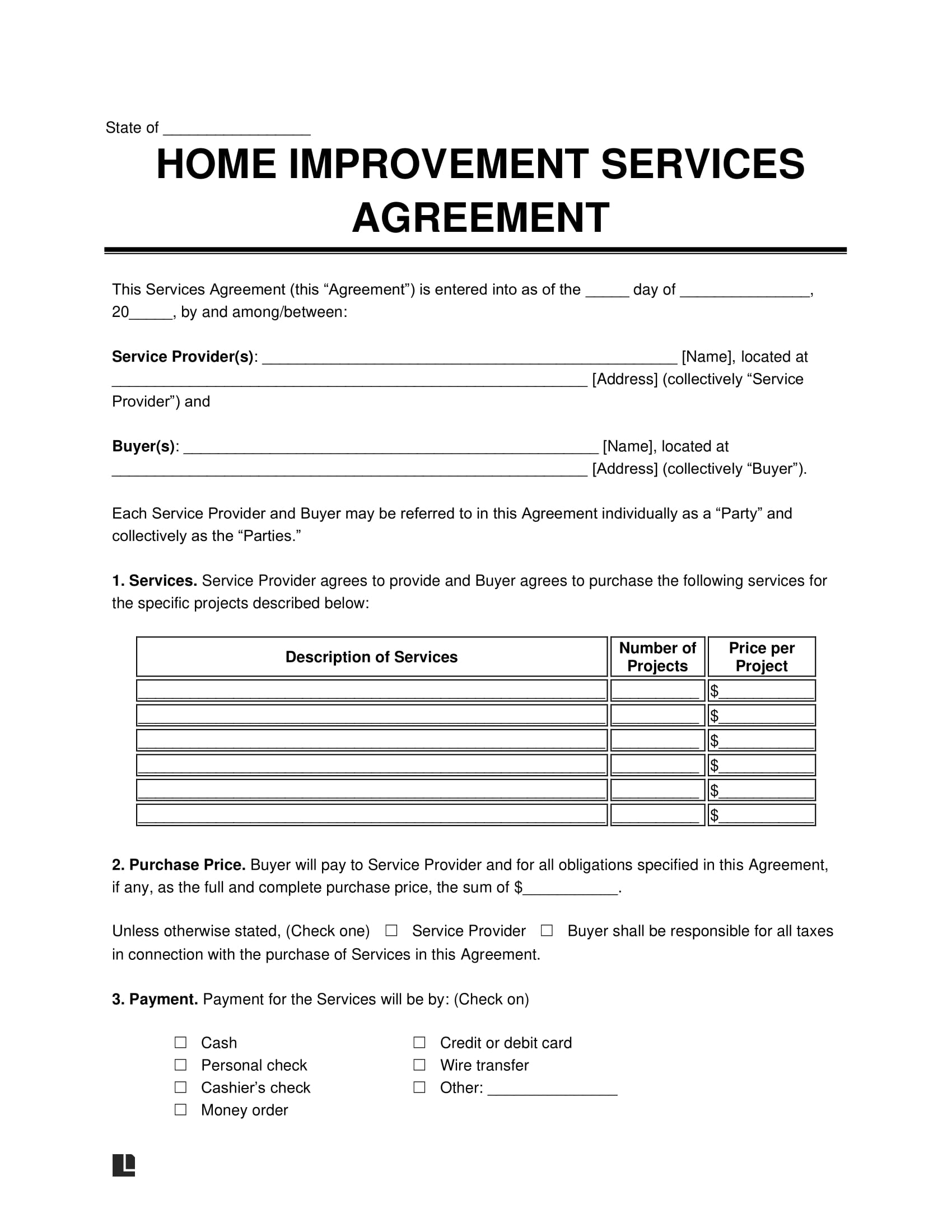
So, you've got some home repairs or renovations on your to-do list, and you're thinking about hiring a contractor to get the job done. It's a big step, and there's a lot to consider. A contractor for house repair can handle all sorts of jobs, from small fixes to major overhauls. They're the experts in construction and remodeling, and they'll have the skills and tools to get your project completed.
When it comes to costs, it's tricky to give an exact figure as it depends on so many factors. The size of the job, the materials needed, and the labor involved will all impact the price. It's a good idea to get quotes from a few different contractors to compare. Look for detailed quotes that break down the costs, so you can see what you're paying for. Don't just go for the cheapest option; consider the quality of the work and the contractor's reputation too.
Finding and Choosing the Right Contractor
There are lots of contractors and building companies out there, so how do you find the right one? Word of mouth is a great way to start - ask friends or family for recommendations. You can also search online for local contractors and read reviews to get an idea of their work. When you've found a few potential contractors, give them a call or send an email to ask some initial questions.
Find out about their experience and the types of projects they typically work on. Ask about their availability and how long they estimate the job will take. It's also worth asking about any potential extra costs or unexpected issues that might arise during the work. A good contractor will be transparent and give you an honest assessment.
Naming Your Construction Business
If you're thinking of starting your own construction business, you'll need a great name. The name should be memorable and reflect the nature of your work. It might include words like 'build', 'repair', 'remodel', or 'renovate'. It could also be a play on your own name or a unique combination of words. Here are a few ideas:
- Build-It-Better
- Renovate Right
- Fix-It-Fast
- Home Remedy
- Construction Solutions
- The Repair Crew
Remember to check the availability of the name you choose. You'll need to register it locally and secure the domain name for your website.
The Construction Industry and You
The construction industry offers a range of jobs, from general contractors and estimators to specialized roles like plumbers, electricians, and carpenters. If you're looking for work, these roles are often advertised online or through local recruitment agencies. The industry is always in need of skilled workers, so it's a great field to get into.
Estimators, for example, play a crucial role in construction. They use tools like RSMeans to calculate the costs of materials and labor for a project. It's a detailed and important job, and estimators are in high demand.
Big Companies and the Industry Outlook
The construction industry is made up of a mix of small, medium, and large companies. The bigger firms often have more resources and can take on larger, more complex projects. They might have a wider range of specialized staff and more advanced tools and equipment.
However, smaller companies can offer a more personalized service and often have a strong local reputation. It's a competitive industry, and companies of all sizes are always looking for ways to stand out and offer the best service.
So, there you have it! A contractor for house repair is a great option for getting those home improvements done. It's an exciting step, and with the right contractor, you'll be enjoying your renovated space in no time.
Related: Understanding the Blank 100 Chart
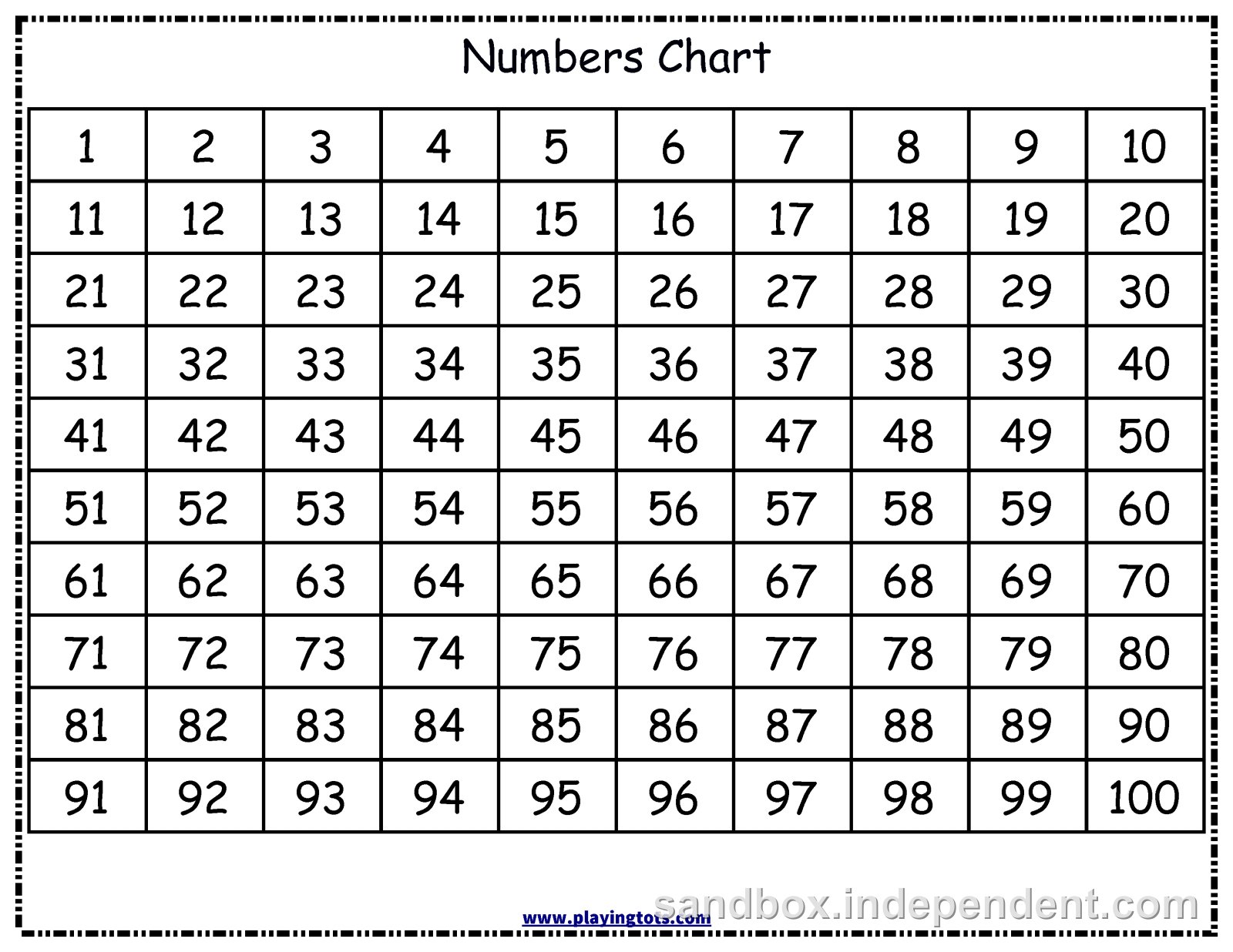
You've stumbled upon the blank 100 chart, a versatile tool often sought for its practical applications. This simple yet powerful chart serves as a reference guide, offering a structured layout that can be tailored to various needs. Whether you're seeking a quick numerical reference or aiming to teach counting and number recognition, the blank 100 chart provides a flexible foundation.
Understanding the Blank 100 Chart
The blank 100 chart is a versatile and simple tool, often used as an educational resource, particularly in mathematics. It provides a visual representation of numbers from 1 to 100, arranged in a grid format, with each number occupying its own square. This chart is a fundamental teaching aid, helping students grasp counting, number patterns, and basic mathematical operations.
Comparing Chart Formats and Standards
While the basic structure remains consistent, there are variations in the hundred chart depending on the educational context and region. Some charts feature a simple grid with numbers, while others may include additional elements like color-coding or mathematical symbols. For instance, a chart designed for younger learners might use colors to highlight number patterns or prime numbers. The number chart's format can also vary based on the educational standard being followed, such as the US Common Core or international curricula.
Using the Blank 100 Chart: A Step-by-Step Guide
- Obtain a blank grid suitable for your purpose. Ensure it has a clear and consistent layout, with each number easily identifiable.
- Familiarize yourself with the chart's structure. Typically, numbers increase from left to right and top to bottom.
- Use the chart for counting and number recognition. Point to each number as you count, helping students associate the written digit with its value.
- Teach number patterns and sequences. The hundred square format makes it easy to identify patterns, such as even and odd numbers, or counting by twos, fives, or tens.
- Introduce basic mathematical operations. The chart can visually represent addition and subtraction, helping students understand number lines and the concept of 'jumping' numbers.
- Encourage creative uses. The chart can be a starting point for various mathematical explorations, such as identifying prime numbers, creating number stories, or even simple data analysis.
Common Misconceptions and How to Avoid Them
- Blank 100 chart values are not absolute. While the chart provides a structured framework, it's important to remember that numbers can be represented in various ways, and different educational standards may have slight variations. Always double-check specific requirements or tolerances for your context.
- Avoid over-reliance on the chart. While it's a valuable tool, it should complement other teaching methods and not become the sole focus of mathematical learning. Encourage students to explore numbers and patterns beyond the chart's boundaries.
- Be aware of potential distractions. Some charts may include colorful designs or patterns, which can be engaging but might also distract certain learners. Choose a chart with a design that suits your students' needs and learning styles.
Remember, the blank 100 chart is a flexible resource, adaptable to various teaching approaches and student needs.
Remember, when working with any chart or guide, it's essential to tailor it to your unique needs. Double-check that the information and values you're using align with your specific context and requirements.
Feel free to explore our other resources and guides; we've got plenty of practical tips and tools to help you stay organized and efficient. Happy charting!
Related: Excel remove blank rows using filter and delete
You just pasted a big list into Excel and now half the rows are empty, so you need to excel remove blank rows quickly. You can start by using Excel’s filter to hide blank rows, which is the first step in excel remove blank rows.
First, select your data range and turn on the filter from the Data tab; then click the drop‑down arrow on any column header and uncheck the blank option to hide them. After you filter, you can delete the hidden rows, or copy the visible rows to a new sheet to finish the delete empty rows excel cleanup.
How to excel remove blank rows and keep data tidy
When you paste a large list into Excel, many rows can appear empty because of trailing spaces or hidden cells. Turning on the filter lets you hide those rows instantly. Using filter blank rows gives a quick visual check of which rows are truly blank.
After filtering, you have two options: delete the hidden rows or copy the visible rows to a new sheet. Both give a dataset without empty lines, which makes sorting and charting smoother. The delete empty rows excel command can be added to a toolbar for fast access.
If you prefer a one‑click delete, select the filtered rows, right‑click and choose Delete Rows, or use the Delete key after selecting the entire range.
If you work with a table, convert the range first; tables update automatically and keep blank rows out of future imports.
What you need before you start (Excel version and account)
The filter method works in Excel 2016 and newer, including Excel for Microsoft 365 and Excel 2019. If you are on an older version, you can still hide rows manually, but the built‑in filter arrow will not appear. Make sure the file is a workbook (.xlsx) and not protected, because protection blocks row deletion.
Before deleting, turn on the filter from the Data tab. In a Microsoft 365 corporate account, an admin may have disabled the filter. Ask the administrator to enable it or copy the data to a personal workbook where you have control.
If the filter still shows blank rows, check for hidden columns that contain data; unhide them before filtering to ensure all empty rows are detected.
For very large sheets, consider splitting the data into multiple workbooks; each smaller file loads faster and reduces filter lag.
Step‑by‑step method to delete empty rows
Use the filter to hide blank rows, then delete them in Excel quickly.
- Select any cell in your data range and click Filter on the Data tab to show dropdown arrows.
- Click a column dropdown, scroll to the bottom, and uncheck the blank option; repeat for any other column you want to filter.
- Excel will hide rows with no data in the selected columns. Verify that only the rows you need remain visible.
- To delete the hidden rows, select the row numbers, right‑click and choose Delete Rows, or press Delete after selecting the entire row range.
- If you prefer not to delete, copy the visible rows to a new sheet by selecting, copying, and pasting them into a blank workbook for backup.
Save the workbook to keep the changes. Your data now contains only rows with actual content.
Why it may not work and what to check
If blank rows still appear after filtering, check these common causes in Excel quickly before trying other methods to save time.
- Make sure the column you filter actually contains data; an empty column will not show the blank option.
- Verify the filter dropdown arrow is visible; a missing arrow means the filter is disabled for that sheet.
- If the workbook is protected, you cannot delete rows; unprotect it via the Review tab before proceeding.
- Trailing spaces can hide data from the filter; run trim whitespace excel on the column to remove them.
- Hidden columns may contain data; unhide them before filtering so the blank rows become visible and can be removed.
After fixing the issue, run the filter again to confirm no blank rows remain, then save the file.
If you still see blank rows, try sorting the column; sorted order often reveals hidden empty cells that the filter missed.
Safer alternative and how to prevent blank rows next time
A more durable way to excel remove blank rows is to convert your range into an Excel table. Tables automatically expand when you add data and have a built‑in filter that shows only non‑blank rows, so you never have to repeat the cleanup process.
To avoid blank rows in the first place, clean the source data before pasting: use Find & Select > Replace to remove extra spaces, then paste into the sheet. After pasting, run the Remove Blank Cells command from the Home tab to purge any lingering empty rows. Keeping a table and refreshing its data range also prevents stray blank lines from reappearing.
Flag blanks in a helper column, filter, and delete rows in one step.
Menus can look a bit different depending on your Excel version, so if something doesn’t match the screenshots just hunt for the similar command. You can also browse other quick Office tips for more handy tricks.
If this helped, feel free to bookmark the page for the next time you need to clean up blank rows.