



Coloring Pages For Fall Overview
The Art of Budgeting: Mastering Your Finances
Understanding the Basics of Budgeting
Budgeting is the foundation of financial health. It involves tracking income, categorizing expenses, and allocating funds to meet both short-term needs and long-term goals. A well-structured budget ensures you live within your means, save consistently, and avoid debt. The core principle is simple: spend less than you earn. However, the execution requires discipline and a clear plan.
Start by listing all sources of income, including salary, side gigs, or investments. Next, categorize expenses into fixed (rent, utilities) and variable (groceries, entertainment). Use tools like spreadsheets, apps, or notebooks to track spending. The 50/30/20 rule is a popular framework: 50% for needs, 30% for wants, and 20% for savings and debt repayment.
Creating a Realistic Budget Plan
A realistic budget aligns with your lifestyle and financial goals. Begin by analyzing past spending to identify patterns. For instance, if you spend $400 monthly on dining out, allocate that amount but consider reducing it gradually. Prioritize essentials like housing and food before discretionary spending.
Worked Example:
Imagine your monthly income is $4,000. Using the 50/30/20 rule:
- Needs (50%): $2,000 (e.g., $1,200 rent, $300 utilities, $500 groceries).
- Wants (30%): $1,200 (e.g., $400 dining, $300 entertainment, $500 shopping).
- Savings/Debt (20%): $800 (e.g., $500 emergency fund, $300 student loan).
Adjust categories based on your priorities. For example, if you’re saving for a house, reduce wants and increase savings.
Common Mistake: Overestimating Income or Underestimating Expenses
A frequent error is assuming consistent income or overlooking irregular expenses. For instance, freelancers might base their budget on a high-income month, only to struggle during slower periods. Similarly, forgetting annual expenses like insurance premiums can derail your plan.
Fix: Use your lowest consistent income as the baseline. For irregular expenses, divide the annual cost by 12 and set aside that amount monthly. Example: A $600 annual car insurance policy requires saving $50 monthly.
Tracking and Adjusting Your Budget
Budgeting isn’t a set-it-and-forget-it task. Regularly monitor your spending to ensure you stay on track. Weekly check-ins help catch overspending early. If you consistently exceed a category, reassess its allocation or cut back in another area.
Tools for Effective Budgeting
Leverage technology to simplify budgeting. Apps like Mint, YNAB, or Excel templates automate tracking and provide insights. For manual tracking, a notebook or bullet journal works well. The key is consistency—choose a method that fits your lifestyle.
Budgeting for Irregular Income
If your income varies, budgeting requires extra planning. Calculate your average monthly income over the past year and use that as your baseline. Allocate funds to a savings buffer during high-income months to cover lows.
Example:
If your monthly income ranges from $2,500 to $4,500, average it to $3,500. Save the surplus during high-income months in a separate account.
Common Mistake: Neglecting Emergency Funds
Many budgets focus on daily expenses but ignore emergencies. Without a safety net, unexpected costs like car repairs can lead to debt.
Fix: Prioritize building an emergency fund covering 3-6 months of living expenses. Start small—even $20 weekly adds up over time.
Budgeting for Long-Term Goals
Incorporate long-term goals like retirement, homeownership, or education into your budget. Use retirement accounts (e.g., 401(k), IRA) and high-yield savings for specific goals.
Example:
To save $20,000 for a down payment in 5 years, allocate $333 monthly. Adjust for interest or investment returns if applicable.
Dealing with Debt in Your Budget
Debt repayment should be a priority. Use the debt snowball (pay smallest debts first) or avalanche (pay highest-interest debts first) method. Allocate at least the minimum payments in your budget, with extra funds toward high-interest debt.
Common Mistake: Ignoring Small Expenses
Daily coffee or subscription services can add up quickly. These small expenses often go unnoticed but significantly impact your budget.
Fix: Track every expense, no matter how small. Cut non-essential subscriptions and limit impulse purchases.
Budgeting as a Family
Family budgeting requires collaboration. Hold regular financial meetings to discuss goals and progress. Teach children about money management by involving them in budgeting decisions.
Example:
Allocate $100 monthly for family outings and let kids decide how to spend it within that limit.
Adapting Your Budget Over Time
Life changes—new jobs, marriages, or children—require budget adjustments. Review your budget quarterly to reflect new circumstances.
Common Mistake: Being Too Rigid
A budget that’s too restrictive leads to frustration and abandonment. Allow flexibility for occasional treats or unexpected needs.
Fix: Include a "miscellaneous" category for unplanned expenses or occasional indulgences.
The Psychological Aspect of Budgeting
Budgeting isn’t just about numbers; it’s about mindset. Celebrate small wins, like paying off a credit card, to stay motivated. View budgeting as a tool for freedom, not restriction.
Example:
Reward yourself with a movie night after sticking to your budget for three months.
Budgeting for Special Occasions
Plan for holidays, birthdays, or vacations in advance. Set aside a small amount monthly to avoid financial stress during these events.
Example:
For a $1,000 holiday budget, save $83 monthly starting in January.
Common Mistake: Relying on Credit for Budget Shortfalls
Using credit cards to cover budget gaps leads to debt accumulation. Interest charges compound the problem, making repayment harder.
Fix: Reduce expenses or increase income to cover shortfalls. If necessary, use a 0% interest credit card temporarily but pay it off before the promotional period ends.
Budgeting for Retirement
Start early to maximize retirement savings. Contribute to employer-matched plans and explore tax-advantaged accounts like Roth IRAs.
Example:
If your employer matches 5% of your salary, contribute at least that amount to get the full benefit.
Final Thoughts on Budgeting
Budgeting is a dynamic process that evolves with your life. Stay committed, be flexible, and focus on progress, not perfection. With time, it becomes second nature, paving the way for financial security and peace of mind.
Related: excel sum formula easy guide for fast totals
Understanding the Excel Sum Formula
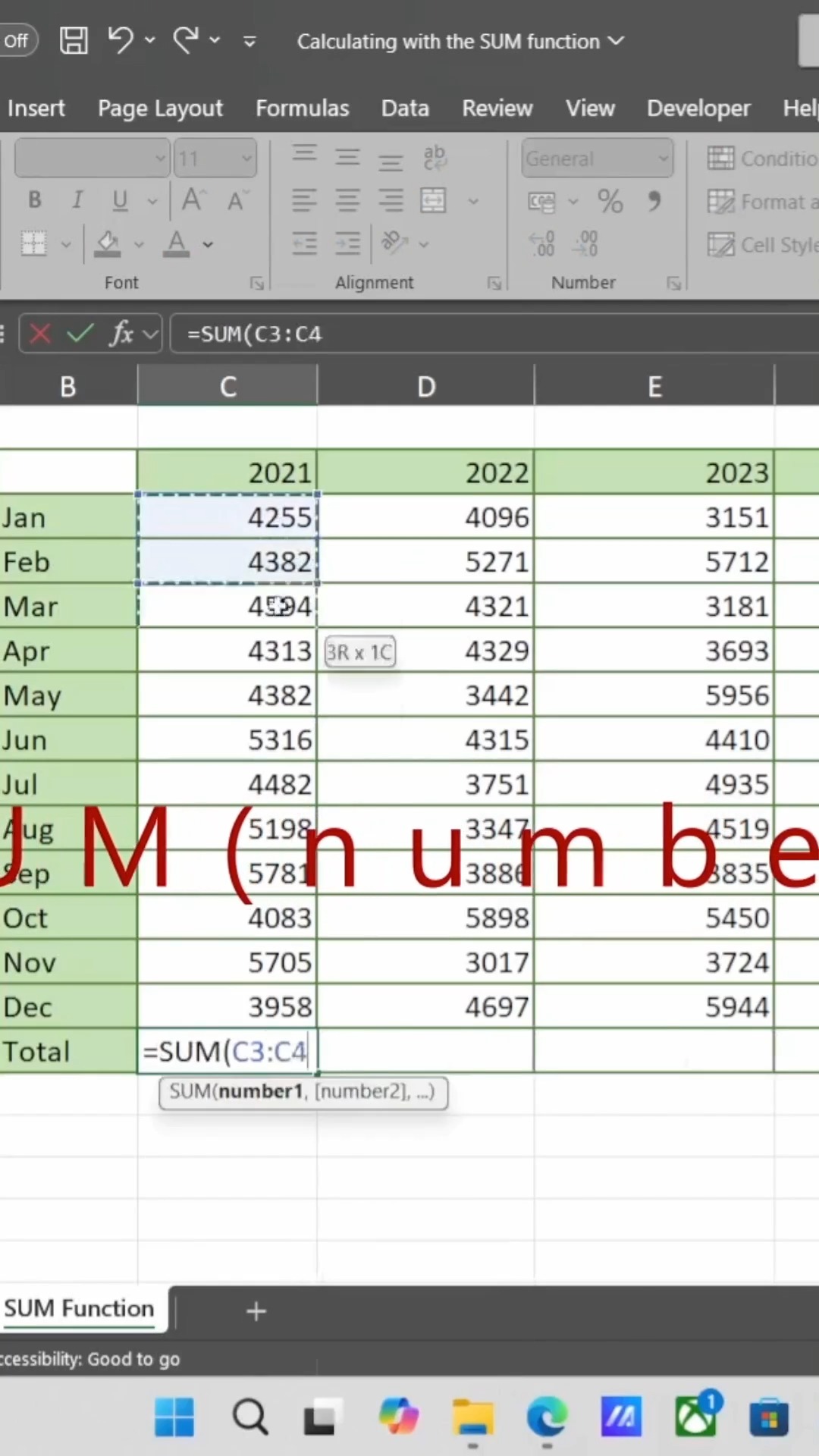
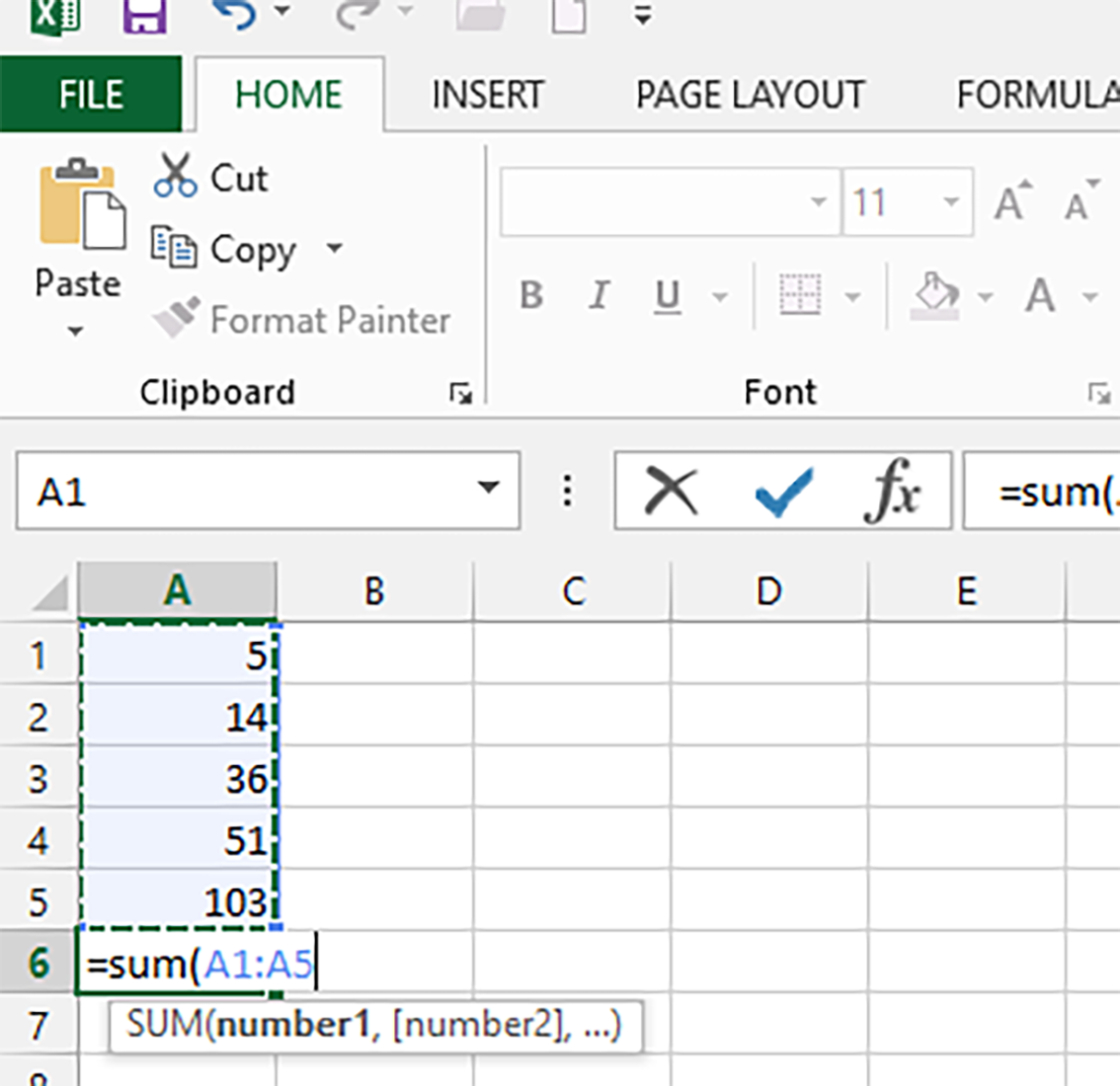
The Excel Sum Formula is an essential tool for any Excel user, providing a simple yet powerful way to calculate sums and totals. Its versatility allows users to perform basic arithmetic operations and more advanced calculations with ease. By understanding and utilizing this formula, you can transform raw data into valuable insights, aiding in decision-making processes.
When employing the Excel Sum Formula, you initiate a series of calculations that aggregate data based on your specified criteria. This formula is particularly useful when dealing with large datasets, as it automates the process of adding up values, saving time and reducing the risk of errors. For instance, consider a scenario where you have a dataset containing sales data for various products over a month. You want to calculate the total sales for each product to identify the top-performing ones. The Excel Sum Formula comes to the rescue, allowing you to quickly sum up the sales figures for each product, providing a clear overview of your sales performance.
A Practical Example
Let's dive into a real-world application of the Excel Sum Formula in the context of a sales analysis. Imagine you're a marketing analyst, and you have a spreadsheet with columns for "Product", "Units Sold", and "Price per Unit". You want to calculate the total sales for each product to determine which products are performing well.
Here's a step-by-step guide:
- In a new column, labeled "Total Sales", input the formula
=SUM(Units Sold Price per Unit). - Ensure that the formula correctly references the "Units Sold" and "Price per Unit" columns. For example, if your data starts in row 2, the formula could be
=SUM(B2:B100C2:C100)where B and C represent the columns for "Units Sold" and "Price per Unit" respectively. - Drag the formula down to apply it to each row, calculating the total sales for each product.
Now, you have a column with the total sales for each product, allowing you to identify the top-selling products and make informed decisions regarding marketing strategies.
Common Mistake and How to Avoid It
One common mistake when using the Excel Sum Formula is failing to use absolute references when copying formulas across rows or columns. This can lead to incorrect calculations as the formula may reference unintended cells.
To avoid this mistake, use absolute references by adding a dollar sign ($) before the column and row references. For instance, if you want to lock the reference to column A and row 2, you would use $A$2. This ensures that when you copy the formula, it always refers to the same cell, regardless of its position in the spreadsheet.
Enhancing Your Excel Skills
Excel offers a wide range of features to enhance your data analysis capabilities. One such feature is the drop-down list, which can greatly improve the usability of your spreadsheets. By creating a drop-down list using the Data Validation feature, you can allow users to select from a predefined list of options, reducing data entry errors and ensuring consistency.
Additionally, the IF function is a powerful tool for conditional calculations. This function allows you to check a condition and return different values based on whether the condition is true or false. For example, you can use the IF function to highlight cells that meet certain criteria, automate data validation, or perform dynamic calculations based on specific conditions.
Final Thoughts
The Excel Sum Formula is a fundamental tool for data analysis, offering a simple and efficient way to calculate sums and totals. Its versatility and ease of use make it an indispensable skill for anyone working with data. As you continue to explore Excel's capabilities, you'll discover a wealth of advanced functions and features that will further enhance your data analysis skills. Remember, practice and experimentation are key to mastering Excel, so don't hesitate to dive deeper into its vast toolkit. Happy spreadsheeting and happy data analysis!
Related: How to apply the excel multiply formula for totals?
The excel multiply formula is the basic way to multiply numbers in Excel. This post shows how to use it for single cells, ranges, and simple constants.
You can apply it to multiply a column by a constant or combine it with IF for conditional calculations. If your workbook uses different versions, the syntax stays the same, though some newer functions may be available. Try the shortcut Ctrl+Shift+U to see the formula in action.
Multiply Cells, Ranges, and Constants with the excel multiply formula (asterisk operator usage)
The excel multiply formula lets you multiply a single cell, a range, or a constant using the asterisk () operator. It works the same in all Excel versions and updates instantly after pressing Enter.
To multiply a column, type the formula in the top cell and drag the fill handle down. For large ranges, a dynamic array formula can avoid manual dragging.
Combine the formula with IF for conditional multiplication, e.g., =IF(A2>10, A22, A21). In older Excel, press Ctrl+Shift+U to view the formula in the formula bar.
Requirements Before Using the excel multiply formula (apply to column)
Before you start, ensure your Excel version supports the features you need. Excel for Microsoft 365 and Excel 2019 include the full set of array functions.
All cells should contain numeric values; text will cause a #VALUE! error. If a cell might be blank, wrap the multiplication in IF to provide a default value.
Basic multiplication needs no special subscription. For newer functions like MUL, a Microsoft 365 subscription is required; check workbook trust settings if security prompts appear.
Step-by-Step Guide to Multiply a Column by a Constant
Follow these steps to multiply a column by a constant using the basic formula. The method works across Excel for Windows, Mac, and the web with minor UI differences.
- Select the column you want to multiply by clicking the column header.
- In the first cell of the column, type the constant followed by an asterisk and then the first cell reference, such as =5A2.
- Press Enter to calculate the result, then click the fill handle and drag down to copy the formula.
- For a dynamic array, use =MUL(A2:A100, 3) in Microsoft 365 or enter the array formula with Ctrl+Shift+U in older Excel.
You can also combine the excel multiply formula with IF for conditional results, e.g., =IF(A2>10, A22, A21). Ensure each part returns a number to avoid #VALUE! errors.
In older Excel, press Ctrl+Shift+U after typing the array formula to enclose it in braces. This tells Excel to treat the formula as an array operation.
Common Reasons the excel multiply formula Returns #VALUE! (zero value handling)
The #VALUE! error often appears when Excel cannot perform the multiplication because of incompatible data types. Checking the cells involved is the first step to resolve the issue. A quick way to test is to use ISNUMBER on each operand; if it returns FALSE, the cell likely contains text.
Another common cause is referencing a blank cell without a default value. Blank cells are treated as zero, which can be acceptable, but sometimes you want a specific result instead. Wrapping the multiplication in IF with a condition such as =IF(A2="",0,A2B2) avoids unexpected zeros.
- A cell contains text instead of a number.
- The formula references a blank cell, resulting in zero.
- An array formula was entered without using Ctrl+Shift+U in older Excel.
- Circular reference prevents calculation.
- Using a range that includes a header label that is text.
If the error persists after checking the cells, try saving the workbook and reopening Excel to clear any cached formula issues.
To fix the issue, convert text to numbers using Data > Text to Columns or by adding 0 to the cell, and ensure array formulas are entered with the proper shortcut. After correction, re-enter the formula and verify the result updates correctly.
Use a Dynamic Array Formula to Multiply Entire Ranges (dynamic array formula)
When you need to multiply a whole range without dragging, a dynamic array formula provides a cleaner solution. In Microsoft 365, you can use =MUL(A2:A100, 3) to multiply each element of the range by 3 and spill the results automatically. This approach eliminates the need to copy the formula manually and reduces the chance of misalignment.
If you prefer a formula that automatically expands, consider using the newer excel multiply formula with array handling, such as =MUL(A2:A100, 3). Make sure your Excel version supports the MUL function; otherwise, use the traditional =A2:A1003 array formula entered with Ctrl+Shift+U. Both methods produce the same result but differ in syntax and availability.
Another quick method is to use Paste Special to multiply a selection of cells by a constant without writing a formula. Copy the constant to the clipboard, select the range, right-click and choose Paste Special > Multiply, then OK. This technique is useful for one‑off calculations and avoids formula errors entirely.
Menus can look a bit different depending on your Excel version, but the core steps stay the same. If you’d like more Office tips, feel free to explore the other how‑to articles.
Next time you need to multiply a column, bookmark this page so you can get back to it quickly.