




Coloring Pages Of Sharks Overview
Need to know how to change outlook signature? This post walks you through the basics in a few easy steps.
You’ll learn where to find the signature settings, how to edit Outlook signature, and how to set an Outlook default signature for new messages. The steps are similar across recent versions, though some menu labels may vary slightly.
Quick answer: how to change outlook signature and add new signature
You can quickly add a new signature in Outlook with just a few clicks. how to change outlook signature works whether you use the desktop app or Outlook on the web.
The feature is limited to Microsoft 365 or Exchange accounts; POP/IMAP setups do not support signatures at all. If you see a warning that your account cannot use signatures, you need to switch to a supported account type.
In Outlook desktop, open File > Options > Mail and click Signatures…; in Outlook on the web, go to Settings > View all Outlook settings > Mail > Compose and reply. Outlook default signature is stored in that location and can be edited anytime.
Compare methods by version: edit existing signature for Outlook on the web and Outlook desktop app
The desktop Outlook for Windows has a dedicated Signatures dialog where you can edit existing signature with rich formatting, images, and hyperlinks. You can also set a default signature for new messages, replies, or forwards from the same pane.
Outlook on the web places the signature in a plain‑text box under Mail settings, and changes sync automatically to all signed‑in devices. The web version renders HTML, so spacing may look slightly different from the desktop client.
Outlook for Mac uses a similar Signatures pane in Preferences > Mail, letting you create and edit signatures with the same options as Windows. Export the signature as an .htm file to move it between platforms without losing formatting.
Step-by-step guide: edit existing signature in Outlook on the web compose window
This guide applies to Outlook for Windows and Outlook for Microsoft 365; the steps are identical. You need an Exchange or Microsoft 365 account, otherwise the Signatures button is hidden.
- Open Outlook and click File > Options > Mail.
- Click the Signatures… button to open the Signatures dialog.
- Select an existing signature to edit, or click New to create one.
- Edit the text, insert images, add hyperlinks, and format as desired.
- Under Choose default signature, set it for New messages and/or Replies/Forwards.
- Click OK to save your changes and close the dialog.
After saving, compose a new email to confirm the signature appears at the bottom; test a reply to see the reply‑signature behavior. If it doesn’t show, revisit the steps and verify the correct account is selected in the Signatures dialog.
Common mistakes and fixes: signature not appearing
A common slip is assigning a signature only for replies and forgetting to set it as the default for new messages; always verify both options in the Signatures dialog. The Outlook default signature setting is where you confirm the choice.
If the signature does not appear in Outlook on the web, open Settings > View all Outlook settings > Mail > Compose and reply and make sure the signature box is filled. It sometimes hides behind the More actions menu, so expand that section before saving.
Signatures are unavailable on POP/IMAP accounts, so switch to an Exchange or Microsoft 365 account if you see a notice. Images may be blocked for security; re‑insert them and allow inline attachments, or use plain text if the recipient’s client does not support HTML.
Prevent future issues: Outlook desktop app signature management
Keep your signature in one .htm file and import it on each PC to maintain consistent formatting. Copying the Outlook web app signature from the web version into the desktop compose window also works.
After a Windows or Office update, open the Signatures dialog and verify that your default signature is still selected; a new install can clear the selection. A quick monthly check prevents unexpected missing signatures in important messages.
For teams, ask IT to deploy a standard signature via Group Policy or the Microsoft 365 admin center; this ensures everyone uses the approved branding and legal text. Admins can also lock the signature settings so users cannot modify them.
When moving to Outlook on the web, export the desktop signature as an .htm file and paste it into the web compose box; this preserves tables, images, and hyperlinks. Preview the signature to confirm formatting before sending.
Finally, test your signature on several devices and email clients to ensure it appears as intended; adjust the content or switch to plain text if needed. how to change outlook signature becomes routine once you have a reliable workflow in place.
Menus can look a bit different depending on which version of Outlook you’re using, so don’t be surprised if things shift around a little.
If you liked this tip, take a look at the other Microsoft Office guides on the site for more quick fixes and how‑tos.
Related: Custom Home Renovations Essential Guide
"Wow, this house is looking a little tired. I'd love to give it a fresh, custom home renovation, but where do I start?"
All About Custom Home Renovations
Custom home renovations are all about transforming your living space to fit your unique needs and style. It's a big project, but the results can be amazing! Whether you're looking to modernize an old home, add an extension, or completely redesign a room, renovations offer a chance to create something truly special.
The process involves a few key steps. First, you'll need to plan and design your renovation. This is where you decide on the scope of work, choose materials and finishes, and create a budget. It's important to be clear on your vision and communicate this to your chosen contractor or builder.
Finding the Right Contractor
Hiring a contractor is a crucial step. You'll want to find a reliable, experienced professional who understands your vision. Check their qualifications, ask for references, and ensure they're licensed and insured. Get multiple quotes and compare them based on cost, timeline, and the level of detail provided. A good quote should cover all aspects of the job, including materials, labor, and any potential extra costs.
Costs and Budgeting
The cost of custom home renovations can vary widely. It depends on factors like the size and complexity of the project, the materials used, and labor costs in your area. To keep costs down, consider doing some of the simpler tasks yourself, like painting or basic plumbing. But for more complex work, it's best to hire professionals to ensure a safe and high-quality job. Always get written quotes and compare them to stay within your budget.
Construction and Project Management
Once you've hired a contractor, the construction phase begins. This is where the magic happens! Your contractor will manage the project, coordinate with subcontractors, and ensure the work is completed to a high standard. They'll also handle any necessary permits and inspections. It's important to stay in touch with your contractor during this phase to discuss any changes or concerns.
Company Names and Branding
If you're in the construction business, choosing a company name is key. A good name should be memorable, unique, and reflect your brand. It should also be easy to search for online. Here are a few ideas:
- Build-It-Right
- Home Transformations
- Custom Creations
- Modern Renovations
Remember to check name availability and secure your domain and local registration.
Industry Tools and Data
In the construction industry, tools like RSMeans provide valuable cost estimating data. These resources help contractors and estimators price jobs accurately. They consider factors like labor rates, material costs, and local market conditions. It's a great way to ensure fair pricing and stay competitive.
Construction Jobs and Salaries
The construction industry offers a range of roles, from general contractors to specialized tradespeople. Salaries vary depending on experience, qualifications, and the type of work. Estimators, for example, play a crucial role in pricing projects accurately. They use tools like cost databases and escalation indexes to provide accurate quotes.
Large vs. Small Companies
The construction industry has a mix of large and small companies. Large firms often have more resources and can take on bigger projects, but they may be less flexible. Smaller companies can offer more personalized service and may be better suited to smaller, custom jobs. It's a matter of finding the right fit for your project.
So, if you're thinking of a custom home renovation, take the time to plan, research, and find the right team. It's an exciting process that can transform your home and create a space you'll love.
Related: Understand Bucks Depth Chart Easily
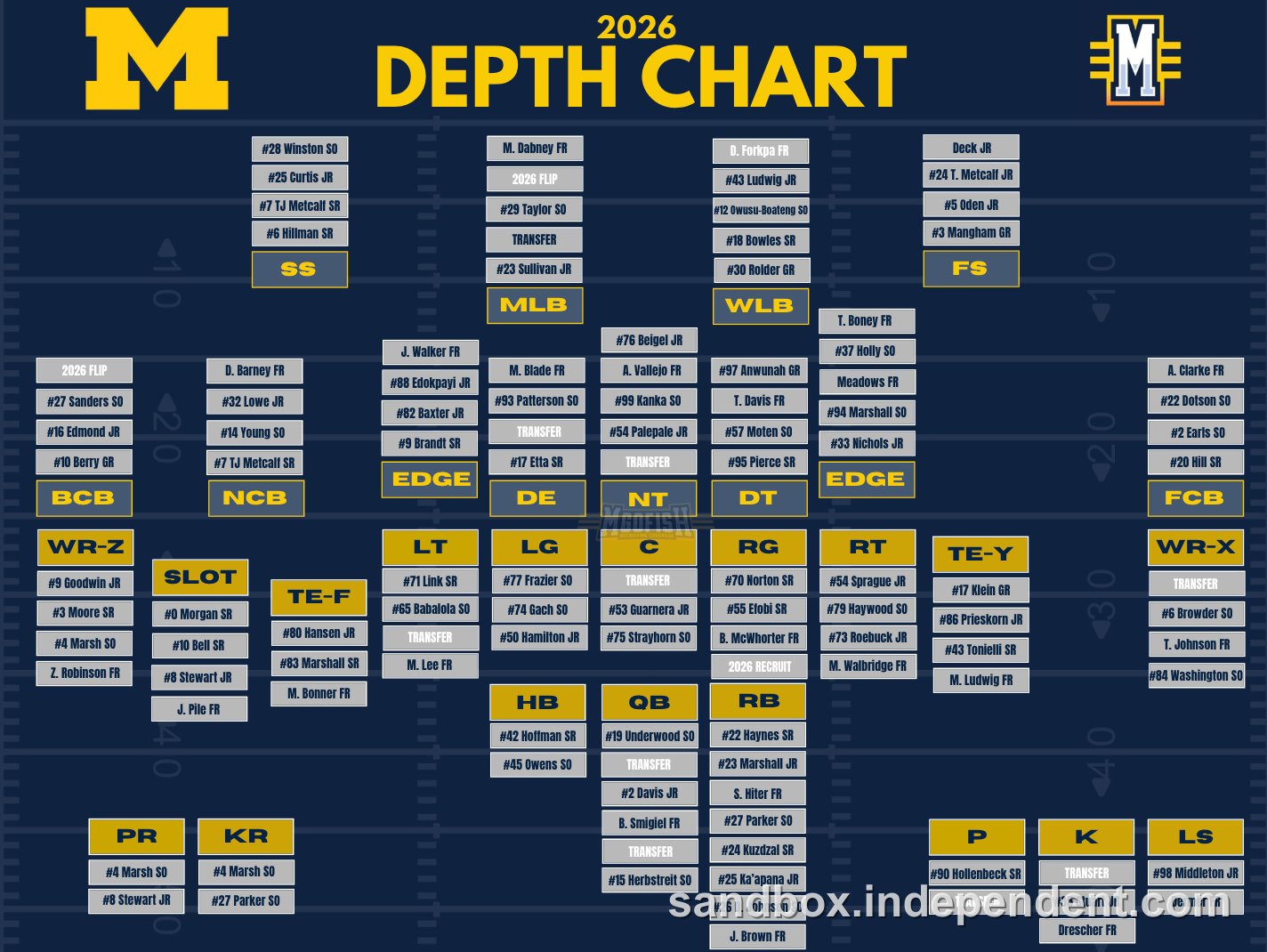
A bucks depth chart is a valuable tool for basketball enthusiasts and analysts, offering a concise snapshot of a team's player lineup and its strategic depth. This guide aims to demystify the chart's structure and content, ensuring you can quickly grasp its insights and applications.
The depth chart provides an at-a-glance view of a team's roster, player positions, and often includes notes on rotation strategies and injury reports. While the specific format and details may vary, the core purpose remains consistent: to present a clear, organized overview of a team's player resources and potential lineups.
Understanding the Bucks Depth Chart
The Bucks depth chart is a valuable tool for basketball enthusiasts and analysts, providing a clear visual representation of the team's player lineup and their respective positions. This chart offers insights into the team's strategy and helps predict potential game dynamics.
Key Details and Categories
A Bucks depth chart typically displays the following:
- Player Positions: Each player is assigned a specific position, such as point guard, shooting guard, small forward, power forward, or center. These positions define their roles and responsibilities on the court.
- Starting Lineup: The five players who begin the game are listed first, indicating the team's initial strategy and key players.
- Reserves: The depth chart also includes a list of substitute players, often referred to as the bench, who provide depth and flexibility to the team's lineup.
- Player Numbers: Each player is assigned a unique number, which helps identify them on the court and in the chart.
Reading and Applying the Depth Chart
To effectively read and interpret a Bucks depth chart, follow these steps:
- Start with the Starting Lineup: Identify the five players who are listed first. These are the players who will begin the game and are often the team's key performers.
- Analyze Player Positions: Understand the roles and responsibilities associated with each position. For instance, a point guard typically handles the ball and directs the offense, while a center focuses on rebounding and defending the paint.
- Assess Depth: Pay attention to the number of players listed under each position. A deeper roster suggests more options and flexibility for the coach during the game.
- Study the Reserves: The bench players can provide valuable insights. Look for players with specialized skills or those who excel in specific situations, such as defensive specialists or three-point shooters.
- Consider Injuries and Absences: Bucks depth charts may need adjustments due to player injuries or absences. Check for any notes or updates indicating changes to the lineup.
Variations and Differences
Bucks depth charts can vary based on several factors:
- Coaching Philosophy: Different coaches may prefer certain player combinations or strategies, leading to unique depth chart arrangements.
- Player Performance: The depth chart may change based on player performance and chemistry. Coaches might adjust lineups to accommodate hot streaks or address weaknesses.
- Opponent Strategy: The Bucks may tailor their depth chart to counter specific opponents, especially in playoff scenarios.
- Injuries and Health: Player availability due to injuries or health concerns can significantly impact the depth chart.
Common Mistakes and How to Avoid Them
When interpreting a Bucks depth chart, avoid these common pitfalls:
- Overlooking Reserves: Don't focus solely on the starting lineup. The bench players can be game-changers, so pay attention to their skills and potential impact.
- Ignoring Position Flexibility: Some players can play multiple positions. Be aware of this flexibility, as it can provide the team with strategic advantages.
- Assuming Consistency: Depth charts can change rapidly, especially during a long season. Always check for the latest updates to ensure you have accurate information.
- Neglecting Context: Consider the context of the game, such as the venue, opponent, and specific game situation. The depth chart may be adjusted based on these factors.
Remember, the Bucks depth chart is a dynamic tool, and understanding its nuances can enhance your appreciation of the team's strategy and performance.
Well, there you have it, a comprehensive guide to understanding the Bucks Depth Chart. Remember, while this chart provides a solid framework, it's always wise to check for any specific variations or updates relevant to your unique situation.
Feel free to explore our other resources and guides; we've got a wealth of practical information to help you navigate various topics. Happy learning, and don't forget to adapt and adjust as needed!