



Flashcards For Spanish Overview
You just hit Send on an Outlook message and realized you need to schedule email outlook. The option works in most recent Outlook versions, though some steps may differ depending on your account type.
Open the email, click the three-dot menu, and choose Outlook send later to pick a date and time. After you set the time, the email will sit in the Outbox until it sends automatically.
Quick answer: use the send later option to schedule email Outlook (limits apply)
If you prefer a one‑time delay, the classic delayed delivery setting can be used instead of the newer Send Later option. It works the same way by placing the message in the Outbox until the chosen time.
The Send Later feature requires a Microsoft 365 or Exchange account; it is not available for POP/IMAP accounts. This limitation ensures the email server can handle the scheduled delivery.
You can schedule email Outlook by selecting the Send Later command from the message’s three‑dot menu. The option appears after you click the three‑dot icon in the compose window.
After you set the time, the email remains in the Outbox and is sent automatically at the scheduled moment. You can edit or cancel the schedule before it sends by opening the Outbox. If you change your mind, simply delete the message from the Outbox to cancel the scheduled send.
Methods compared by Outlook version and platform
New Outlook for Windows shows a Send Later button on the ribbon, while classic Outlook hides it behind the three‑dot menu. Both work the same way but the button location differs. The feature is available in all recent Outlook versions, including the web app.
Outlook for Mac shows the Schedule Send option in the compose window’s toolbar. The workflow is identical: pick a date and time, and the message waits in the Outbox.
In the Outlook web app, the Schedule send button appears below the message body, allowing you to pick a future date and time. This works for any Microsoft 365 or Exchange account signed in to the browser.
Exchange accounts support Send Later and delayed delivery; POP/IMAP accounts cannot schedule future sends. Ensure your account type matches the requirements before using it.
Step-by-step: use the Send Later option to schedule email Outlook
Follow these steps to schedule email Outlook using Send Later. The process works in Outlook for Windows, Mac, and the Outlook web app.
- Compose your message, filling in the recipient, subject, and body. This prepares the email for the scheduled send.
- Click the three‑dot menu (or the Send Later button) and choose “Send Later.” Selecting this option opens the date picker for scheduling.
- Select a date and time using the calendar picker for delivery. Confirming the selection sets the email to send at the chosen moment.
- Confirm your choice; the email will stay in the Outbox until the scheduled time. You can edit or cancel the schedule before it sends by opening the Outbox.
To change the time, open the Outbox, double‑click the message, adjust the date or time, and save. Cancelling means deleting the message from the Outbox.
Common mistakes and fixes for scheduled email Outlook
Choosing a time in a different zone than Outlook expects can cause the email to send too early or too late. Verify the picker shows your local zone.
Trying to schedule email on a POP/IMAP account will result in an error because the server cannot hold the message for later delivery. Switch to a Microsoft 365 or Exchange account to enable the feature. If you see an error, double‑check that your account is set to Exchange or Microsoft 365 email.
If Outlook is offline when the scheduled time arrives, the email will remain in the Outbox until connectivity is restored. Ensure your computer has an active internet connection before the scheduled send time.
Clicking the regular Send button instead of Send Later can send the message immediately. Double‑check the button label before confirming.
Prevent future issues with Outlook scheduled emails
Create a recurring reminder in your calendar to review scheduled messages the day before they send. This habit helps you catch changes in recipient availability or content updates.
Update Outlook to the latest release so Send Later works and receives fixes. Updates bring consistency across Windows, Mac, and web versions. Regular updates also improve security and performance.
For teams that schedule many messages, use Outlook on the web to batch schedule emails. The web interface shows all scheduled items in one view for easier management.
When you view the Microsoft 365 calendar, scheduled emails appear as reminder items, giving you a visual cue for upcoming deliveries. You can also add the Send Later command to the Quick Access Toolbar for faster access without opening the menu.
Try the steps on a test email first to see how they work in your own Outlook. If the menus look a bit different depending on your version, the basic process stays the same.
Bookmark this page for the next time you need to schedule a message. If anything doesn’t go as expected, the tips above should help you get it sorted.
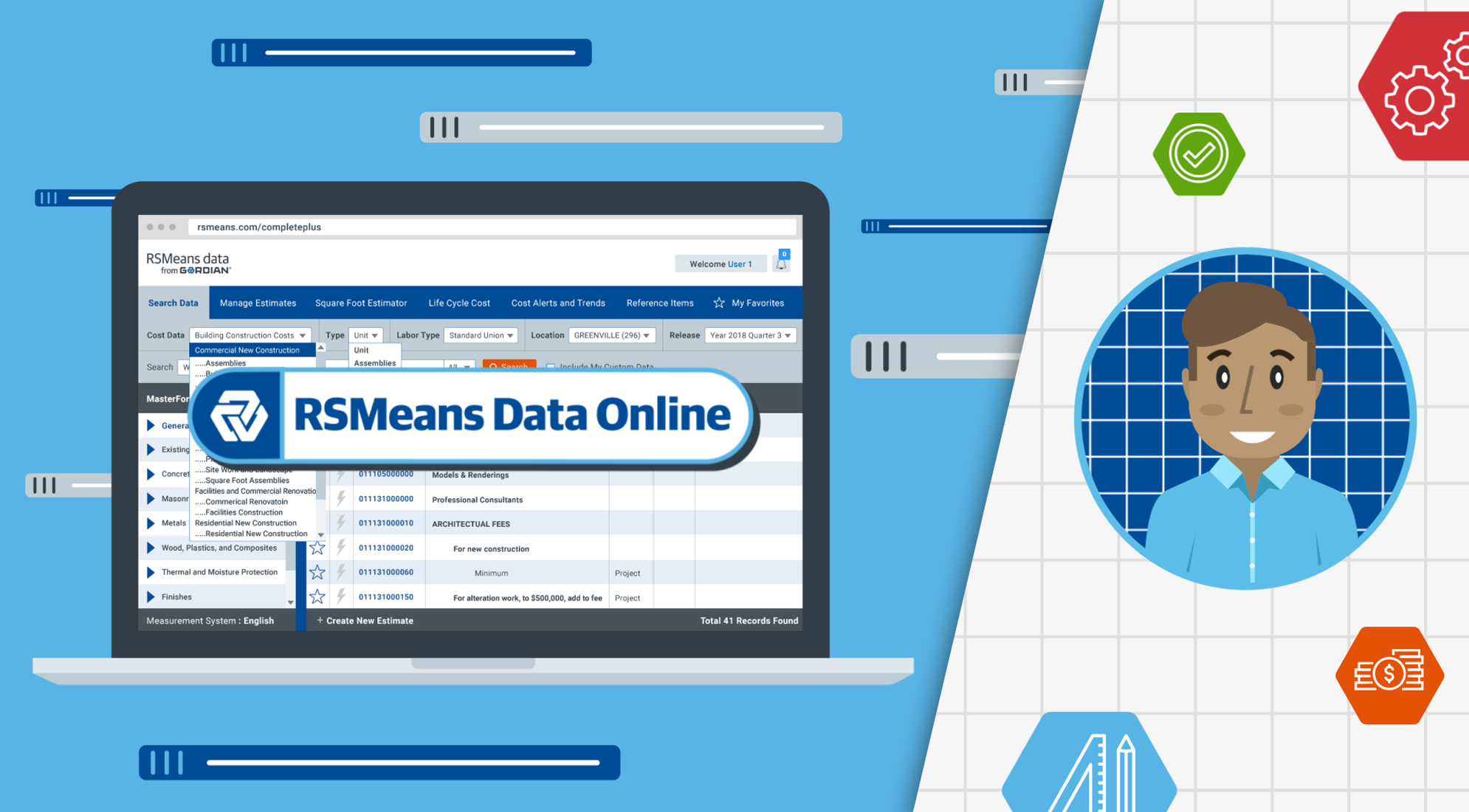
Related: RSMeans Construction Essential Guide For Builders
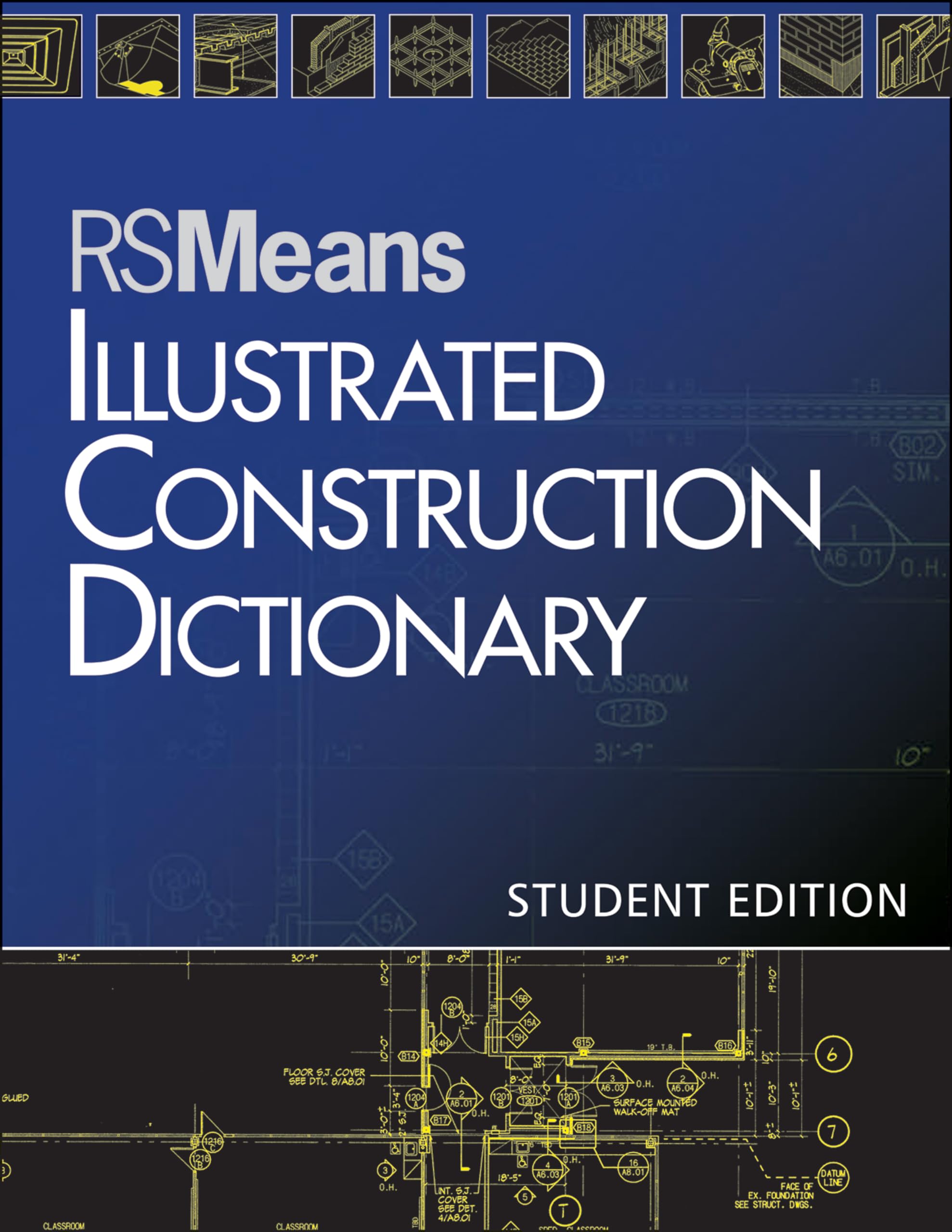
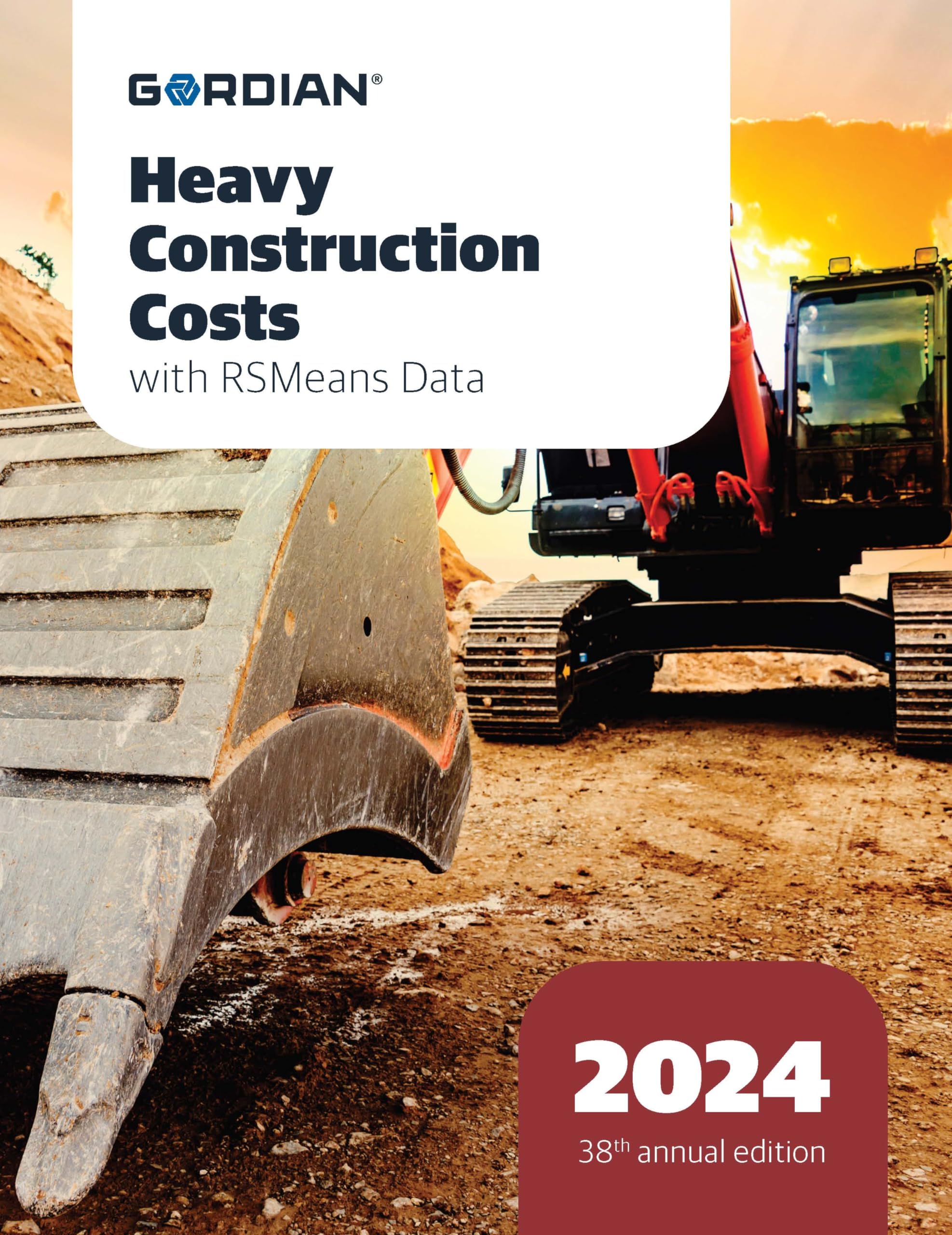
"rs means construction" is a phrase that might pop up when you're planning a home renovation or building project. It's a mouthful, but it's a useful tool for anyone wanting to understand construction costs. So, let's break it down and see what it's all about!
Understanding RSMeans and Construction Costs
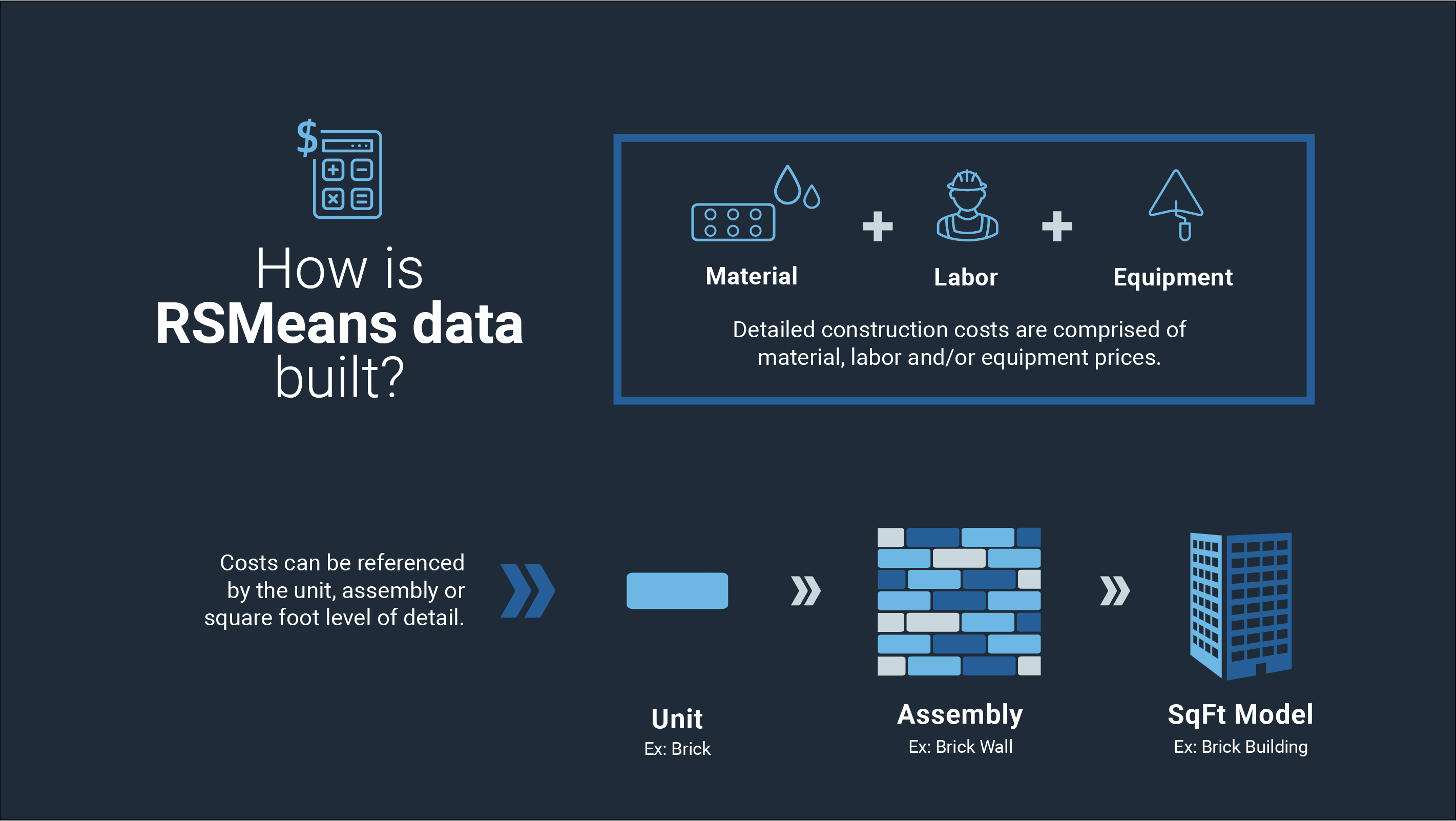
RSMeans is a database and resource for construction professionals and homeowners alike. It provides detailed information on construction costs, helping you estimate and plan your project's budget. This tool is a go-to for many in the industry, offering insights into labor, materials, and other expenses. It's especially handy for comparing quotes and ensuring you get a fair deal.
When using RSMeans, you can get a good idea of what your project might cost. It considers various factors like the size of the project, the materials you choose, and the local labor rates. This data helps you set a realistic budget and understand the costs involved. It's a great way to ensure you're not overspending or underestimating the expenses.
Hiring a Contractor: What to Look For
When it comes to hiring a contractor, RSMeans can be a valuable ally. It can help you understand the typical costs for your project, so you know if a quote is reasonable. Before hiring, always check the contractor's references and licenses. Ask for a detailed breakdown of the costs and what's included in the quote. A good contractor will be transparent and provide this information.
You should also consider the scope of the project and whether the contractor has experience with similar work. Don't be afraid to ask questions and get a clear picture of what you're paying for. It's your project, and you want to ensure it's done right!
Construction Company Names and Branding
Naming a construction company is an important step. It's the first impression you give to potential clients and should reflect your business's values and services. A good name is memorable, unique, and gives a hint at what you do. For example, "BuildStrong", "Renovate Right", or "HomeCrafters" are catchy and descriptive.
When choosing a name, consider registering it and checking domain availability. You want to ensure your online presence is secure and that your name isn't already taken locally. It's a small but crucial step in building your brand and standing out in a competitive industry.
Jobs and Opportunities in Construction
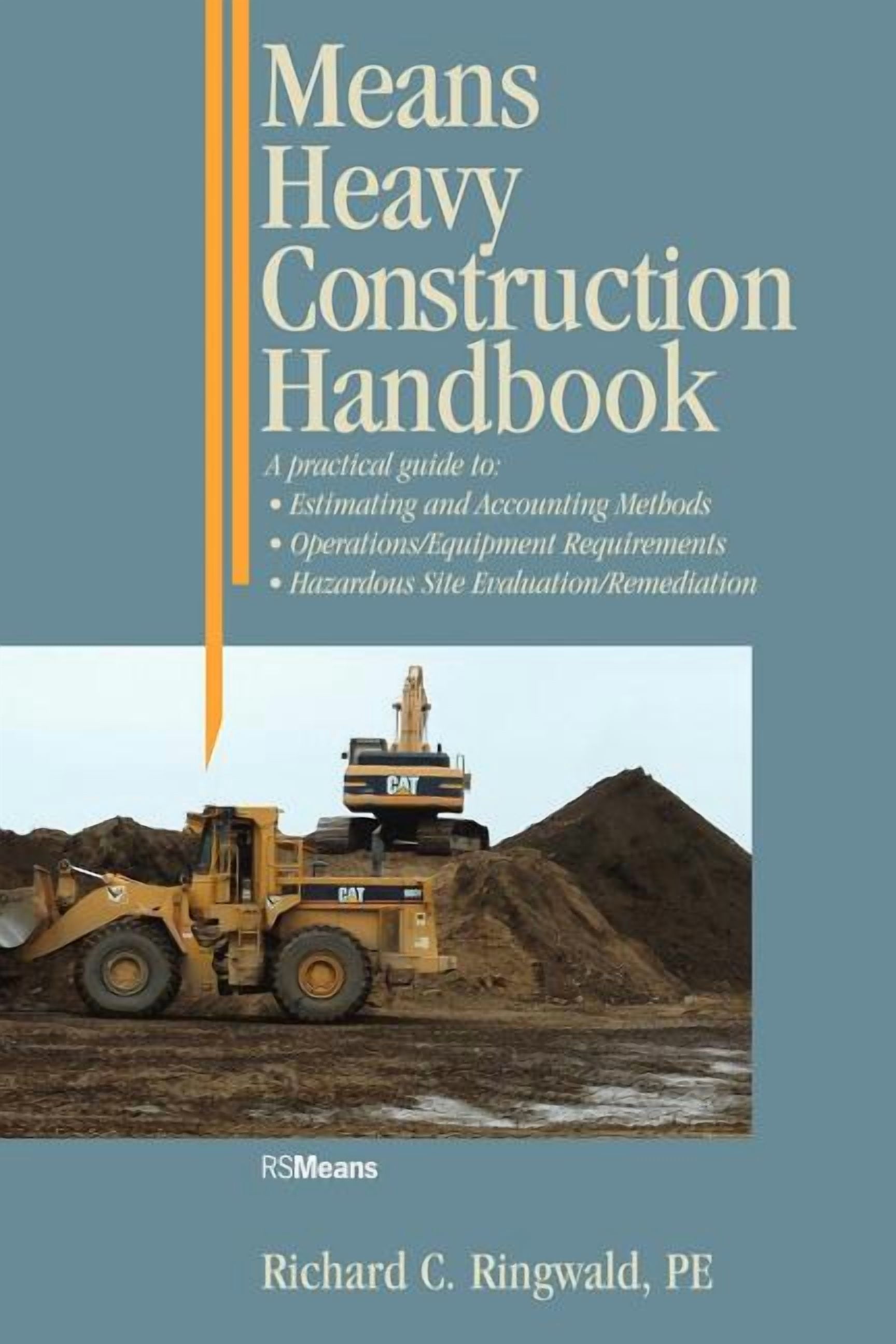
The construction industry offers a range of roles, from estimators who use tools like RSMeans to project managers and skilled laborers. These jobs are in demand, and you'll often find opportunities advertised online or through local trade associations. It's a varied industry, and you can specialize in different areas, whether it's residential construction, commercial projects, or specific trades like plumbing or electrical work.
Data and Tools for the Industry
RSMeans is just one of the many tools and resources available to construction professionals. These tools help manage projects, estimate costs, and keep track of industry trends. For example, cost indexes provide an overview of construction costs over time, helping businesses and homeowners plan and budget effectively. Escalation, another term for cost increases, is also an important factor to consider when planning long-term projects.
Big Companies and the Industry
In the construction world, you'll find a mix of small, local businesses and large, national firms. The size of the company often reflects the scale of projects it takes on. Big companies may have the resources to tackle large-scale developments, while smaller businesses might focus on local renovations and additions. It's a diverse industry, and both types of companies play a crucial role in building our communities.
So, there you have it! RSMeans construction is a useful tool for anyone involved in construction, whether you're a homeowner, a contractor, or a business owner. It's a great way to stay informed and ensure your projects are on track and within budget.
Related: excel sum formula easy guide for fast totals
Understanding the Excel Sum Formula
The Excel Sum Formula is an essential tool for any Excel user, providing a simple yet powerful way to calculate sums and totals. Its versatility allows users to perform basic arithmetic operations and more advanced calculations with ease. By understanding and utilizing this formula, you can transform raw data into valuable insights, aiding in decision-making processes.
When employing the Excel Sum Formula, you initiate a series of calculations that aggregate data based on your specified criteria. This formula is particularly useful when dealing with large datasets, as it automates the process of adding up values, saving time and reducing the risk of errors. For instance, consider a scenario where you have a dataset containing sales data for various products over a month. You want to calculate the total sales for each product to identify the top-performing ones. The Excel Sum Formula comes to the rescue, allowing you to quickly sum up the sales figures for each product, providing a clear overview of your sales performance.
A Practical Example
Let's dive into a real-world application of the Excel Sum Formula in the context of a sales analysis. Imagine you're a marketing analyst, and you have a spreadsheet with columns for "Product", "Units Sold", and "Price per Unit". You want to calculate the total sales for each product to determine which products are performing well.
Here's a step-by-step guide:
- In a new column, labeled "Total Sales", input the formula
=SUM(Units Sold Price per Unit). - Ensure that the formula correctly references the "Units Sold" and "Price per Unit" columns. For example, if your data starts in row 2, the formula could be
=SUM(B2:B100C2:C100)where B and C represent the columns for "Units Sold" and "Price per Unit" respectively. - Drag the formula down to apply it to each row, calculating the total sales for each product.
Now, you have a column with the total sales for each product, allowing you to identify the top-selling products and make informed decisions regarding marketing strategies.
Common Mistake and How to Avoid It
One common mistake when using the Excel Sum Formula is failing to use absolute references when copying formulas across rows or columns. This can lead to incorrect calculations as the formula may reference unintended cells.
To avoid this mistake, use absolute references by adding a dollar sign ($) before the column and row references. For instance, if you want to lock the reference to column A and row 2, you would use $A$2. This ensures that when you copy the formula, it always refers to the same cell, regardless of its position in the spreadsheet.
Enhancing Your Excel Skills
Excel offers a wide range of features to enhance your data analysis capabilities. One such feature is the drop-down list, which can greatly improve the usability of your spreadsheets. By creating a drop-down list using the Data Validation feature, you can allow users to select from a predefined list of options, reducing data entry errors and ensuring consistency.
Additionally, the IF function is a powerful tool for conditional calculations. This function allows you to check a condition and return different values based on whether the condition is true or false. For example, you can use the IF function to highlight cells that meet certain criteria, automate data validation, or perform dynamic calculations based on specific conditions.
Final Thoughts
The Excel Sum Formula is a fundamental tool for data analysis, offering a simple and efficient way to calculate sums and totals. Its versatility and ease of use make it an indispensable skill for anyone working with data. As you continue to explore Excel's capabilities, you'll discover a wealth of advanced functions and features that will further enhance your data analysis skills. Remember, practice and experimentation are key to mastering Excel, so don't hesitate to dive deeper into its vast toolkit. Happy spreadsheeting and happy data analysis!