







How To Encrypt Outlook Email Overview
The excel multiply formula is the basic way to multiply numbers in Excel. This post shows how to use it for single cells, ranges, and simple constants.
You can apply it to multiply a column by a constant or combine it with IF for conditional calculations. If your workbook uses different versions, the syntax stays the same, though some newer functions may be available. Try the shortcut Ctrl+Shift+U to see the formula in action.
Multiply Cells, Ranges, and Constants with the excel multiply formula (asterisk operator usage)
The excel multiply formula lets you multiply a single cell, a range, or a constant using the asterisk () operator. It works the same in all Excel versions and updates instantly after pressing Enter.
To multiply a column, type the formula in the top cell and drag the fill handle down. For large ranges, a dynamic array formula can avoid manual dragging.
Combine the formula with IF for conditional multiplication, e.g., =IF(A2>10, A22, A21). In older Excel, press Ctrl+Shift+U to view the formula in the formula bar.
Requirements Before Using the excel multiply formula (apply to column)
Before you start, ensure your Excel version supports the features you need. Excel for Microsoft 365 and Excel 2019 include the full set of array functions.
All cells should contain numeric values; text will cause a #VALUE! error. If a cell might be blank, wrap the multiplication in IF to provide a default value.
Basic multiplication needs no special subscription. For newer functions like MUL, a Microsoft 365 subscription is required; check workbook trust settings if security prompts appear.
Step-by-Step Guide to Multiply a Column by a Constant
Follow these steps to multiply a column by a constant using the basic formula. The method works across Excel for Windows, Mac, and the web with minor UI differences.
- Select the column you want to multiply by clicking the column header.
- In the first cell of the column, type the constant followed by an asterisk and then the first cell reference, such as =5A2.
- Press Enter to calculate the result, then click the fill handle and drag down to copy the formula.
- For a dynamic array, use =MUL(A2:A100, 3) in Microsoft 365 or enter the array formula with Ctrl+Shift+U in older Excel.
You can also combine the excel multiply formula with IF for conditional results, e.g., =IF(A2>10, A22, A21). Ensure each part returns a number to avoid #VALUE! errors.
In older Excel, press Ctrl+Shift+U after typing the array formula to enclose it in braces. This tells Excel to treat the formula as an array operation.
Common Reasons the excel multiply formula Returns #VALUE! (zero value handling)
The #VALUE! error often appears when Excel cannot perform the multiplication because of incompatible data types. Checking the cells involved is the first step to resolve the issue. A quick way to test is to use ISNUMBER on each operand; if it returns FALSE, the cell likely contains text.
Another common cause is referencing a blank cell without a default value. Blank cells are treated as zero, which can be acceptable, but sometimes you want a specific result instead. Wrapping the multiplication in IF with a condition such as =IF(A2="",0,A2B2) avoids unexpected zeros.
- A cell contains text instead of a number.
- The formula references a blank cell, resulting in zero.
- An array formula was entered without using Ctrl+Shift+U in older Excel.
- Circular reference prevents calculation.
- Using a range that includes a header label that is text.
If the error persists after checking the cells, try saving the workbook and reopening Excel to clear any cached formula issues.
To fix the issue, convert text to numbers using Data > Text to Columns or by adding 0 to the cell, and ensure array formulas are entered with the proper shortcut. After correction, re-enter the formula and verify the result updates correctly.
Use a Dynamic Array Formula to Multiply Entire Ranges (dynamic array formula)
When you need to multiply a whole range without dragging, a dynamic array formula provides a cleaner solution. In Microsoft 365, you can use =MUL(A2:A100, 3) to multiply each element of the range by 3 and spill the results automatically. This approach eliminates the need to copy the formula manually and reduces the chance of misalignment.
If you prefer a formula that automatically expands, consider using the newer excel multiply formula with array handling, such as =MUL(A2:A100, 3). Make sure your Excel version supports the MUL function; otherwise, use the traditional =A2:A1003 array formula entered with Ctrl+Shift+U. Both methods produce the same result but differ in syntax and availability.
Another quick method is to use Paste Special to multiply a selection of cells by a constant without writing a formula. Copy the constant to the clipboard, select the range, right-click and choose Paste Special > Multiply, then OK. This technique is useful for one‑off calculations and avoids formula errors entirely.
Menus can look a bit different depending on your Excel version, but the core steps stay the same. If you’d like more Office tips, feel free to explore the other how‑to articles.
Next time you need to multiply a column, bookmark this page so you can get back to it quickly.
Related: 2026 Construction Outlook Essential Guide
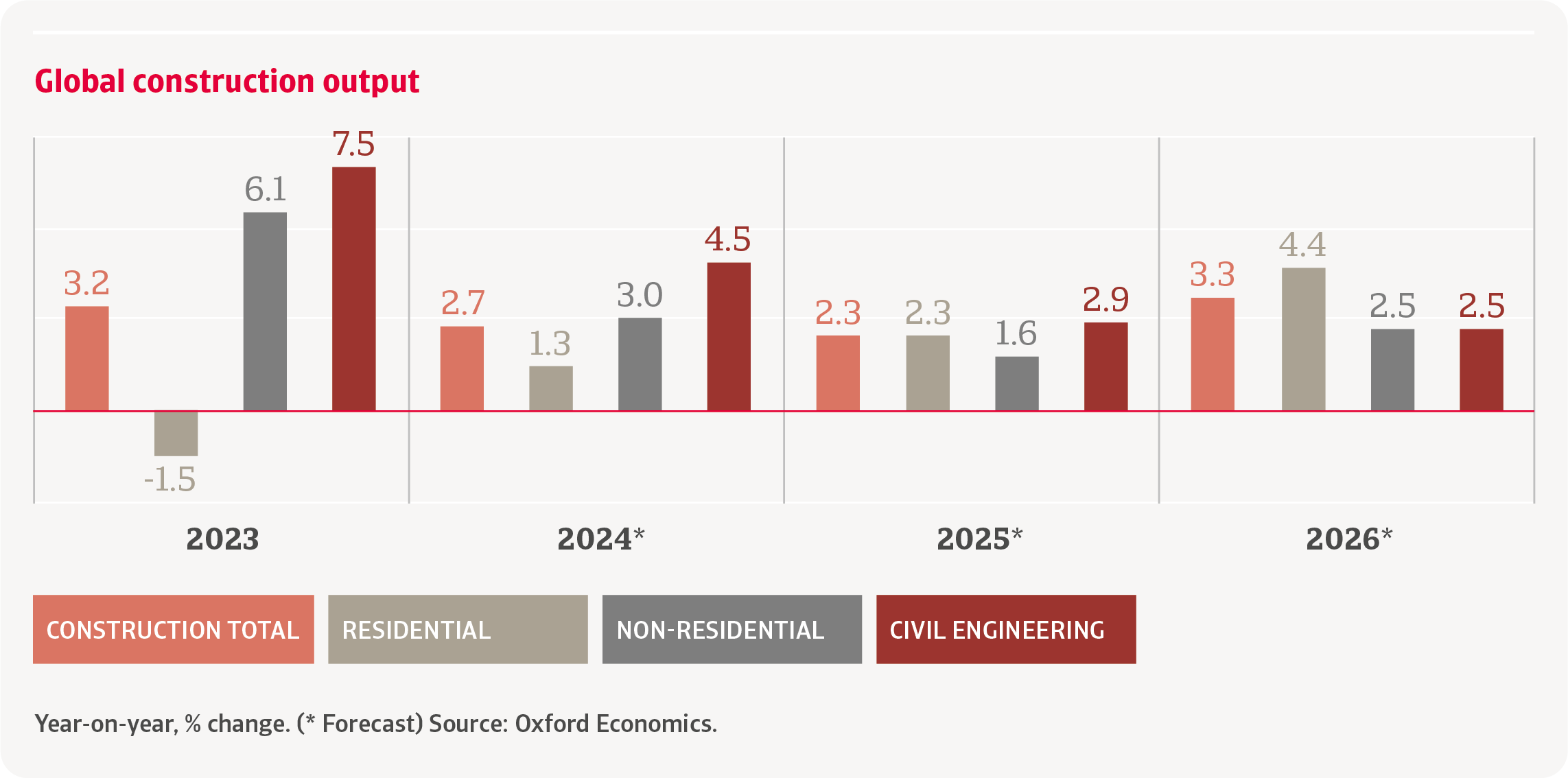
I was walking through my neighborhood the other day, and it struck me how many construction projects are underway. 2026 construction outlook might be on your mind too, whether you're a homeowner, a business owner, or just curious about the industry. So, let's break it down and see what's in store.
The Big Picture
When we talk about the "2026 construction outlook," we're looking at the future of building and remodeling. It's about understanding the trends and changes that will shape the industry in the coming years. This outlook is important for anyone planning a construction project, as it can impact costs, timelines, and the overall success of your venture.
One key aspect is the cost of materials and labor. These costs can fluctuate, and keeping an eye on the outlook helps you prepare for any potential price hikes or drops. It's also about the availability of skilled workers and the demand for certain types of construction. For example, the rise of eco-friendly building practices might influence the skills and materials needed for future projects.
Hiring and Costs
If you're planning a construction project, one of your main concerns will be finding the right contractor. It's important to do your research and compare quotes. When you're getting quotes, look for detailed breakdowns of costs. This should include materials, labor, and any additional fees. Be cautious of quotes that seem too good to be true; they might cut corners or leave out important costs.
Ask for references and check their past work. A good contractor will be happy to provide this information. It's also a good idea to get multiple quotes to compare. This way, you can ensure you're getting a fair price and the right skills for your project.
Business Names and the Industry
For those in the construction business, or thinking of starting a business, choosing a name is an important step. A good name should be memorable, reflect your business values, and stand out in a crowded market. It might be a play on words, a reference to your location, or a unique combination of words that captures your business's essence.
Here are a few examples:
- Build-it-Right Construction
- Eco-Friendly Builders
- Solid Foundations
- Skyward Solutions
- HomeCrafters
- The Building Blocks
Remember to check name availability and secure the right domains and local registrations to protect your business identity.
Jobs and Opportunities
The construction industry offers a wide range of job roles, from general contractors and estimators to specialized tradespeople. These jobs can be found through local job boards, construction company websites, and industry-specific job sites. It's a diverse industry, and the skills required can vary greatly depending on the role.
For those looking for a career in construction, it's a good idea to research the different roles and the qualifications needed. Many roles offer on-the-job training and apprenticeships, providing a great way to learn and earn at the same time.
Tools and Resources
Tools like RSMeans can be a great resource for construction professionals. RSMeans provides cost data and estimating tools, helping contractors and businesses plan and manage their projects effectively. It's a valuable tool for staying on top of industry trends and ensuring accurate cost estimates.
Other resources, like cost databases and industry reports, can also provide valuable insights. These tools can help you understand the market, plan your projects, and make informed decisions.
Wrapping Up
So, there you have it, a glimpse into the 2026 construction outlook. It's an exciting time in the industry, with new technologies, materials, and practices constantly emerging. Whether you're a homeowner, a business owner, or a construction professional, keeping an eye on these trends and changes can help you make informed decisions and stay ahead of the curve.
I hope this has given you some useful insights. Happy building!
Related: What is my Grady Chart and How to Use It?
My Grady Chart is a valuable tool for anyone working with lighting and color. It offers a simple yet effective way to understand and control the color temperature of light sources. This guide will cover the essentials of the Grady chart, its purpose, and how it can benefit your lighting design or photography projects. Whether you're a professional or a hobbyist, having a grasp of this chart's principles is key to achieving accurate and consistent results.
Understanding My Grady Chart: A Quick Overview
My Grady Chart is a valuable tool for anyone working with lighting design, photography, or video production. It provides a visual representation of color temperature, a critical factor in achieving the desired mood and atmosphere in your visual media. This chart offers a simple yet effective way to understand and manage color temperature, helping you create consistent and accurate lighting conditions.
Comparing Color Temperature Standards: The Grady Scale vs. Kelvin Scale
The Grady Chart utilizes the Grady scale, which is a standardized method for measuring and representing color temperature. It is based on the Kelvin scale, a widely accepted standard in the lighting industry. The Grady scale provides a practical and easy-to-use reference for photographers and videographers, offering a visual guide to various light sources and their corresponding color temperatures.
Step-by-Step Guide: Using My Grady Chart Accurately
To make the most of My Grady Chart, follow these simple steps:
Identify the Light Source: Start by determining the type of light you are working with. Different light sources, such as sunlight, fluorescent, or incandescent bulbs, have unique color temperatures.
Refer to the Chart: Locate the light source on the chart. Each light source is represented by a specific color and temperature range. For instance, daylight might be indicated by a blue color, while tungsten lighting could be represented by a warmer, yellow tone.
Adjust Your Equipment: Once you've identified the color temperature, you can adjust your camera or lighting equipment accordingly. This ensures that the colors in your image or video are balanced and true to the intended effect.
Fine-Tune with White Balance: If needed, you can further refine the color temperature by adjusting the white balance settings on your camera. This step allows for precise control over the overall warmth or coolness of the image.
Avoiding Common Misreadings and Pitfalls
While My Grady Chart is a straightforward tool, there are a few potential pitfalls to be aware of:
Regional Variations: Color temperature standards may vary slightly between regions or industries. Always double-check the specific standards relevant to your project.
Light Source Changes: Be mindful that the color temperature of a light source can change over time, especially with natural light. Regularly check and adjust your settings to maintain consistency.
Creative Interpretations: While the chart provides a guide, it's important to remember that color temperature is a creative tool. Feel free to experiment and adjust to achieve your desired artistic vision.
Your Grady chart is a valuable tool, a quick and efficient reference, and a great starting point for your projects. It offers a structured approach, guiding you through the process with clarity.
Remember, while this chart provides a solid framework, your unique circumstances may require some customization. So, take a moment to review your specific needs and adapt the chart accordingly. It's a simple yet powerful resource, and with a bit of tailoring, it can become an indispensable part of your workflow.
Feel free to explore our other guides and resources. We've got a range of practical tools and tips to enhance your productivity and streamline your processes. Happy organizing!