

Http Error 400 Outlook Overview
Excel spill error happens when a formula returns multiple values, but the cells below are already in use. It’s that frustrating #SPILL! message that stops your sheet cold. This usually pops up with dynamic array functions like FILTER or SORT, which can spill results into adjacent cells. If those cells are occupied, Excel throws the flag. It’s a modern problem since dynamic arrays rolled out, but the fix is straightforward once you know where to look.
Most people run into this when they’re trying to clean up a dataset or pull specific rows. For example, if you’re filtering a sales log for certain products, the FILTER function might return 20 rows, but if the 5 cells below your output are filled, you’re stuck. The error isn’t about the formula itself—it’s about the real estate on your sheet. Clear the way, and the spill works fine.
Dynamic Arrays and Why They Spill
Dynamic array functions like FILTER, UNIQUE, and SORT are a game-changer for handling lists. They automatically resize results without array formulas or manual ranges. For instance, =FILTER(A2:C100, B2:B100="Active") grabs all rows where column B says “Active.” The catch? If the output area isn’t free, you get an excel spill error. These functions don’t stop at one cell—they expand vertically or horizontally, depending on the data.
Set up your sheet with a clear output zone. I’d skip merged cells here, as they’re a recipe for spills. Use a table (Ctrl+T) for your source data, and dedicate a separate column or area for results. For example, if filtering a customer list, place the formula in cell E2 and let it spill down column E. Keep rows below empty until you’re sure how many results will appear.
| Name | Status | Date |
|---|---|---|
| John Doe | Active | 2023-01-15 |
| Jane Smith | Inactive | 2023-02-10 |
| Sam Lee | Active | 2023-03-05 |
Formula: =FILTER(A2:C4, B2:B4="Active")
This returns the first and third rows in the next column, but if cells below are filled, it triggers an excel spill error. The fix? Clear cells E2:E4 before applying the formula.
A common mistake is hard-coding values near the output area. For example, if cell E3 contains a note like “Active Customers,” the spill stops there. Delete or move static text to another column, then reapply the formula.
Troubleshooting Spills in Large Datasets
When working with hundreds of rows, an excel spill error can hide in plain sight. Maybe you filtered a dataset but forgot about hidden totals at the bottom. Or, you copied a template that had placeholder text in the spill zone. The error doesn’t care if the conflicting cell is visible—it just knows the space is taken.
For large datasets, freeze panes (View > Freeze Panes) to keep headers visible while checking the output area. Use COUNTIFS to confirm how many rows your formula should return, then compare that to the available space. For example, =COUNTIFS(B2:B100, "Active") tells you how many “Active” rows exist, so you know if your spill zone is big enough.
| Product | Sales | Region |
|------------||-----------|------------|
| Widget A | 150 | East |
| Widget B | 200 | West |
| Widget A | 180 | East |
Formula: =SORT(UNIQUE(C2:C4))
This returns unique regions in sorted order, but if cells below contain a footer, the spill fails. Use conditional formatting (Home > Conditional Formatting > Highlight Cells Rules > Blank) to spot filled cells quickly.
Another mistake is using merged cells in the output area. Excel can’t spill into a merged range, so unmerge them first (Home > Alignment > Merge & Center > Unmerge Cells).
Preventing Spills with Data Validation
Data validation isn’t just for dropdowns—it can stop spills before they start. If you know your output will never exceed 50 rows, set a validation rule to block input below that range. Go to Data > Data Validation > Settings, choose “Whole number” and set the criteria to “between” 1 and 50. This won’t stop the excel spill error, but it reminds users to clear the area first.
For a checklist or tracker, use IF and ISERROR to flag potential spills. For example, =IF(ISERROR(FILTER(A2:A10, A2:A10<>"")), "Clear cells below", "Ready") checks if the spill zone is free. Place this in a status cell to alert users.
| Task | Due Date | Status |
|---|---|---|
| Report | 2023-10-01 | Pending |
| Meeting | 2023-10-05 | Completed |
Formula: =FILTER(A2:C3, B2:B3<TODAY())
This filters overdue tasks, but if the output area contains a summary row, it fails. Add data validation to the summary row to prevent accidental input.
A common oversight is applying validation to the wrong range. Always select the exact cells below your formula, not the entire column.
Combining Spills with Pivot Tables
Pivot tables don’t cause excel spill errors, but they can work around them. If a spill zone is too crowded, summarize the data in a pivot instead. Select your table, go to Insert > PivotTable, and drag fields to Rows and Values. For example, pivot the sales data by region without worrying about spills.
For a hybrid approach, use UNIQUE to extract distinct values, then reference them in a pivot. Formula: =UNIQUE(C2:C100). This spills unique regions into a column, which you can then use as a source for your pivot table.
| Region | Sales |
|---|---|
| East | 330 |
| West | 200 |
The pivot table summarizes without needing a spill zone, but if you still want dynamic arrays, link the UNIQUE output to a separate tab.
One mistake is mixing pivot data with spill ranges. Keep pivots on their own sheet or tab to avoid conflicts.
Try setting up a small tracker with FILTER and intentionally trigger an excel spill error. Then, clear the output area and watch the formula work. It’s a quick way to see how spills behave in your own file.
Related: RSMeans Construction Essential Guide For Builders
"rs means construction" is a phrase that might pop up when you're planning a home renovation or building project. It's a mouthful, but it's a useful tool for anyone wanting to understand construction costs. So, let's break it down and see what it's all about!
Understanding RSMeans and Construction Costs
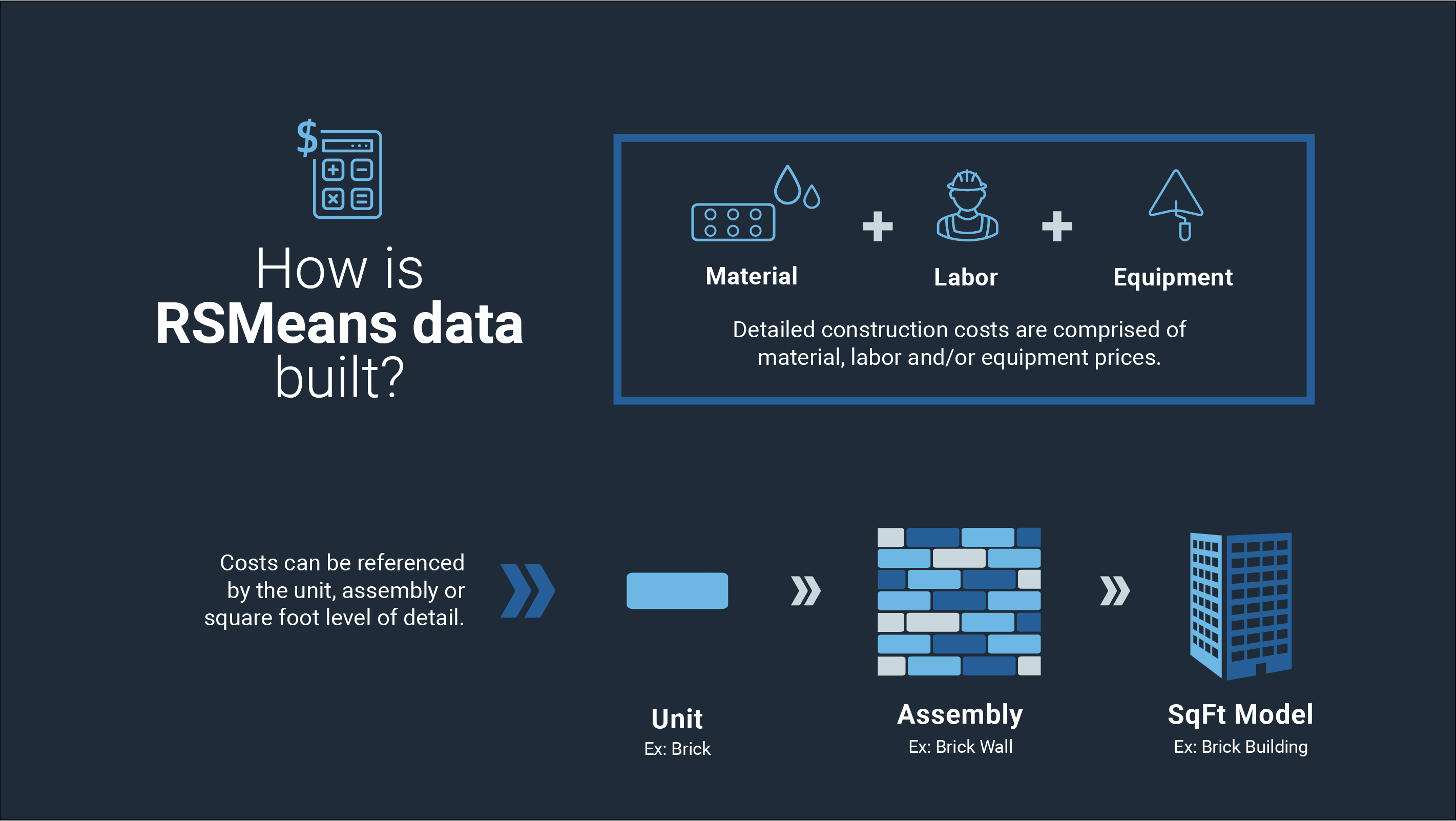
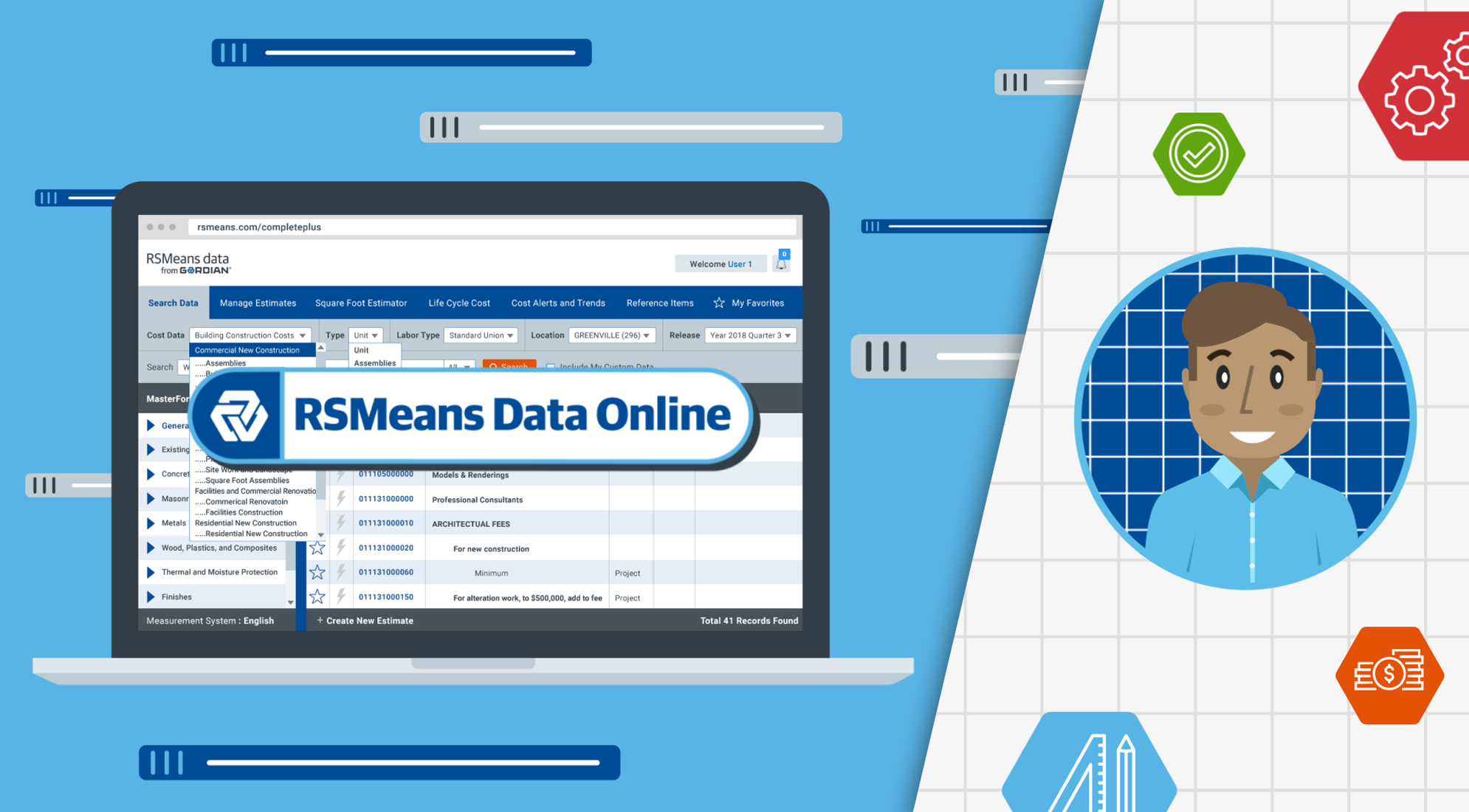
RSMeans is a database and resource for construction professionals and homeowners alike. It provides detailed information on construction costs, helping you estimate and plan your project's budget. This tool is a go-to for many in the industry, offering insights into labor, materials, and other expenses. It's especially handy for comparing quotes and ensuring you get a fair deal.
When using RSMeans, you can get a good idea of what your project might cost. It considers various factors like the size of the project, the materials you choose, and the local labor rates. This data helps you set a realistic budget and understand the costs involved. It's a great way to ensure you're not overspending or underestimating the expenses.
Hiring a Contractor: What to Look For
When it comes to hiring a contractor, RSMeans can be a valuable ally. It can help you understand the typical costs for your project, so you know if a quote is reasonable. Before hiring, always check the contractor's references and licenses. Ask for a detailed breakdown of the costs and what's included in the quote. A good contractor will be transparent and provide this information.
You should also consider the scope of the project and whether the contractor has experience with similar work. Don't be afraid to ask questions and get a clear picture of what you're paying for. It's your project, and you want to ensure it's done right!
Construction Company Names and Branding
Naming a construction company is an important step. It's the first impression you give to potential clients and should reflect your business's values and services. A good name is memorable, unique, and gives a hint at what you do. For example, "BuildStrong", "Renovate Right", or "HomeCrafters" are catchy and descriptive.
When choosing a name, consider registering it and checking domain availability. You want to ensure your online presence is secure and that your name isn't already taken locally. It's a small but crucial step in building your brand and standing out in a competitive industry.
Jobs and Opportunities in Construction
The construction industry offers a range of roles, from estimators who use tools like RSMeans to project managers and skilled laborers. These jobs are in demand, and you'll often find opportunities advertised online or through local trade associations. It's a varied industry, and you can specialize in different areas, whether it's residential construction, commercial projects, or specific trades like plumbing or electrical work.
Data and Tools for the Industry
RSMeans is just one of the many tools and resources available to construction professionals. These tools help manage projects, estimate costs, and keep track of industry trends. For example, cost indexes provide an overview of construction costs over time, helping businesses and homeowners plan and budget effectively. Escalation, another term for cost increases, is also an important factor to consider when planning long-term projects.
Big Companies and the Industry
In the construction world, you'll find a mix of small, local businesses and large, national firms. The size of the company often reflects the scale of projects it takes on. Big companies may have the resources to tackle large-scale developments, while smaller businesses might focus on local renovations and additions. It's a diverse industry, and both types of companies play a crucial role in building our communities.
So, there you have it! RSMeans construction is a useful tool for anyone involved in construction, whether you're a homeowner, a contractor, or a business owner. It's a great way to stay informed and ensure your projects are on track and within budget.
Related: A Quick Guide to Lyon Charter Twp: Reference Values
Frustrated by the endless scrolling and unclear charts? You're not alone. Many people seek a quick, reliable reference when dealing with Lyon Charter Twp and its various charts and diagrams. It's a common challenge, and understanding these visuals is crucial for getting things done efficiently.
Whether you're a resident of Lyon Township or just need to navigate the local government's systems, the charts and references can be a real headache. Rest assured, you're not alone in this, and there are ways to simplify the process.
Understanding Lyon Charter Twp: A Practical Guide
Lyon Charter Twp is a unique form of local government, offering a specific set of services and benefits to its residents. This guide will help you navigate the charter township's structure and operations.
Key Details and Categories
The charter township of Lyon operates under a unique legal status, providing a range of services and powers not typically found in standard townships. It's important to understand the key personnel and their roles, as well as the various departments and their functions. The township's administration is headed by a supervisor, who oversees the daily operations and acts as the chief executive. Other key personnel include the clerk, treasurer, and trustees, each with specific responsibilities.
Reading and Applying the Township Chart
The township chart is a visual representation of the Lyon Charter Twp's organizational structure. It outlines the various departments, their functions, and the reporting hierarchy. To read the chart effectively, start by identifying the supervisor at the top, who has overall authority. Below them, you'll find the clerk, treasurer, and trustees, each with their own areas of responsibility. The chart also shows the various departments and their interconnections, helping you understand the flow of information and decision-making.
Variations and Differences
While the charter township of Lyon follows a standard structure, variations can occur due to specific local needs and preferences. Different townships may have slightly different department names or functions, depending on the community's requirements. Additionally, the size and population of a township can influence its organizational structure. Larger townships may have more specialized departments, while smaller ones might combine certain functions. It's important to be aware of these variations when comparing different townships.
Common Mistakes and How to Avoid Them
One common mistake is assuming that all townships operate identically. While there are standard practices, each township has its own unique characteristics. Another pitfall is overlooking the specific roles and responsibilities of key personnel. It's crucial to understand who does what within the township administration to ensure effective engagement and communication. Finally, failing to consider the township's unique services and benefits can lead to missed opportunities for residents.
Practical Tips for Accurate Understanding
When navigating Lyon Charter Twp, take the time to familiarize yourself with the township's website and official documents. These resources provide valuable insights into the township's structure, services, and contact information. Attend township meetings or events to gain a deeper understanding of local issues and engage with community leaders. Building relationships with township staff and officials can also provide valuable insights and assistance.
Double-Checking and Handling Exceptions
While the township chart provides a useful overview, it's important to double-check specific details and exceptions. Certain services or functions may vary depending on the township's unique circumstances. For example, the availability of certain recreational facilities or specialized programs might differ. It's always a good idea to confirm these details with the relevant department or township office to ensure accurate information.
Hey there, we hope this guide has given you a clear understanding of Lyon Charter Twp and its practical applications. Remember, while we've covered the basics, exact details can vary, so always refer to the most relevant and up-to-date sources for your specific needs.
Feel free to explore our other guides; we've got a whole range of topics to help you navigate various concepts and standards. Happy learning, and stay curious!