

Invoice 6 Letter Word Overview
Many users assume they need to download extra files to get rose flower cliparts in Office. In reality, the built‑in clip art library already contains them, and you can insert them directly into Excel or Word.
If you’re adding a graphic to PowerPoint or setting a background in Teams, just use the Insert Picture feature or the clip art browser. The same images are available across Microsoft 365 clip art, so you don’t have to search elsewhere. Depending on your version, the menu labels might vary slightly, but the process stays simple.
Insert picture Excel with rose flower cliparts
The built‑in clip art library already includes rose flower cliparts. You can insert them directly into Excel, Word, or PowerPoint without extra downloads.
In Excel, go to Insert > Picture > This Device, browse the clip art folder and select a PNG rose file. The same steps work in Word and PowerPoint using Insert > Pictures > Stock Images.
The Microsoft 365 clip art collection appears in all Office apps, so you can reuse the rose graphic across documents. Menu labels may vary, but Insert > Picture is the consistent entry point.
If the rose design doesn’t appear, ensure you’re online and signed into a Microsoft 365 account. This opens the online library where the rose images are stored.
For faster access, press Alt+N, P to open the Insert Picture dialog directly. You can also type “rose” in the search box to filter results instantly.
Clip art library requirements: version and account type
The clip art library is included with Office 2019 and Microsoft 365, so no separate download is required for rose flower designs. To use the online library you need a Microsoft 365 subscription and an internet connection; a free Microsoft account also works for the web version.
In corporate environments the online clip art feature can be disabled via policy. If the rose images are missing, ask IT to enable the Microsoft 365 clip art service.
If you’re on an older Office version such as 2016, the offline set may not contain the rose. You can still use the online library by signing in.
When you select the rose from the library, the file is a PNG that can be resized without loss of quality. You can then drag it onto any slide for a polished look with rose flower cliparts.
Step‑by‑step OneNote drawing with rose flower cliparts
To add a rose graphic in OneNote, open the app and choose Insert > Picture > This Device (or Stock Images for the online library). Browse to the clip art folder and select a PNG rose file.
Open OneNote and select the target page.
Click Insert > Picture > This Device (or Stock Images) and locate the rose PNG.
Select the rose file and insert it onto the page.
Resize or reposition using the picture handles as needed.
Save the page; the rose clip art is now part of your OneNote drawing.
If the rose doesn’t appear, confirm you’re online and signed into a Microsoft 365 account; otherwise the offline clip art may not include the design. You can also paste a copied rose image directly into OneNote for immediate use.
Signature image Outlook issues and fixes
When you add a rose clipart as an Outlook signature, the image may disappear or leave the signature blank. This often happens if the file size or format isn’t compatible.
- Signature image exceeds Outlook’s 30 KB size limit.
- File format isn’t supported (e.g., transparent GIF).
- Signature set to plain text only.
- Microsoft 365 clip art service disabled by policy.
To fix, resize the PNG under 30 KB, use a supported format like PNG or JPG, and switch the signature format to HTML or RTF. After saving, test the signature in a new message.
If the problem persists, verify you’re online and signed into a Microsoft 365 account; otherwise the rose image won’t load. After correction, the same rose clip art can be reused in other Office apps.
Slide design PowerPoint best practice with rose flower cliparts
The built‑in clip art library already includes rose flower cliparts, so you can insert them directly into PowerPoint without extra downloads. Use Insert > Pictures > Stock Images to browse the library.
Start with the high‑resolution rose from the Microsoft 365 clip art library for a clean slide design. This ensures the graphic looks sharp when projected.
If you use a custom rose, insert it via Insert > Picture > This Device, then set the picture’s fill to “Aspect Ratio” in Picture Format. Resizing this way prevents distortion.
Add the rose to the slide master’s header area so it appears on all new slides automatically. You can also copy the PNG to a shared folder for consistent branding across presentations.
Give it a go on a spare worksheet or a test slide first, just to be safe. If everything looks right, you can apply the same steps to your actual file. Menus might look a bit different depending on your version, but the ideas stay the same.
When you need this again, just bookmark the page and you’ll have it handy. Happy editing!
Related: RSMeans Construction Essential Guide For Builders
"rs means construction" is a phrase that might pop up when you're planning a home renovation or building project. It's a mouthful, but it's a useful tool for anyone wanting to understand construction costs. So, let's break it down and see what it's all about!
Understanding RSMeans and Construction Costs
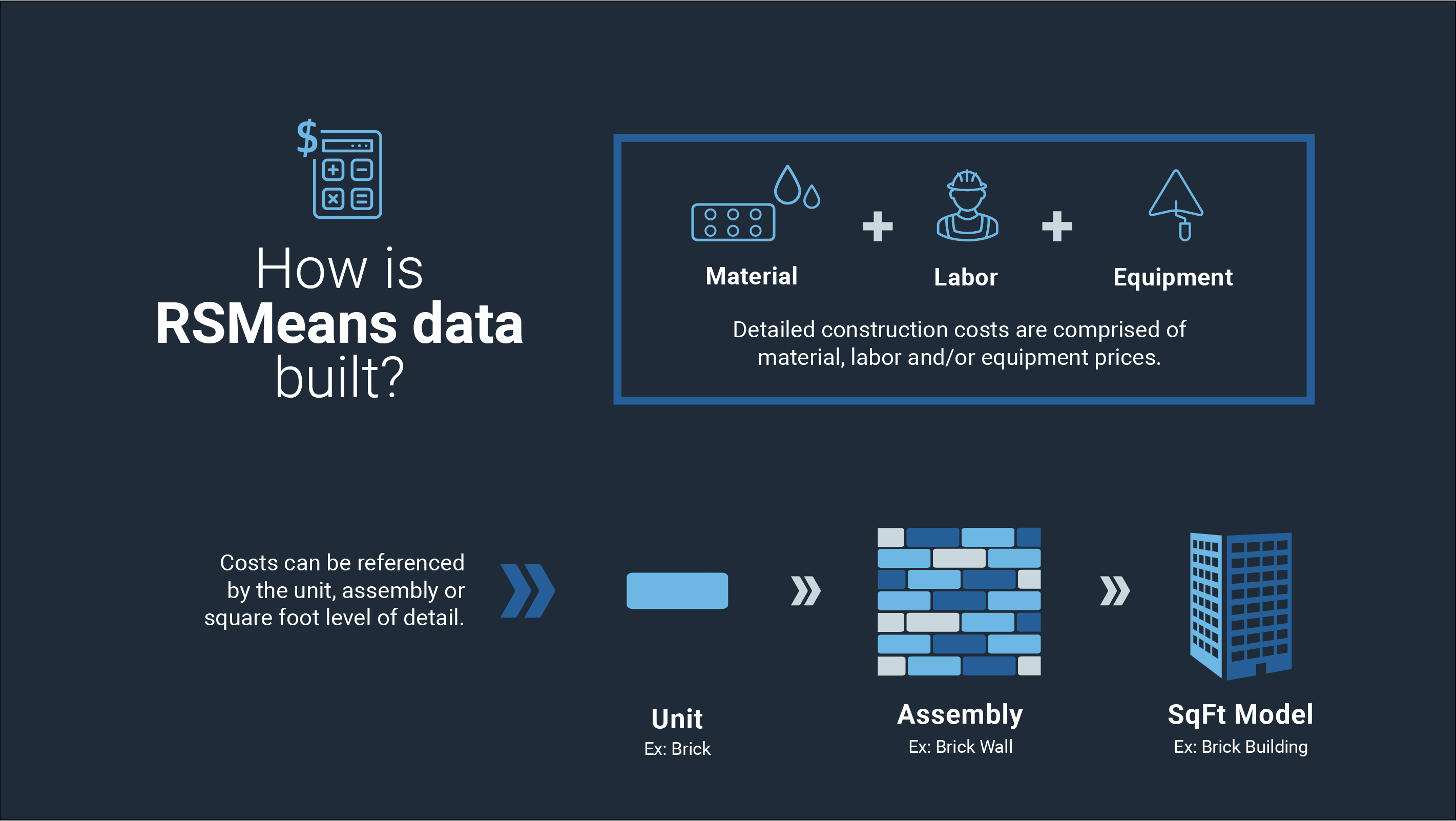
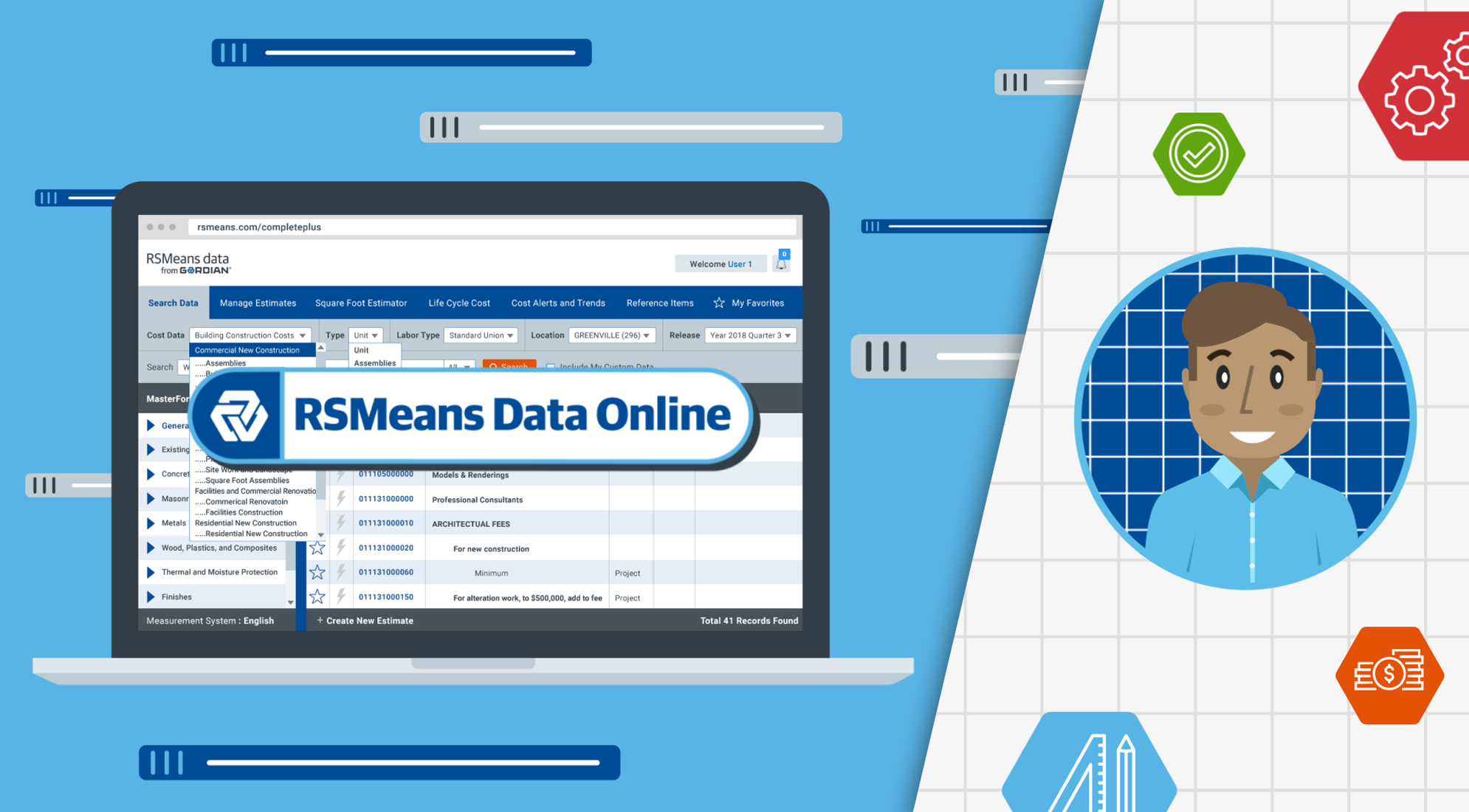
RSMeans is a database and resource for construction professionals and homeowners alike. It provides detailed information on construction costs, helping you estimate and plan your project's budget. This tool is a go-to for many in the industry, offering insights into labor, materials, and other expenses. It's especially handy for comparing quotes and ensuring you get a fair deal.
When using RSMeans, you can get a good idea of what your project might cost. It considers various factors like the size of the project, the materials you choose, and the local labor rates. This data helps you set a realistic budget and understand the costs involved. It's a great way to ensure you're not overspending or underestimating the expenses.
Hiring a Contractor: What to Look For
When it comes to hiring a contractor, RSMeans can be a valuable ally. It can help you understand the typical costs for your project, so you know if a quote is reasonable. Before hiring, always check the contractor's references and licenses. Ask for a detailed breakdown of the costs and what's included in the quote. A good contractor will be transparent and provide this information.
You should also consider the scope of the project and whether the contractor has experience with similar work. Don't be afraid to ask questions and get a clear picture of what you're paying for. It's your project, and you want to ensure it's done right!
Construction Company Names and Branding
Naming a construction company is an important step. It's the first impression you give to potential clients and should reflect your business's values and services. A good name is memorable, unique, and gives a hint at what you do. For example, "BuildStrong", "Renovate Right", or "HomeCrafters" are catchy and descriptive.
When choosing a name, consider registering it and checking domain availability. You want to ensure your online presence is secure and that your name isn't already taken locally. It's a small but crucial step in building your brand and standing out in a competitive industry.
Jobs and Opportunities in Construction
The construction industry offers a range of roles, from estimators who use tools like RSMeans to project managers and skilled laborers. These jobs are in demand, and you'll often find opportunities advertised online or through local trade associations. It's a varied industry, and you can specialize in different areas, whether it's residential construction, commercial projects, or specific trades like plumbing or electrical work.
Data and Tools for the Industry
RSMeans is just one of the many tools and resources available to construction professionals. These tools help manage projects, estimate costs, and keep track of industry trends. For example, cost indexes provide an overview of construction costs over time, helping businesses and homeowners plan and budget effectively. Escalation, another term for cost increases, is also an important factor to consider when planning long-term projects.
Big Companies and the Industry
In the construction world, you'll find a mix of small, local businesses and large, national firms. The size of the company often reflects the scale of projects it takes on. Big companies may have the resources to tackle large-scale developments, while smaller businesses might focus on local renovations and additions. It's a diverse industry, and both types of companies play a crucial role in building our communities.
So, there you have it! RSMeans construction is a useful tool for anyone involved in construction, whether you're a homeowner, a contractor, or a business owner. It's a great way to stay informed and ensure your projects are on track and within budget.
Related: What are Clone Hero charts all about?
Many newcomers to clone hero charts assume they are complex and intimidating, but in reality, they are a simple and effective tool for music gamers. These charts, often associated with games like Clone Hero and Guitar Hero, provide an easy-to-read visual representation of the song's notes and rhythms. While there may be variations in chart formats, the core principle remains the same: a clear path to follow, much like a note highway.
What Are Clone Hero Charts?
Clone Hero charts are a visual representation of a song's notes and their timing, designed to guide players through the gameplay of Clone Hero, a popular music rhythm game. These charts are essentially a roadmap for players to follow, indicating when and where to press the corresponding buttons to hit the notes accurately.
Understanding the Layout and Key Details
The chart displays a note stream, often referred to as the note highway or note track, which represents the flow of notes in a song. Each note is represented by a small circle or marker, and these notes are arranged in a specific pattern across the chart. The chart typically uses a grid-like structure, with the vertical axis indicating time and the horizontal axis representing the different lanes or frets. The notes are color-coded, with each color corresponding to a specific button or fret on the game's controller. Common colors include red, yellow, green, blue, and orange, each associated with a particular button. Additionally, the chart may include special notes, such as star power notes, indicated by unique symbols.
Reading the Note Stream and Playing the Song
To read and play a Clone Hero chart accurately, follow these steps:
- Start by familiarizing yourself with the layout and note colors. Ensure you know which color corresponds to which button or fret.
- Observe the note stream and identify the pattern. Notes are often grouped together in chords or sequences, so recognizing these patterns is crucial.
- As the song progresses, pay attention to the timing. The vertical axis indicates when each note should be played.
- Press the corresponding button or fret when the note marker reaches the designated lane. This action simulates strumming or fretting on a real guitar.
- For more advanced techniques, such as star power activation or specific finger placements, refer to the chart's symbols and follow the indicated actions.
Variations and Differences in Chart Standards
Clone Hero charts can vary depending on the song's genre, difficulty level, and the creator's style. Different chart makers may have unique approaches to note placement and timing, leading to variations in the chart's layout and complexity. Additionally, regional differences and game version updates can impact chart standards. Always check the chart's metadata or accompanying information to ensure you are using the correct version for your game setup.
Common Mistakes and How to Avoid Them
One of the most common mistakes is failing to recognize note patterns and timing accurately. Take time to study the chart and understand the song's rhythm. Another pitfall is neglecting to calibrate your game settings, which can cause timing issues. Ensure your game is properly calibrated to match your input device's response time. Additionally, some players may rush through the song, leading to missed notes. Maintain a steady pace and focus on precision.
Practical Tips for Accurate Chart Reading
To enhance your chart-reading skills and gameplay, consider these tips:
- Practice recognizing note patterns and chord progressions. This skill will improve your ability to anticipate and play notes accurately.
- Use practice modes or slower song speeds to familiarize yourself with the chart before attempting a full playthrough.
- Pay attention to your finger placement and strive for consistency. Proper finger placement can improve your accuracy and reduce fatigue.
- Take breaks and rest your hands to prevent strain, especially during longer play sessions.
Double-Checking and Handling Edge Cases
While Clone Hero charts provide a comprehensive guide, it's essential to double-check specific details, especially for complex songs or unique gameplay elements. Some charts may include custom symbols or notation, so refer to the chart's documentation or creator's notes for clarification. Additionally, if you encounter a chart with an unfamiliar layout or notation style, consider seeking guidance from the Clone Hero community or referencing other charts for comparison.
Well, there you have it! Clone hero charts are a handy tool, and now you know the ins and outs. Remember, the key is to understand the basics and then tailor them to your specific needs.
Before you go, just a quick reminder to always check the relevant standards and sources for your project. Exact values and terminology can vary, so it's best to double-check and ensure accuracy. Consider this guide a starting point, and feel free to bookmark it for future reference. Happy charting!