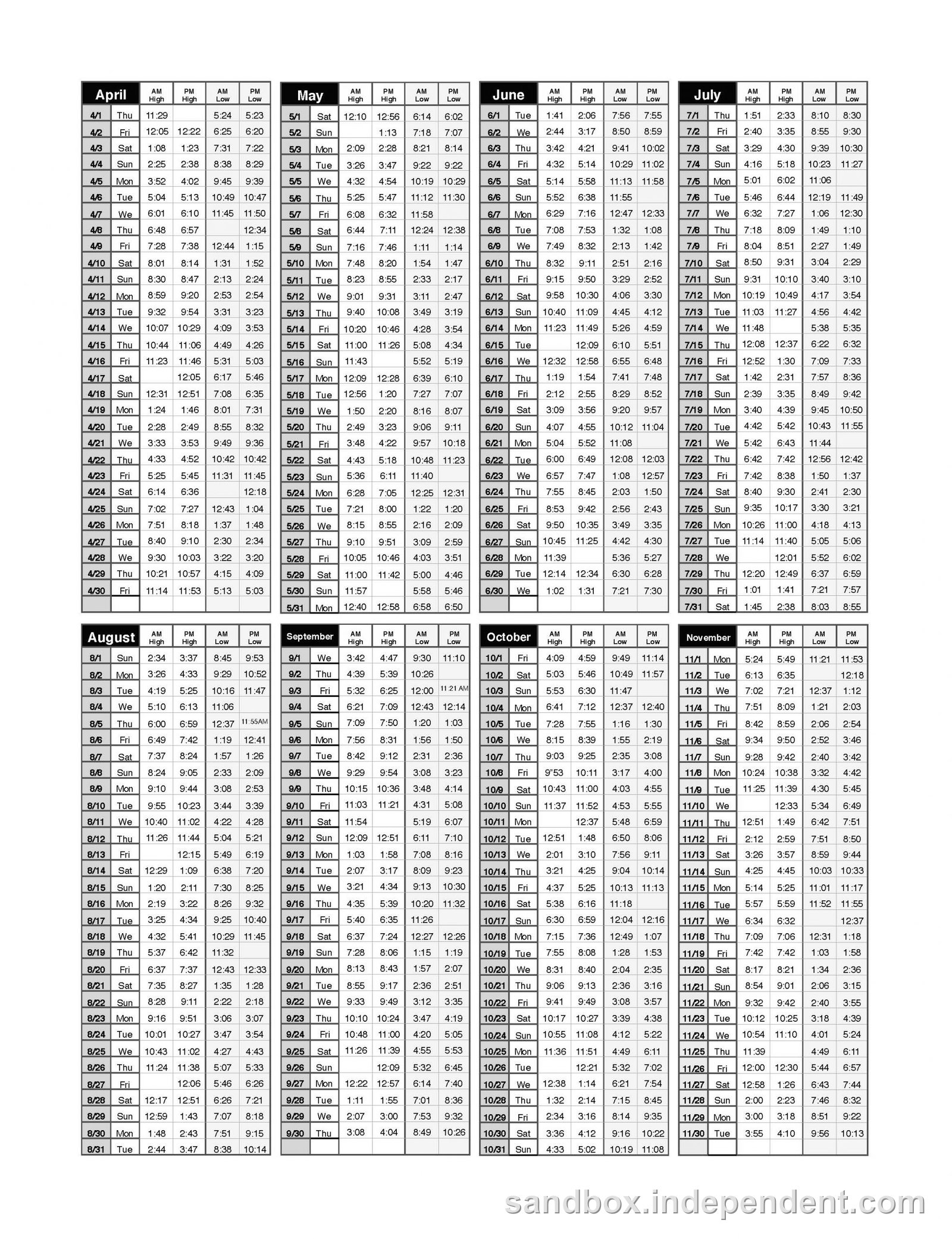







Monthly Planner For Kindergarten Overview
Hey there! I was just thinking about how cool batman logo clipart is and how it can be used in so many fun ways. It's like a little piece of Batman magic that you can easily add to your projects or even just for fun. So, let's explore this simple yet awesome graphic element!
Batman logo clipart is basically a digital image, a vector graphic, that represents the iconic Batman logo. You know the one—the bold, black bat silhouette against a yellow background. It's a simple design, but it's instantly recognizable and has become an iconic symbol of the Batman universe. This clipart version is a digital file that you can download and use for various purposes.
The great thing about batman logo clipart is its versatility. It's not just for die-hard Batman fans; it can be used by anyone who wants to add a touch of superhero flair to their creations. Whether you're a graphic designer, a teacher, a parent, or just a fan of Batman, this clipart can be a fun and easy way to incorporate the Dark Knight into your work or hobbies.
A Quick Guide to Using Batman Logo Clipart
Using batman logo clipart is super simple. Once you've downloaded the file, you can open it in any image editing software or even a basic word processor. From there, you can resize it, change the colors, or even add text to personalize it. It's a great way to quickly add a professional-looking logo to your designs without having to create one from scratch.
You can use it for a variety of projects. For example, if you're a teacher, you could use it to create fun worksheets or classroom decorations with a superhero theme. Parents can use it to make personalized birthday invitations or party decorations for their little Batman fans. And for designers, it can be a quick and easy way to add a unique element to your work, whether it's for a client project or just for fun.
Get Creative!
There are so many ways to get creative with batman logo clipart. You could use it to make stickers, t-shirt designs, or even just as a fun wallpaper for your devices. The possibilities are endless, and it's a great way to show your love for Batman or add a bit of superhero style to your everyday life.
So, if you're looking for a fun and easy way to incorporate Batman into your world, batman logo clipart is definitely worth checking out. It's a simple graphic that can add a whole lot of fun and a touch of superhero magic to your projects!
Related: excel sum formula easy guide for fast totals
Understanding the Excel Sum Formula
The Excel Sum Formula is an essential tool for any Excel user, providing a simple yet powerful way to calculate sums and totals. Its versatility allows users to perform basic arithmetic operations and more advanced calculations with ease. By understanding and utilizing this formula, you can transform raw data into valuable insights, aiding in decision-making processes.
When employing the Excel Sum Formula, you initiate a series of calculations that aggregate data based on your specified criteria. This formula is particularly useful when dealing with large datasets, as it automates the process of adding up values, saving time and reducing the risk of errors. For instance, consider a scenario where you have a dataset containing sales data for various products over a month. You want to calculate the total sales for each product to identify the top-performing ones. The Excel Sum Formula comes to the rescue, allowing you to quickly sum up the sales figures for each product, providing a clear overview of your sales performance.
A Practical Example
Let's dive into a real-world application of the Excel Sum Formula in the context of a sales analysis. Imagine you're a marketing analyst, and you have a spreadsheet with columns for "Product", "Units Sold", and "Price per Unit". You want to calculate the total sales for each product to determine which products are performing well.
Here's a step-by-step guide:
- In a new column, labeled "Total Sales", input the formula
=SUM(Units Sold Price per Unit). - Ensure that the formula correctly references the "Units Sold" and "Price per Unit" columns. For example, if your data starts in row 2, the formula could be
=SUM(B2:B100C2:C100)where B and C represent the columns for "Units Sold" and "Price per Unit" respectively. - Drag the formula down to apply it to each row, calculating the total sales for each product.
Now, you have a column with the total sales for each product, allowing you to identify the top-selling products and make informed decisions regarding marketing strategies.
Common Mistake and How to Avoid It
One common mistake when using the Excel Sum Formula is failing to use absolute references when copying formulas across rows or columns. This can lead to incorrect calculations as the formula may reference unintended cells.
To avoid this mistake, use absolute references by adding a dollar sign ($) before the column and row references. For instance, if you want to lock the reference to column A and row 2, you would use $A$2. This ensures that when you copy the formula, it always refers to the same cell, regardless of its position in the spreadsheet.
Enhancing Your Excel Skills
Excel offers a wide range of features to enhance your data analysis capabilities. One such feature is the drop-down list, which can greatly improve the usability of your spreadsheets. By creating a drop-down list using the Data Validation feature, you can allow users to select from a predefined list of options, reducing data entry errors and ensuring consistency.
Additionally, the IF function is a powerful tool for conditional calculations. This function allows you to check a condition and return different values based on whether the condition is true or false. For example, you can use the IF function to highlight cells that meet certain criteria, automate data validation, or perform dynamic calculations based on specific conditions.
Final Thoughts
The Excel Sum Formula is a fundamental tool for data analysis, offering a simple and efficient way to calculate sums and totals. Its versatility and ease of use make it an indispensable skill for anyone working with data. As you continue to explore Excel's capabilities, you'll discover a wealth of advanced functions and features that will further enhance your data analysis skills. Remember, practice and experimentation are key to mastering Excel, so don't hesitate to dive deeper into its vast toolkit. Happy spreadsheeting and happy data analysis!
Related: remove duplicates excel Easy guide for clean data
Ugh, duplicates in Excel. We've all been there, staring at a massive spreadsheet with rows and rows of data, only to realize there are multiple entries for the same thing. Remove duplicates Excel to the rescue! Let's get into how this handy feature works and why it's a lifesaver for anyone dealing with data.
So, you've got your Excel sheet open, and it's a mess of similar entries. Maybe it's a list of contacts, products, or sales data, and you need to clean it up. The "Remove Duplicates" feature is like a magic wand, but it's not as simple as clicking a button. You've got to set it up right to get the results you need.
First, let's talk about how Excel identifies duplicates. It looks at the values in the cells and compares them. But here's the catch: by default, it only checks the active column. So, if you have duplicate entries across multiple columns, you need to tell Excel which columns to consider. You do this by selecting the range of cells you want to check, then heading to the "Data" tab and clicking "Remove Duplicates." A pop-up will appear, showing you the columns Excel will check. Make sure to select all the relevant columns, and voila! You're on your way to a cleaner sheet.
Setting it Up: A Step-by-Step Guide
Now, let's get into the nitty-gritty. After selecting your range, click "Remove Duplicates," and that pop-up will appear. Here, you can choose which columns to check. But be careful! If you have multiple columns with similar data, Excel might remove entries you want to keep. For example, if you have a contact list with names and email addresses, and someone has the same name but a different email, Excel might see it as a duplicate and remove one entry. To avoid this, you can use a formula like =IF(ISERROR(MATCH(B2,$B$2:$B$100,0)),"","Duplicate") in a helper column. This formula checks if the email address in column B is a duplicate within the range B2 to B100. If it is, it returns "Duplicate"; otherwise, it leaves the cell blank. This way, you can easily identify and keep the entries you need.
Another tip: before removing duplicates, consider using conditional formatting to highlight potential duplicates. This way, you can visually inspect the data and make sure you're not losing important entries. Excel's "Conditional Formatting" feature lets you format cells based on their values, so you can quickly spot and address any issues.
Keeping Your Data Clean
Maintaining a tidy spreadsheet is crucial, and remove duplicates Excel is just one tool in your belt. Regularly review and clean your data to avoid messy formatting and broken cells. Use Excel's built-in tools like SUMIFS for quick calculations and XLOOKUP for finding specific values. These formulas, along with drop-down lists and other features, can keep your sheet organized and efficient.
In a nutshell, remove duplicates Excel is a powerful feature, but it's just one part of the Excel toolkit. With a bit of practice and these tips, you'll be a pro at managing your data and keeping your spreadsheets shipshape. So, next time you open that massive contact list, remember these tricks and tackle those duplicates like a boss!