








Planner Sheet For Adults Overview
Match formula Excel can save you hours when you need to find something in a long list. Say you’ve got a sheet with hundreds of product IDs, and you need to know the position of a specific one. Instead of scrolling forever, you type in =MATCH(lookup_value, lookup_array, [match_type]), and Excel does the heavy lifting. It’s not just for numbers—it works with text, dates, and even wildcards if you set it up right.
It’s one of those formulas that feels like a secret weapon once you get the hang of it. Sure, XLOOKUP is flashier, but match formula Excel is faster for grabbing a position, not a value. Plus, it plays well with INDEX for more advanced lookups. If you’re still manually searching for data, this is your cue to stop.
Find positions, not just values
The match formula in Excel is all about locating where something sits in a list. It’s perfect for anyone who needs to map data between sheets or check if an item exists. Marketers use it to match campaign IDs to results, inventory managers track stock locations, and HR teams map employee IDs to departments.
Set up your sheet with two columns: one for your lookup list (e.g., product IDs) and one for the data you’re matching against (e.g., sales numbers). Keep the lookup list sorted if you’re using match_type 1 (exact or next smallest). Add a third column for the formula itself, and a fourth for any error handling with IFERROR.
| Product ID | Sales | Position | Formula |
|---|---|---|---|
| 101 | 250 | =MATCH(101, A2:A100, 0) |
|
| 102 | 300 | =MATCH(103, A2:A100, 1) |
|
| 103 | 150 | =MATCH("104", A2:A100, 0) |
The first formula returns 1 because 101 is the first item in the list. The second returns 5 since 103 isn’t there, but 105 is the next smallest. The third returns #N/A because "104" (as text) doesn’t match 104 (as a number).
Common mistake: Using match_type 1 on unsorted data. Excel won’t throw an error, but it’ll give you wrong results. Fix it by sorting the lookup array or switching to match_type 0 for exact matches.
Pair it with INDEX for dynamic lookups
The real power of match formula Excel comes when you combine it with INDEX. Together, they let you pull values from a table based on a lookup, without hard-coding cell references. This is how you build dynamic dashboards or reports that update automatically.
Create a table with Ctrl+T, then add a separate cell for your lookup value (e.g., "Q1 Sales"). Below it, set up a formula like =INDEX(table_array, MATCH(lookup_value, lookup_column, 0), return_column). Use IFERROR around it to catch missing data.
| Quarter | Region | Sales | Formula |
|---|---|---|---|
| Q1 | East | 500 | |
| Q1 | West | 700 | |
| Q2 | East | 600 |
Formula in D2: =IFERROR(INDEX(B2:B4, MATCH("Q1", A2:A4, 0), 2), "Not Found"). Returns 500 for Q1 East sales.
Common mistake: Forgetting to lock cell references with $. If you drag the formula down, A2:A4 should be $A$2:$A$4 to keep it anchored.
Handle errors and wildcards
Match formula in Excel breaks if it can’t find what you’re looking for. Wrap it in IFERROR to show a custom message instead of #N/A. If you’re working with partial matches, use wildcards by switching to match_type 0.
Add a data validation dropdown in your lookup cell to avoid typos. Go to Data > Data Validation > List, and point it to your lookup array. This keeps inputs consistent.
| Item | Price | Lookup | Result |
|---|---|---|---|
| Apple | 1.50 | p | 1 |
| Banana | 0.75 | n | 2 |
| Cherry | 2.00 | Peach | Not Found |
Formula in D2: =IFERROR(MATCH(C2 & "", A2:A4, 0), "Not Found"). For p, it returns 1 because "Apple" contains “p”.
Common mistake: Storing numbers as text. If your lookup value is 101 (number) but your array has "101" (text), the formula fails. Fix it with Data > Text to Columns > Finish to convert.
Build a lookup tracker
Turn match formula Excel into a reusable tracker by adding conditional formatting and filters. This works great for inventory logs, expense trackers, or project checklists. Highlight matches with Home > Conditional Formatting > New Rule > Use a formula.
Set up a filter on your lookup column (Ctrl+Shift+L) so you can narrow down results. Freeze the top row (View > Freeze Panes) if your sheet is long.
| Task ID | Status | Due Date | Priority |
|---|---|---|---|
| 001 | Done | 2023-10-15 | High |
| 002 | Pending | 2023-10-20 | Medium |
| 003 | Done | 2023-10-25 | Low |
Formula in E2: =IF(ISNUMBER(MATCH(A2, $A$2:$A$4, 0)), "Found", ""). Add conditional formatting to highlight “Found” cells.
Common mistake: Merging cells in your lookup array. Merged cells break formulas. Unmerge them with Home > Merge & Center > Unmerge Cells.
Try building a simple inventory tracker next. Use match formula Excel to flag low-stock items, and pair it with COUNTIFS to tally quantities.
Related: Need a PT Chart for R-22?
You've likely arrived here with a specific goal: to understand and utilize the pt chart for r-22 efficiently. This chart is a handy tool, offering a quick reference for those seeking precise information on R-22 refrigerant. Whether you're a technician, an engineer, or simply someone needing accurate data, the R-22 pressure-temperature chart provides a clear visual representation of refrigerant properties. It's a go-to resource, offering insights into the relationship between pressure and temperature, and can guide you in various applications, from HVAC systems to refrigeration.
Understanding the PT Chart for R-22
The pt chart for r-22 is a valuable tool for anyone working with this refrigerant, providing a visual representation of its pressure-temperature relationship. This chart serves as a quick reference guide, offering insights into the refrigerant's behaviour under different conditions. By understanding this chart, you can make informed decisions when dealing with R-22 systems.
Comparing Pressure-Temperature Standards and Formats
There are various standards and formats for pt charts, each designed for specific purposes and regions. The chart for R-22 typically follows industry-standard pressure-temperature units, such as psi (pounds per square inch) and degrees Fahrenheit. These units are commonly used in the United States and are familiar to many technicians. However, it's important to note that other regions may use different units, such as bar and degrees Celsius, so always check the chart's legend or key to ensure you're interpreting the data correctly.
Step-by-Step Guide to Reading the PT Chart for R-22
Identify the Pressure and Temperature Axes: The pt chart will have two axes, one representing pressure and the other temperature. These axes are typically labelled clearly, but if you're unsure, refer to the chart's key or legend.
Locate the Operating Point: Determine the pressure and temperature values you need to read. These values will correspond to the refrigerant's state at a specific point in the system. For example, you might be interested in the pressure and temperature at the condenser outlet.
Find the Intersection: Locate the intersection of the pressure and temperature values on the chart. This point represents the refrigerant's state at that specific condition. The chart will provide information about the refrigerant's properties, such as its density, specific volume, and enthalpy, at that point.
Interpret the Data: The chart will often include additional lines or curves representing important parameters. For instance, you might see lines indicating the saturation pressure-temperature relationship, which helps determine if the refrigerant is in a saturated or superheated state. Understanding these lines and their meanings is crucial for accurate interpretation.
Common Misreadings and How to Avoid Them
One common mistake is assuming that the pt chart provides absolute values. While it offers valuable insights, it's essential to remember that the chart represents a generalised relationship. Actual system conditions may vary due to factors like system design, load, and ambient temperature. Always cross-reference the chart with real-time measurements and consider the specific context of your application.
Key Factors Affecting Accuracy and Real-World Use
Several factors can influence the accuracy of the pt chart for r-22. Firstly, the chart assumes ideal conditions, so deviations from these conditions can lead to variations in real-world performance. Factors like system efficiency, refrigerant charge, and component quality can impact the refrigerant's behaviour. Additionally, the chart may not account for all possible scenarios, such as extreme temperatures or specific system configurations. In such cases, it's crucial to consult the manufacturer's specifications or seek expert advice.
Choosing the Right Format for Specific Needs
The pt chart for r-22 comes in various formats, each tailored to different applications and preferences. Some charts provide a comprehensive overview, including multiple curves and lines, while others focus on specific parameters. When selecting a chart, consider your primary needs. If you're primarily interested in saturation properties, choose a chart that emphasises those. Alternatively, if you require a quick reference for superheat and subcooling calculations, opt for a chart designed for that purpose. Customising your chart selection ensures you have the most relevant and useful information at hand.
Well, there you have it! A handy PT chart for R-22 is a great tool to have in your arsenal, offering a quick and practical reference for your needs. Remember, while this guide provides a solid framework, your specific circumstances may require some adjustments.
So, before you put this knowledge into action, take a moment to ensure you've considered all the unique factors relevant to your situation. And don't forget, this page is here for you whenever you need a refresher, so feel free to bookmark it for future use!
Related: Names For Concrete Business Essential Tips
I was thinking about starting a names for concrete business the other day, you know, something to do with construction and building. It got me wondering about the right name, something that would stand out and be memorable. So, I did some research and here's what I found...
Choosing a Name for Your Concrete Business
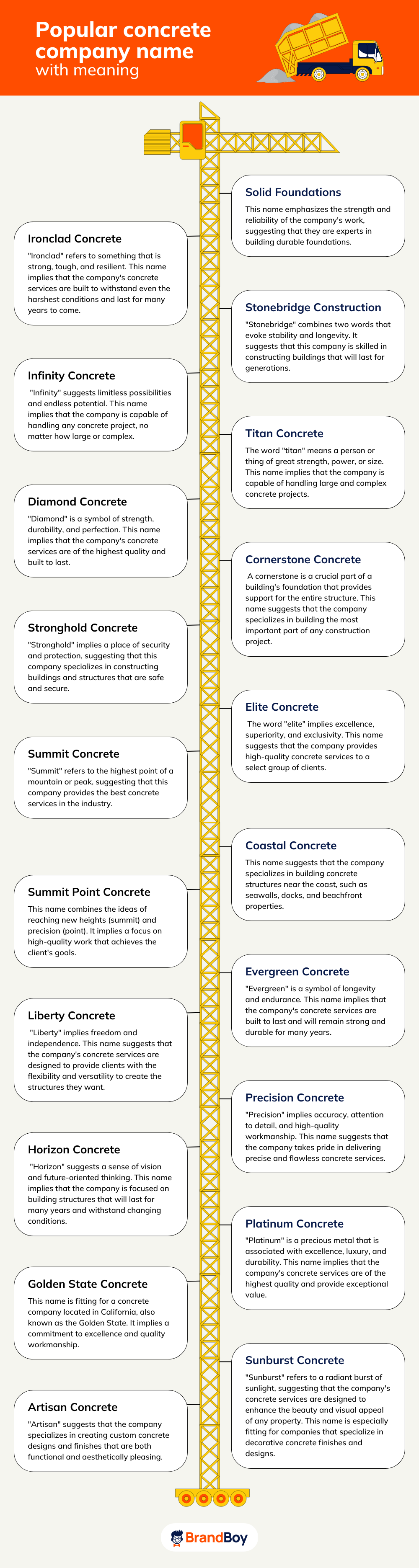
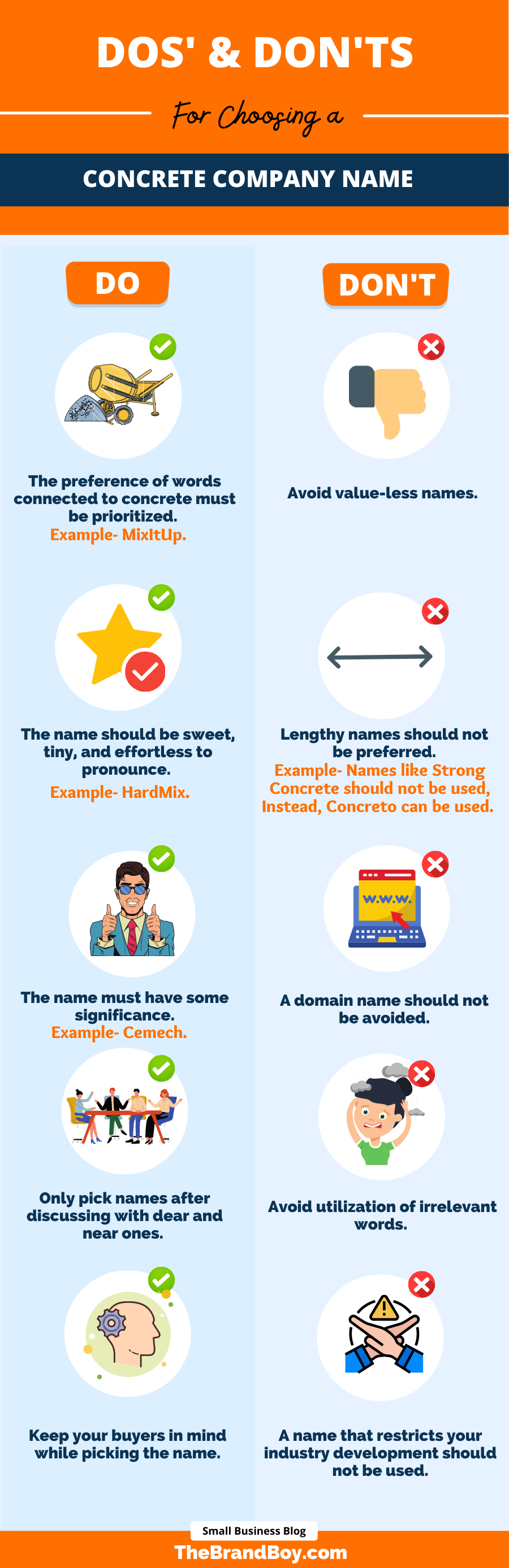
When it comes to naming your concrete business, you want something that reflects the strength and durability of the industry. A name that is catchy and easy to remember will help your business stick in people's minds. Consider words like "solid", "foundation", or "build" to convey a sense of stability and reliability.
What Makes a Good Name?
A good name for a concrete business should be unique and not too generic. Avoid common terms like "construction" or "builders" as these can be used by many different companies. Instead, focus on creating a name that is specific to your business and the services you offer. You could also consider using a play on words or a clever combination of words to make your business name memorable.
Example Names
Here are a few ideas to get you started:
- Solid Foundations
- Rock-Solid Builders
- Concrete Creations
- Build-It-Right
- Stronghold Construction
- Everlast Builders
Remember, these are just a few suggestions, and you can always get creative and come up with your own unique name.
Registering Your Business Name
Once you've settled on a name, you'll need to check its availability and register it. This process varies depending on your location, so it's best to contact your local business registration office or check their website for guidance. You'll also want to secure a domain name for your website and any social media handles to ensure your online presence is consistent.
Hiring a Contractor
If you're hiring a contractor for your project, whether it's a home renovation or a new build, it's important to do your research. Check their qualifications, experience, and references. Ask for a detailed quote, including a breakdown of costs, and compare it with other quotes to ensure you're getting a fair price. Don't be afraid to ask questions and seek clarity on any aspects of the quote you don't understand.
The Cost of Renovations
Renovation costs can vary greatly depending on the scope of the project, the materials used, and the location. It's always a good idea to get multiple quotes from different contractors to compare prices and ensure you're getting a competitive rate. Remember, the cheapest quote might not always be the best option, so consider the quality of the work and the reputation of the contractor too.
Industry Tools and Resources
There are various tools and resources available to help with construction and remodeling projects. RSMeans, for example, is a popular cost database used by professionals to estimate project costs. It provides accurate data on materials, labor, and other construction-related expenses. These tools can be beneficial for both contractors and homeowners to ensure projects stay on budget.
Construction Jobs and Salaries
The construction industry offers a range of job roles, from general contractors and estimators to specialized tradespeople. Salaries can vary depending on experience, qualifications, and the specific role. If you're looking for construction jobs, online job boards and local employment agencies are great places to start your search.
So, there you have it! A few insights into the world of names for concrete business. It's an exciting industry to be a part of, and with the right name and approach, you can build a successful business. Good luck!