


Planner Sheet For Excel Overview
I've got a question for you: how do you estimate the cost of a construction project? I mean, it's a big deal, right? You don't want to get it wrong and end up overpaying or, worse, not having enough to finish the job. That's where the RSMeans database comes in handy. It's like a secret weapon for anyone in the construction game.
Unlocking the Power of RSMeans
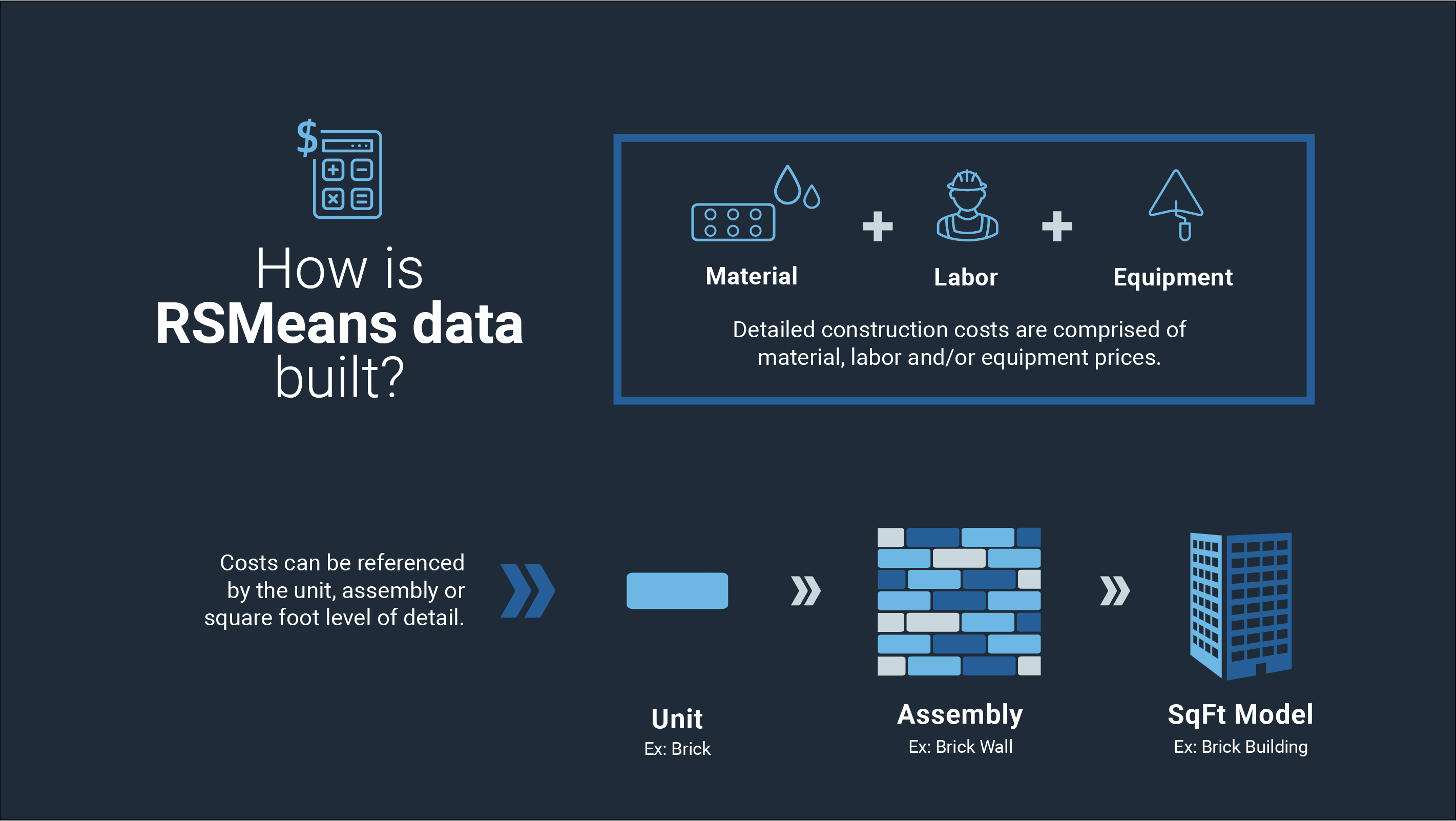
The RSMeans database is a comprehensive tool used by construction professionals to estimate costs accurately. It's a go-to resource for anyone involved in building, from contractors to architects and even homeowners taking on a renovation. This database provides detailed information on various construction elements, from materials to labor, helping users make informed decisions and create precise budgets.
One of the key advantages of RSMeans is its ability to provide location-specific data. Construction costs can vary significantly depending on where you are, and this database takes that into account. It offers regional insights, ensuring your estimates are relevant and accurate for your specific area. Whether you're in Atlanta or San Francisco, RSMeans has you covered.
Estimating Costs with Precision
When it comes to cost estimation, RSMeans is a game-changer. It provides detailed cost data for a wide range of construction projects, helping you avoid those nasty surprises down the line. With RSMeans, you can get an accurate picture of the costs involved, from the initial materials to the final touches.
For instance, if you're planning a bathroom renovation, RSMeans can give you an idea of the cost of materials like tiles, fixtures, and plumbing, as well as the labor involved. It's like having an expert by your side, guiding you through the entire process. And the best part? You can compare quotes from different contractors with confidence, knowing you have a reliable benchmark.
Choosing the Right Contractor
Hiring a contractor is a big decision, and RSMeans can help you make an informed choice. By using this database, you can ensure the quotes you receive are fair and accurate. It's a great way to weed out the cowboys and find a reputable, reliable contractor.
When reviewing quotes, look for detailed breakdowns. A good quote should include costs for materials, labor, and any additional fees. It's also worth checking the contractor's experience and reputation. RSMeans can't do that for you, but it's a great starting point to ensure you're on the right track.
Building a Construction Business
If you're in the business of construction, a unique and memorable name is key. It's your brand, your identity. A good name can set you apart and make you memorable. Here are a few ideas to get you started:
- Build-It-Right
- Solid Foundations
- Crafted Spaces
- Home Evolution
- Constructive Solutions
Remember, when choosing a name, make sure it's available for registration and that the domain name is free. You don't want any legal headaches down the line!
The Bigger Picture
The construction industry is a vast and varied landscape. From small, local businesses to large, national firms, there's a place for everyone. While the big players often have the resources and reach, smaller companies can offer a more personalized service. It's all about finding the right fit for your project.
When it comes to jobs in construction, there's a role for everyone, from estimators to project managers and skilled laborers. Salaries can vary greatly depending on the role, experience, and location. It's a vibrant industry with plenty of opportunities for growth and development.
So, there you have it. The RSMeans database is a powerful tool for anyone in the construction game. It's a resource that can save you time, money, and headaches. Whether you're a homeowner, contractor, or industry professional, it's worth exploring.
Related: How to apply the excel multiply formula for totals?
The excel multiply formula is the basic way to multiply numbers in Excel. This post shows how to use it for single cells, ranges, and simple constants.
You can apply it to multiply a column by a constant or combine it with IF for conditional calculations. If your workbook uses different versions, the syntax stays the same, though some newer functions may be available. Try the shortcut Ctrl+Shift+U to see the formula in action.
Multiply Cells, Ranges, and Constants with the excel multiply formula (asterisk operator usage)
The excel multiply formula lets you multiply a single cell, a range, or a constant using the asterisk () operator. It works the same in all Excel versions and updates instantly after pressing Enter.
To multiply a column, type the formula in the top cell and drag the fill handle down. For large ranges, a dynamic array formula can avoid manual dragging.
Combine the formula with IF for conditional multiplication, e.g., =IF(A2>10, A22, A21). In older Excel, press Ctrl+Shift+U to view the formula in the formula bar.
Requirements Before Using the excel multiply formula (apply to column)
Before you start, ensure your Excel version supports the features you need. Excel for Microsoft 365 and Excel 2019 include the full set of array functions.
All cells should contain numeric values; text will cause a #VALUE! error. If a cell might be blank, wrap the multiplication in IF to provide a default value.
Basic multiplication needs no special subscription. For newer functions like MUL, a Microsoft 365 subscription is required; check workbook trust settings if security prompts appear.
Step-by-Step Guide to Multiply a Column by a Constant
Follow these steps to multiply a column by a constant using the basic formula. The method works across Excel for Windows, Mac, and the web with minor UI differences.
- Select the column you want to multiply by clicking the column header.
- In the first cell of the column, type the constant followed by an asterisk and then the first cell reference, such as =5A2.
- Press Enter to calculate the result, then click the fill handle and drag down to copy the formula.
- For a dynamic array, use =MUL(A2:A100, 3) in Microsoft 365 or enter the array formula with Ctrl+Shift+U in older Excel.
You can also combine the excel multiply formula with IF for conditional results, e.g., =IF(A2>10, A22, A21). Ensure each part returns a number to avoid #VALUE! errors.
In older Excel, press Ctrl+Shift+U after typing the array formula to enclose it in braces. This tells Excel to treat the formula as an array operation.
Common Reasons the excel multiply formula Returns #VALUE! (zero value handling)
The #VALUE! error often appears when Excel cannot perform the multiplication because of incompatible data types. Checking the cells involved is the first step to resolve the issue. A quick way to test is to use ISNUMBER on each operand; if it returns FALSE, the cell likely contains text.
Another common cause is referencing a blank cell without a default value. Blank cells are treated as zero, which can be acceptable, but sometimes you want a specific result instead. Wrapping the multiplication in IF with a condition such as =IF(A2="",0,A2B2) avoids unexpected zeros.
- A cell contains text instead of a number.
- The formula references a blank cell, resulting in zero.
- An array formula was entered without using Ctrl+Shift+U in older Excel.
- Circular reference prevents calculation.
- Using a range that includes a header label that is text.
If the error persists after checking the cells, try saving the workbook and reopening Excel to clear any cached formula issues.
To fix the issue, convert text to numbers using Data > Text to Columns or by adding 0 to the cell, and ensure array formulas are entered with the proper shortcut. After correction, re-enter the formula and verify the result updates correctly.
Use a Dynamic Array Formula to Multiply Entire Ranges (dynamic array formula)
When you need to multiply a whole range without dragging, a dynamic array formula provides a cleaner solution. In Microsoft 365, you can use =MUL(A2:A100, 3) to multiply each element of the range by 3 and spill the results automatically. This approach eliminates the need to copy the formula manually and reduces the chance of misalignment.
If you prefer a formula that automatically expands, consider using the newer excel multiply formula with array handling, such as =MUL(A2:A100, 3). Make sure your Excel version supports the MUL function; otherwise, use the traditional =A2:A1003 array formula entered with Ctrl+Shift+U. Both methods produce the same result but differ in syntax and availability.
Another quick method is to use Paste Special to multiply a selection of cells by a constant without writing a formula. Copy the constant to the clipboard, select the range, right-click and choose Paste Special > Multiply, then OK. This technique is useful for one‑off calculations and avoids formula errors entirely.
Menus can look a bit different depending on your Excel version, but the core steps stay the same. If you’d like more Office tips, feel free to explore the other how‑to articles.
Next time you need to multiply a column, bookmark this page so you can get back to it quickly.
Related: RSMeans Construction Essential Guide For Builders
"rs means construction" is a phrase that might pop up when you're planning a home renovation or building project. It's a mouthful, but it's a useful tool for anyone wanting to understand construction costs. So, let's break it down and see what it's all about!
Understanding RSMeans and Construction Costs
RSMeans is a database and resource for construction professionals and homeowners alike. It provides detailed information on construction costs, helping you estimate and plan your project's budget. This tool is a go-to for many in the industry, offering insights into labor, materials, and other expenses. It's especially handy for comparing quotes and ensuring you get a fair deal.
When using RSMeans, you can get a good idea of what your project might cost. It considers various factors like the size of the project, the materials you choose, and the local labor rates. This data helps you set a realistic budget and understand the costs involved. It's a great way to ensure you're not overspending or underestimating the expenses.
Hiring a Contractor: What to Look For
When it comes to hiring a contractor, RSMeans can be a valuable ally. It can help you understand the typical costs for your project, so you know if a quote is reasonable. Before hiring, always check the contractor's references and licenses. Ask for a detailed breakdown of the costs and what's included in the quote. A good contractor will be transparent and provide this information.
You should also consider the scope of the project and whether the contractor has experience with similar work. Don't be afraid to ask questions and get a clear picture of what you're paying for. It's your project, and you want to ensure it's done right!
Construction Company Names and Branding
Naming a construction company is an important step. It's the first impression you give to potential clients and should reflect your business's values and services. A good name is memorable, unique, and gives a hint at what you do. For example, "BuildStrong", "Renovate Right", or "HomeCrafters" are catchy and descriptive.
When choosing a name, consider registering it and checking domain availability. You want to ensure your online presence is secure and that your name isn't already taken locally. It's a small but crucial step in building your brand and standing out in a competitive industry.
Jobs and Opportunities in Construction
The construction industry offers a range of roles, from estimators who use tools like RSMeans to project managers and skilled laborers. These jobs are in demand, and you'll often find opportunities advertised online or through local trade associations. It's a varied industry, and you can specialize in different areas, whether it's residential construction, commercial projects, or specific trades like plumbing or electrical work.
Data and Tools for the Industry
RSMeans is just one of the many tools and resources available to construction professionals. These tools help manage projects, estimate costs, and keep track of industry trends. For example, cost indexes provide an overview of construction costs over time, helping businesses and homeowners plan and budget effectively. Escalation, another term for cost increases, is also an important factor to consider when planning long-term projects.
Big Companies and the Industry
In the construction world, you'll find a mix of small, local businesses and large, national firms. The size of the company often reflects the scale of projects it takes on. Big companies may have the resources to tackle large-scale developments, while smaller businesses might focus on local renovations and additions. It's a diverse industry, and both types of companies play a crucial role in building our communities.
So, there you have it! RSMeans construction is a useful tool for anyone involved in construction, whether you're a homeowner, a contractor, or a business owner. It's a great way to stay informed and ensure your projects are on track and within budget.