

Planner Stickers For Instagram Overview
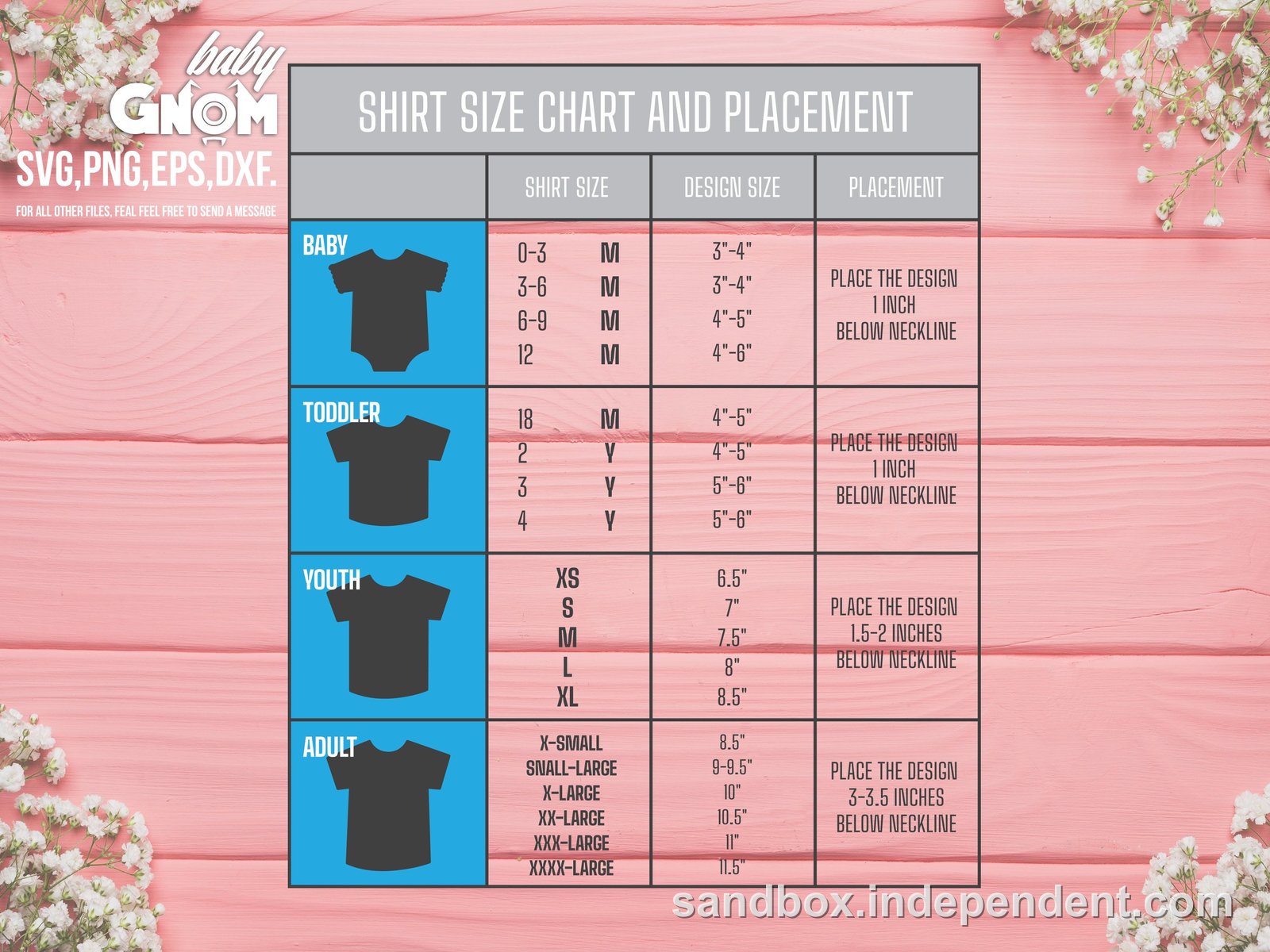
Many people assume that a bat size chart is solely about the length of a bat, but it's actually a comprehensive guide covering various dimensions and specifications. While length is an essential factor, a bat size chart also provides insights into other critical aspects, ensuring you choose the right equipment. This simple yet effective tool offers a quick reference, guiding you through the process of selecting the perfect bat size, whether for yourself or a young player.
Understanding the Bat Size Chart: A Quick Overview
The bat size chart is an essential tool for anyone involved in baseball or softball, offering a simple yet effective way to determine the appropriate bat size for players of all ages and skill levels. This chart acts as a reference guide, providing measurements and recommendations to ensure players have the right equipment for their physical attributes and playing style.
Comparing Bat Size Standards and Formats
Bat size charts can vary depending on the sport and the specific standards or regulations followed. For instance, baseball and softball often have different size charts, and even within these sports, there might be variations for youth leagues, adult recreational play, or professional leagues. These charts typically cover bat length and weight, with some also including additional factors like drop weight (the difference between bat length and weight) and barrel diameter.
Measuring for the Right Bat Size: A Step-by-Step Guide
To use a bat size chart accurately, follow these steps:
- Identify the relevant chart for your sport and league.
- Measure the player's height and, if applicable, their weight.
- Refer to the chart to find the recommended bat length based on the player's height and weight.
- Consider the player's age and skill level, as these can influence the ideal bat weight and drop.
- Select a bat within the recommended range, keeping in mind that personal preference and comfort are also important factors.
Common Size Variations and How to Avoid Misreadings
While bat size charts provide a great starting point, there can be variations due to several factors:
- Height and weight are just two of many physical attributes that can influence bat size. Hand size, arm length, and overall strength can also play a role.
- Age and skill level are often used as general guidelines, but individual player development and experience can vary widely.
- Manufacturer variations can occur, as different brands might have slightly different size recommendations or use unique sizing systems.
To ensure a perfect fit, it's essential to consider these factors and not solely rely on the chart. Always allow for some flexibility and personal preference, as the ultimate goal is to find a bat that feels comfortable and performs well for the individual player.
Before you put this guide to use, remember to cross-check your specific needs and requirements. While the chart offers a comprehensive overview, exact values can vary, so it's essential to ensure you're referring to the right standard or source for your context.
Consider bookmarking this page for future reference; it's a handy tool to have at your fingertips when you need a quick reminder of bat sizes. Stay organized, and happy batting!
Related: easy paper craft for kindergarten fun creative ideas
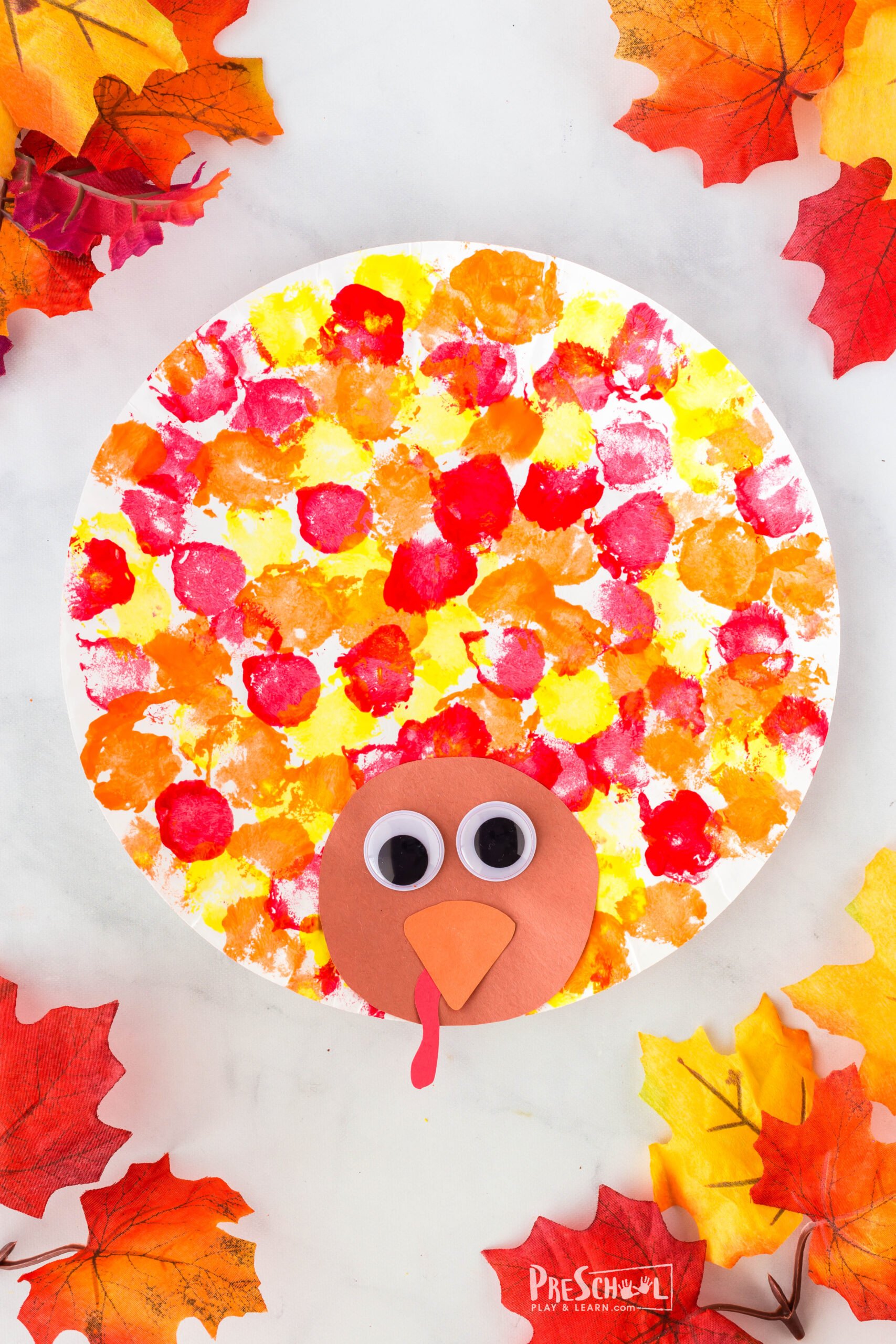
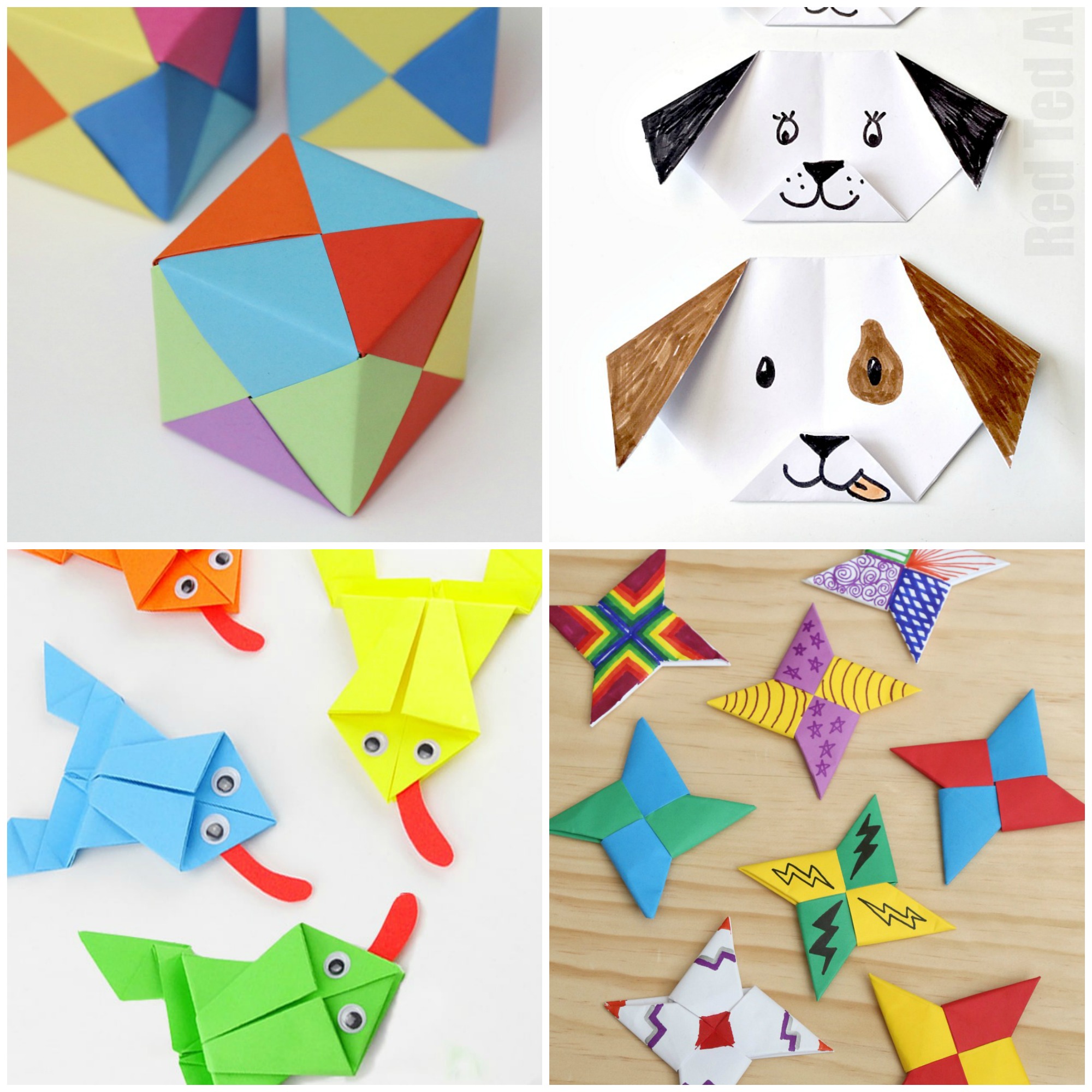
Easy paper craft for kindergarten is a fun and simple way to get creative with your little ones, and it's something I've really enjoyed doing with my kids. It's a great activity to keep them entertained and engaged, and it's so satisfying to see their little faces light up with pride when they've made something cool.
So, what is this all about? Well, it's basically a collection of craft ideas that use paper as the main material. These crafts are designed to be accessible and fun for kids, with simple steps and minimal supervision needed. It's a brilliant way to encourage their creativity and fine motor skills, and it's an affordable activity too!
You can find a whole range of ideas online, from the classic paper chain to more intricate pop-up cards. Some ideas are seasonal, like making paper snowflakes for Christmas, while others are more general and can be done anytime. The best part is that these crafts often require very few materials - paper, scissors, glue, and maybe some crayons or markers.
Getting Started
If you're new to this, I'd recommend starting with some basic folding and cutting activities. You can teach them how to make simple shapes like squares and triangles, and then use those to create fun designs. For example, folding a piece of paper into a fan shape is a great way to introduce the concept of symmetry and pattern-making.
Step It Up
Once they've got the hang of the basics, you can introduce more complex crafts. One of my favorites is making paper boats. It's a classic for a reason - it's easy, and kids love seeing their creations float in water! You can also try making paper hats, which is a fun way to encourage imagination and role-play.
The beauty of easy paper craft for kindergarten is that it's so adaptable. You can tailor the difficulty level to your child's age and abilities, and you can often use these crafts as a springboard for other activities. For instance, making a paper doll might lead to a fun dress-up game, or creating a paper city could inspire some imaginative play.
So, why not give it a go? It's a brilliant way to spend some quality time with your kids, and you might just discover a new hobby together!
Related: match formula excel easy guide for data lookups
Match formula Excel can save you hours when you need to find something in a long list. Say you’ve got a sheet with hundreds of product IDs, and you need to know the position of a specific one. Instead of scrolling forever, you type in =MATCH(lookup_value, lookup_array, [match_type]), and Excel does the heavy lifting. It’s not just for numbers—it works with text, dates, and even wildcards if you set it up right.
It’s one of those formulas that feels like a secret weapon once you get the hang of it. Sure, XLOOKUP is flashier, but match formula Excel is faster for grabbing a position, not a value. Plus, it plays well with INDEX for more advanced lookups. If you’re still manually searching for data, this is your cue to stop.
Find positions, not just values
The match formula in Excel is all about locating where something sits in a list. It’s perfect for anyone who needs to map data between sheets or check if an item exists. Marketers use it to match campaign IDs to results, inventory managers track stock locations, and HR teams map employee IDs to departments.
Set up your sheet with two columns: one for your lookup list (e.g., product IDs) and one for the data you’re matching against (e.g., sales numbers). Keep the lookup list sorted if you’re using match_type 1 (exact or next smallest). Add a third column for the formula itself, and a fourth for any error handling with IFERROR.
| Product ID | Sales | Position | Formula |
|---|---|---|---|
| 101 | 250 | =MATCH(101, A2:A100, 0) |
|
| 102 | 300 | =MATCH(103, A2:A100, 1) |
|
| 103 | 150 | =MATCH("104", A2:A100, 0) |
The first formula returns 1 because 101 is the first item in the list. The second returns 5 since 103 isn’t there, but 105 is the next smallest. The third returns #N/A because "104" (as text) doesn’t match 104 (as a number).
Common mistake: Using match_type 1 on unsorted data. Excel won’t throw an error, but it’ll give you wrong results. Fix it by sorting the lookup array or switching to match_type 0 for exact matches.
Pair it with INDEX for dynamic lookups
The real power of match formula Excel comes when you combine it with INDEX. Together, they let you pull values from a table based on a lookup, without hard-coding cell references. This is how you build dynamic dashboards or reports that update automatically.
Create a table with Ctrl+T, then add a separate cell for your lookup value (e.g., "Q1 Sales"). Below it, set up a formula like =INDEX(table_array, MATCH(lookup_value, lookup_column, 0), return_column). Use IFERROR around it to catch missing data.
| Quarter | Region | Sales | Formula |
|---|---|---|---|
| Q1 | East | 500 | |
| Q1 | West | 700 | |
| Q2 | East | 600 |
Formula in D2: =IFERROR(INDEX(B2:B4, MATCH("Q1", A2:A4, 0), 2), "Not Found"). Returns 500 for Q1 East sales.
Common mistake: Forgetting to lock cell references with $. If you drag the formula down, A2:A4 should be $A$2:$A$4 to keep it anchored.
Handle errors and wildcards
Match formula in Excel breaks if it can’t find what you’re looking for. Wrap it in IFERROR to show a custom message instead of #N/A. If you’re working with partial matches, use wildcards by switching to match_type 0.
Add a data validation dropdown in your lookup cell to avoid typos. Go to Data > Data Validation > List, and point it to your lookup array. This keeps inputs consistent.
| Item | Price | Lookup | Result |
|---|---|---|---|
| Apple | 1.50 | p | 1 |
| Banana | 0.75 | n | 2 |
| Cherry | 2.00 | Peach | Not Found |
Formula in D2: =IFERROR(MATCH(C2 & "", A2:A4, 0), "Not Found"). For p, it returns 1 because "Apple" contains “p”.
Common mistake: Storing numbers as text. If your lookup value is 101 (number) but your array has "101" (text), the formula fails. Fix it with Data > Text to Columns > Finish to convert.
Build a lookup tracker
Turn match formula Excel into a reusable tracker by adding conditional formatting and filters. This works great for inventory logs, expense trackers, or project checklists. Highlight matches with Home > Conditional Formatting > New Rule > Use a formula.
Set up a filter on your lookup column (Ctrl+Shift+L) so you can narrow down results. Freeze the top row (View > Freeze Panes) if your sheet is long.
| Task ID | Status | Due Date | Priority |
|---|---|---|---|
| 001 | Done | 2023-10-15 | High |
| 002 | Pending | 2023-10-20 | Medium |
| 003 | Done | 2023-10-25 | Low |
Formula in E2: =IF(ISNUMBER(MATCH(A2, $A$2:$A$4, 0)), "Found", ""). Add conditional formatting to highlight “Found” cells.
Common mistake: Merging cells in your lookup array. Merged cells break formulas. Unmerge them with Home > Merge & Center > Unmerge Cells.
Try building a simple inventory tracker next. Use match formula Excel to flag low-stock items, and pair it with COUNTIFS to tally quantities.