



Sig Roofing Invoice Overview
A browns depth chart is a valuable tool for any football enthusiast, offering a concise overview of the Cleveland Browns' team structure. This guide aims to demystify the chart, ensuring you can quickly grasp its purpose and navigate its contents with ease.
The depth chart is a snapshot of the team's player positions, providing a clear hierarchy and an understanding of the Browns' roster. While formats may vary slightly, the core purpose remains the same: to offer a practical reference for fans and analysts alike.
Understanding the Browns Depth Chart: An Overview
The Cleveland Browns depth chart is a valuable tool for fans and analysts, offering a comprehensive view of the team's player positions and their hierarchy. This chart provides an organized representation of the roster, showcasing the depth and talent within each position group. By understanding the depth chart, you can gain insights into the team's strategy, potential starting lineups, and backup options.
Comparing Standard Player Positions and Categories
The depth chart categorizes players based on their primary positions. These positions are typically divided into offense, defense, and special teams. Within each category, you'll find specific roles such as quarterback (QB), running back (RB), wide receiver (WR), defensive end (DE), linebacker (LB), and more. Each position has its own depth chart, indicating the players' rankings and roles within the team.
Reading the Depth Chart: A Step-by-Step Guide
Start by identifying the position group you're interested in. Look for the relevant category on the depth chart, which often uses clear headings or color-coding for easy navigation.
Within each position group, players are typically listed in a hierarchical order. The top player(s) are considered the starters, followed by backups, and so on. Pay attention to the arrangement, as it indicates the team's preferred lineup and depth.
Alongside each player's name, you may find additional information such as their jersey number, height, weight, and sometimes even key statistics. These details provide context and help you recognize individual players and their attributes.
Some depth charts include notes or symbols to indicate injuries, suspensions, or other relevant factors. These indicators can give you a quick glimpse into the team's current situation and potential challenges.
Common Misreadings and How to Avoid Them
One common misconception is assuming that the depth chart represents a rigid, unchanging lineup. In reality, it's a dynamic tool that reflects the team's current status and can change rapidly due to injuries, trades, or performance. Always consider the chart as a snapshot of the team's situation at a specific moment.
Another pitfall is overinterpreting the depth chart's rankings. While it provides a hierarchy, it doesn't always indicate a player's actual performance or potential. The depth chart is a tool for organizing the roster, and players' rankings can change based on various factors, including coaching decisions and individual progress.
Factors Affecting Accuracy and Real-World Use
The accuracy of the Browns depth chart, like any other team's chart, depends on several factors. Firstly, it reflects the team's official roster, which can change frequently during the season due to injuries, trades, or player performance. Thus, it's essential to refer to the most recent depth chart to ensure you have accurate information.
Additionally, the depth chart may not account for all variables. For instance, it might not reflect a player's versatility or ability to play multiple positions. Some players can be listed as backups at one position but may see significant playing time at another, especially in injury-prone positions.
Choosing the Right Format for Specific Needs
The standard depth chart format provides a clear overview of the team's roster. However, for more detailed analysis, you might consider specialized charts or tools. These can include position-specific depth charts, which offer a deeper dive into each role, or statistical charts that provide additional insights based on player performance metrics.
If you're an analyst or fantasy football enthusiast, you might prefer customizable depth charts or spreadsheets that allow you to input and track your own data and projections. These tools can be tailored to your specific needs and preferences, providing a more personalized analysis experience.
Keeping Your Reference Reliable for Next Time
To ensure you have the most up-to-date and accurate information, it's essential to stay informed. Regularly check reliable sources, such as the team's official website or reputable sports media outlets, for the latest depth chart updates. These sources will provide the most current and official information, helping you make informed decisions and analyses.
Additionally, consider setting up notifications or alerts for depth chart changes. Many sports apps and websites offer this feature, allowing you to stay informed about roster moves and depth chart adjustments as they happen. By staying vigilant and proactive, you can ensure your reference materials remain reliable and relevant.
Every depth chart is unique, and while these guidelines offer a solid foundation, your specific context may require some adjustments. The beauty of depth charts is their adaptability, so feel free to tweak and personalize as needed.
Remember, this is a reference tool, so keep it handy for future use. Bookmark this page for a quick refresh whenever you need a reliable guide. It's always good to have these practical resources at your fingertips!
Related: how to change outlook signature quick steps to update
Need to know how to change outlook signature? This post walks you through the basics in a few easy steps.
You’ll learn where to find the signature settings, how to edit Outlook signature, and how to set an Outlook default signature for new messages. The steps are similar across recent versions, though some menu labels may vary slightly.
Quick answer: how to change outlook signature and add new signature
You can quickly add a new signature in Outlook with just a few clicks. how to change outlook signature works whether you use the desktop app or Outlook on the web.
The feature is limited to Microsoft 365 or Exchange accounts; POP/IMAP setups do not support signatures at all. If you see a warning that your account cannot use signatures, you need to switch to a supported account type.
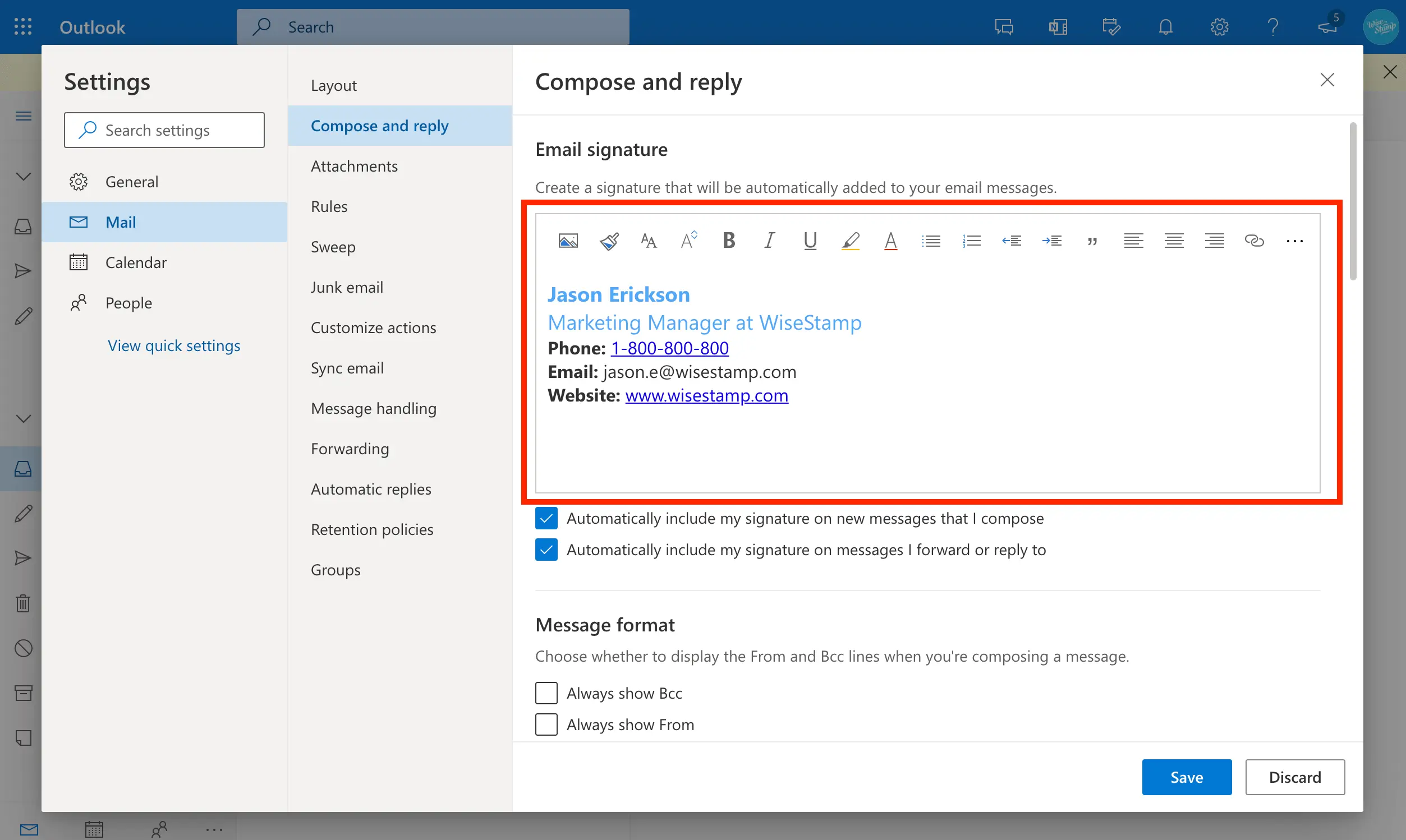
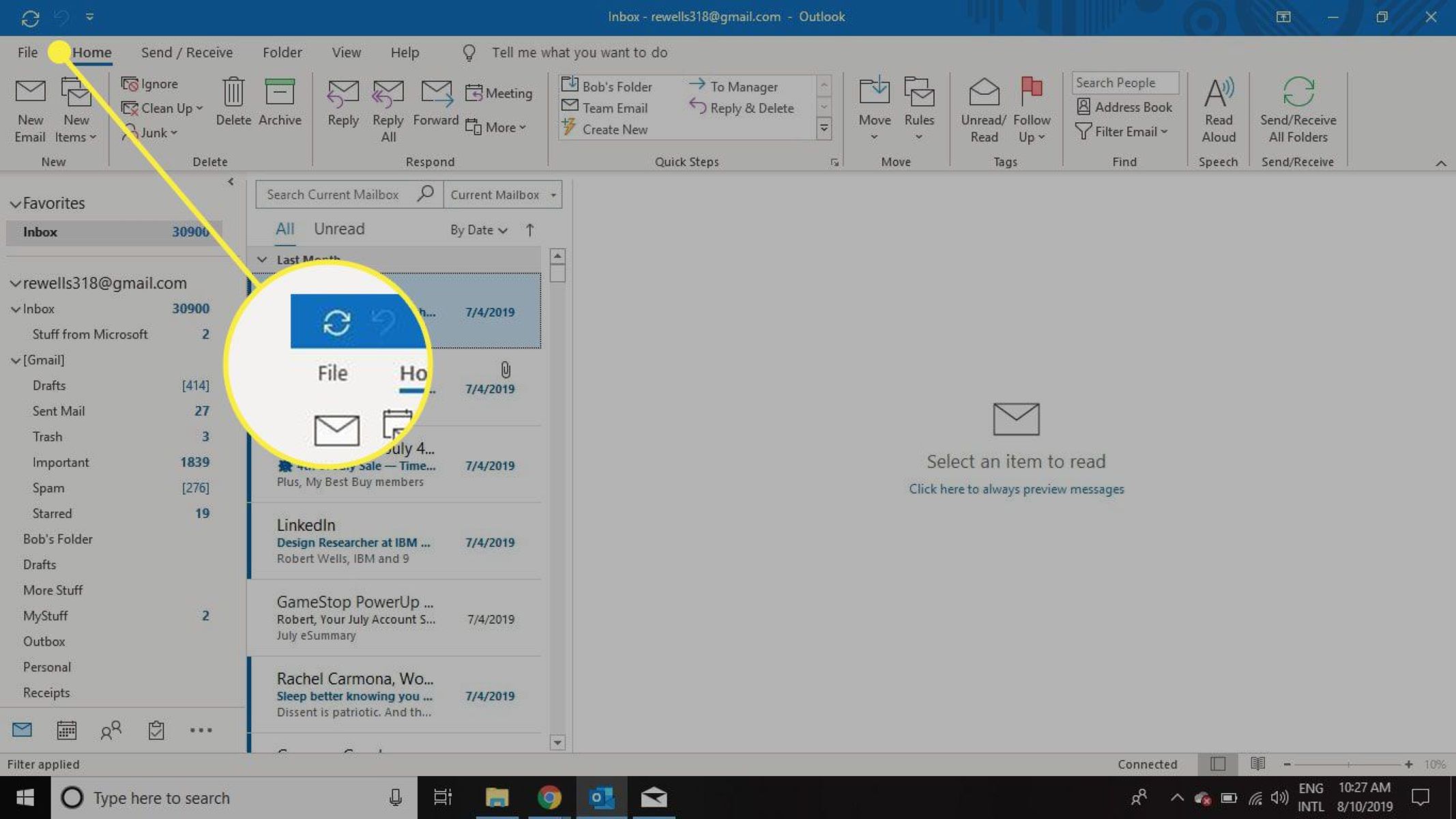
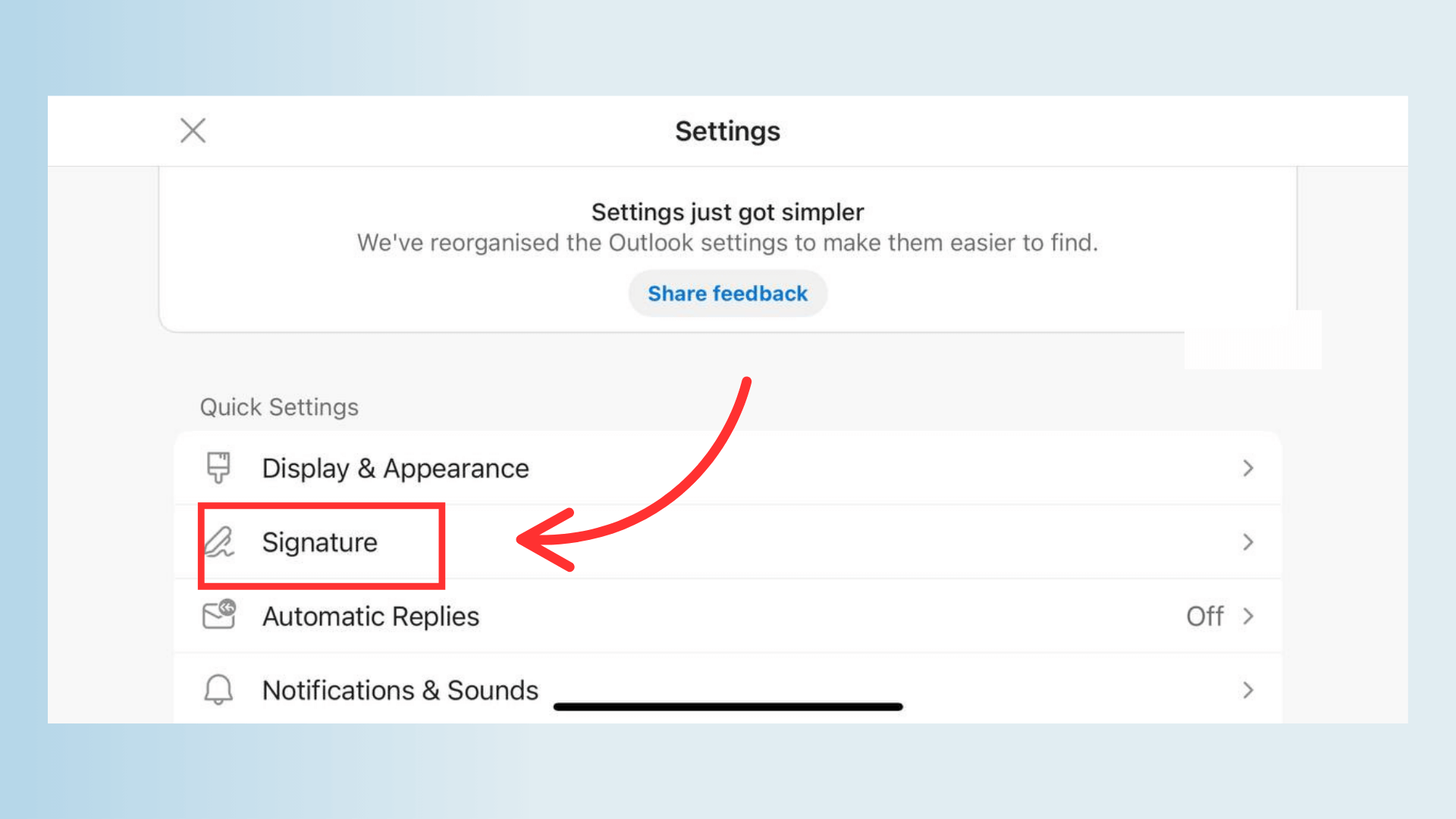
In Outlook desktop, open File > Options > Mail and click Signatures…; in Outlook on the web, go to Settings > View all Outlook settings > Mail > Compose and reply. Outlook default signature is stored in that location and can be edited anytime.
Compare methods by version: edit existing signature for Outlook on the web and Outlook desktop app
The desktop Outlook for Windows has a dedicated Signatures dialog where you can edit existing signature with rich formatting, images, and hyperlinks. You can also set a default signature for new messages, replies, or forwards from the same pane.
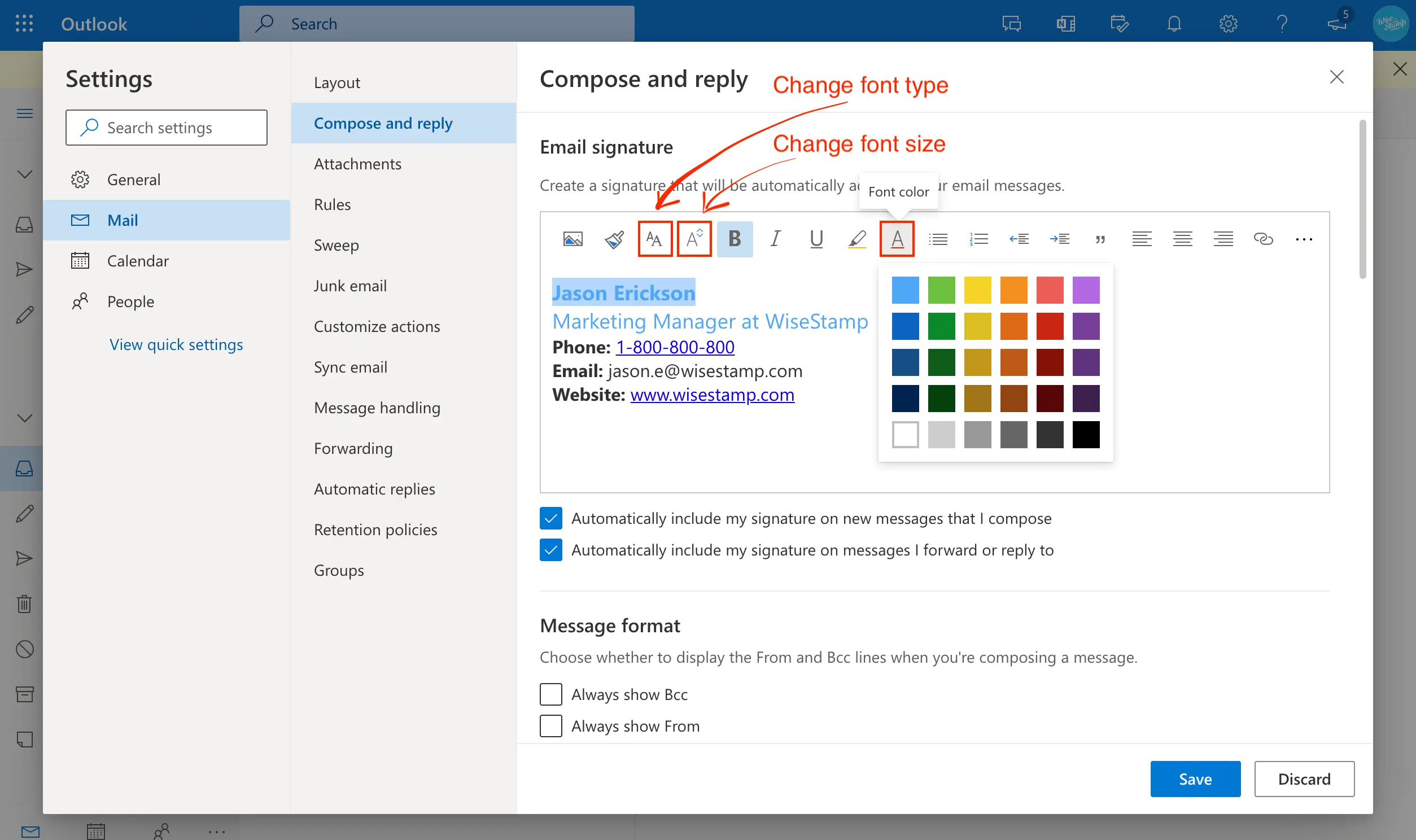
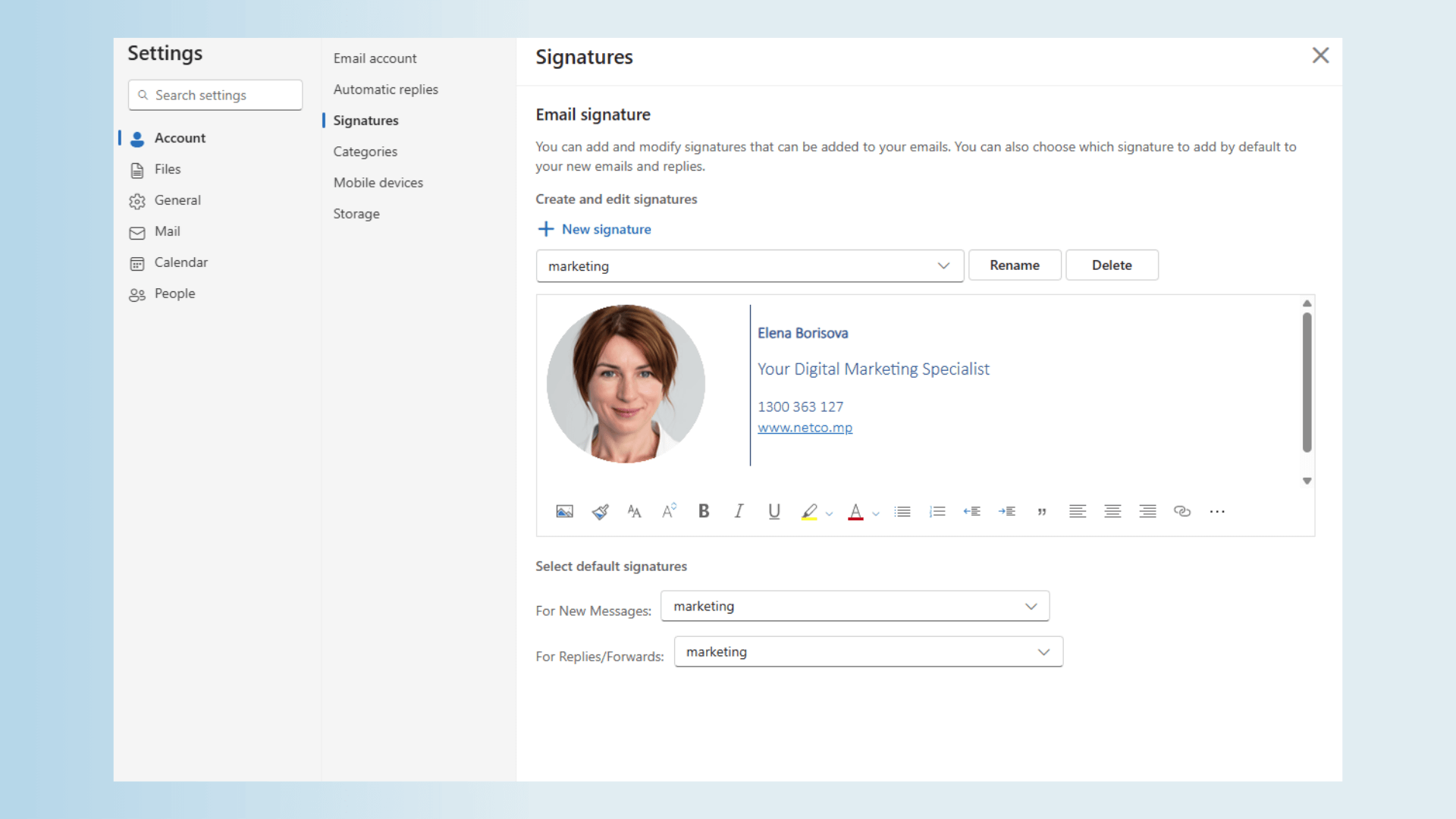
Outlook on the web places the signature in a plain‑text box under Mail settings, and changes sync automatically to all signed‑in devices. The web version renders HTML, so spacing may look slightly different from the desktop client.
Outlook for Mac uses a similar Signatures pane in Preferences > Mail, letting you create and edit signatures with the same options as Windows. Export the signature as an .htm file to move it between platforms without losing formatting.
Step-by-step guide: edit existing signature in Outlook on the web compose window
This guide applies to Outlook for Windows and Outlook for Microsoft 365; the steps are identical. You need an Exchange or Microsoft 365 account, otherwise the Signatures button is hidden.
- Open Outlook and click File > Options > Mail.
- Click the Signatures… button to open the Signatures dialog.
- Select an existing signature to edit, or click New to create one.
- Edit the text, insert images, add hyperlinks, and format as desired.
- Under Choose default signature, set it for New messages and/or Replies/Forwards.
- Click OK to save your changes and close the dialog.
After saving, compose a new email to confirm the signature appears at the bottom; test a reply to see the reply‑signature behavior. If it doesn’t show, revisit the steps and verify the correct account is selected in the Signatures dialog.
Common mistakes and fixes: signature not appearing
A common slip is assigning a signature only for replies and forgetting to set it as the default for new messages; always verify both options in the Signatures dialog. The Outlook default signature setting is where you confirm the choice.
If the signature does not appear in Outlook on the web, open Settings > View all Outlook settings > Mail > Compose and reply and make sure the signature box is filled. It sometimes hides behind the More actions menu, so expand that section before saving.
Signatures are unavailable on POP/IMAP accounts, so switch to an Exchange or Microsoft 365 account if you see a notice. Images may be blocked for security; re‑insert them and allow inline attachments, or use plain text if the recipient’s client does not support HTML.
Prevent future issues: Outlook desktop app signature management
Keep your signature in one .htm file and import it on each PC to maintain consistent formatting. Copying the Outlook web app signature from the web version into the desktop compose window also works.
After a Windows or Office update, open the Signatures dialog and verify that your default signature is still selected; a new install can clear the selection. A quick monthly check prevents unexpected missing signatures in important messages.
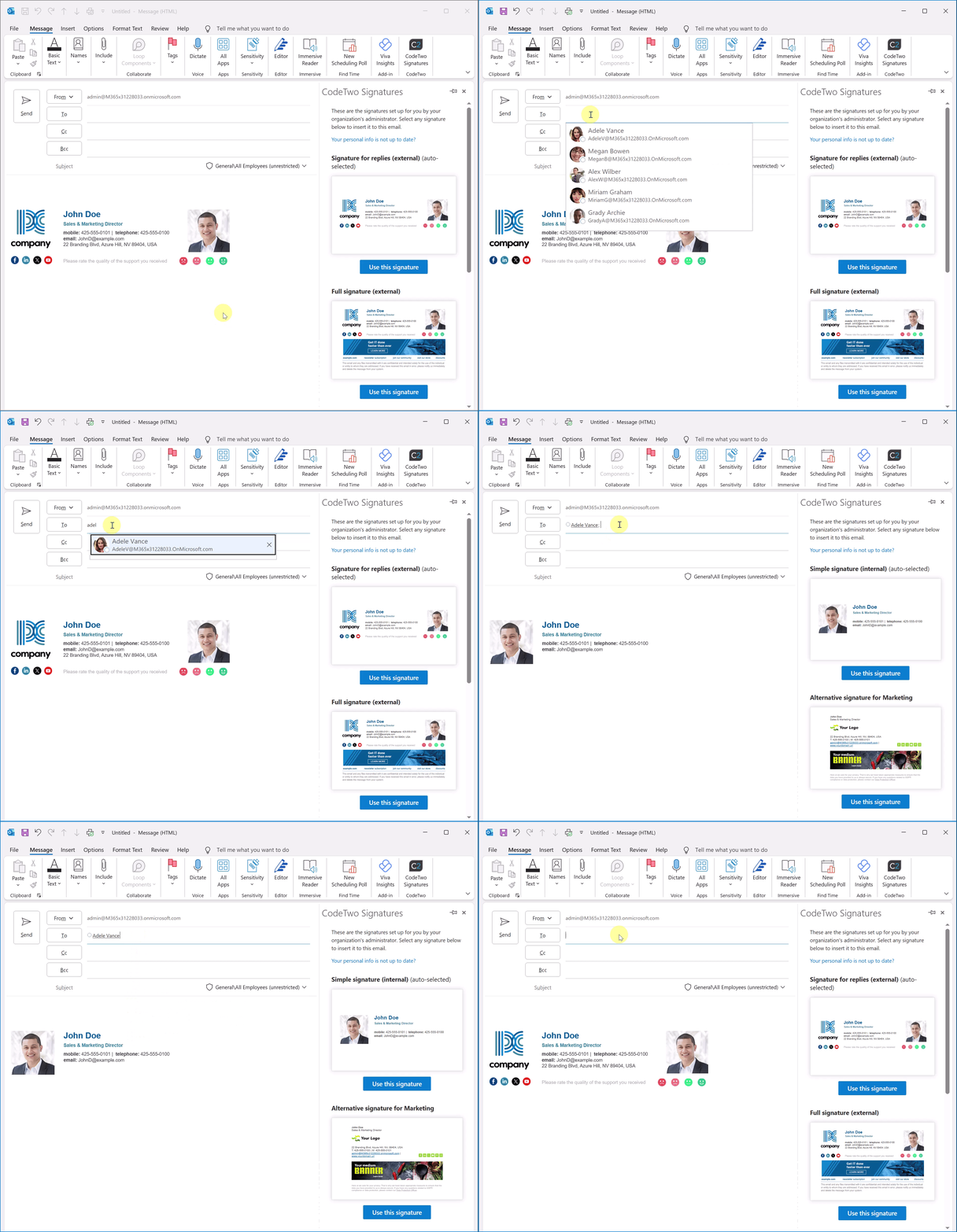
For teams, ask IT to deploy a standard signature via Group Policy or the Microsoft 365 admin center; this ensures everyone uses the approved branding and legal text. Admins can also lock the signature settings so users cannot modify them.
When moving to Outlook on the web, export the desktop signature as an .htm file and paste it into the web compose box; this preserves tables, images, and hyperlinks. Preview the signature to confirm formatting before sending.
Finally, test your signature on several devices and email clients to ensure it appears as intended; adjust the content or switch to plain text if needed. how to change outlook signature becomes routine once you have a reliable workflow in place.
Menus can look a bit different depending on which version of Outlook you’re using, so don’t be surprised if things shift around a little.
If you liked this tip, take a look at the other Microsoft Office guides on the site for more quick fixes and how‑tos.