Valentine Hello Kitty Coloring Pages Overview
A youth size chart is a handy tool for parents and caregivers, offering a quick and accurate way to find the right fit for kids' clothing and shoes. This guide will show you how to navigate these charts, ensuring you get the perfect size every time.
Understanding the youth size chart is essential, especially when shopping online or for specific brands. While the charts provide standard measurements, they can vary slightly, so knowing how to read them is key.
Youth Size Chart: A Practical Guide
A youth size chart is an essential tool for parents and caregivers to ensure kids' clothes and shoes fit comfortably and correctly. This chart provides a standardized guide to help you choose the right size for children's apparel and footwear.
Key Details and Categories
The youth size chart typically includes categories for clothing and shoes, with specific measurements for each. For clothing, you'll find sizes ranging from XS (extra small) to XL (extra large), each with corresponding chest, waist, and height measurements in inches or centimeters. Shoe sizes, on the other hand, are numbered and often include an age range as a reference.
Understanding the Chart: Step-by-Step
To use the youth size chart accurately, follow these steps:
- Measure your child's chest, waist, and height. Ensure you use a flexible measuring tape for an accurate reading.
- Locate the appropriate category on the chart: clothing or shoes.
- For clothing, find the size that best matches your child's measurements. If their measurements fall between two sizes, choose the larger size for comfort and room to grow.
- For shoes, identify the size that aligns with your child's age or foot length.
- Always double-check the specific brand or manufacturer's guidelines, as sizing can vary slightly between brands.
Common Size Variations and Why They Occur
It's important to note that youth sizes can vary depending on several factors:
- Region and Standard: International youth size charts may use different units or have slightly different measurements. Always check if the chart follows US or international standards.
- Clothing Style: Different types of clothing, like shirts, pants, or jackets, may have unique sizing requirements.
- Shoe Type: Athletic shoes, for instance, might have a different fit compared to dress shoes.
- Individual Differences: Every child's body is unique, so variations in body shape and size are common.
Practical Sizing Tips and Common Mistakes to Avoid
Here are some tips to ensure accurate sizing:
- Measure your child regularly, as they grow quickly!
- Don't assume that all brands follow the same sizing guidelines.
- When in doubt, opt for a slightly larger size to allow for growth.
- Avoid relying solely on age for shoe sizing; foot length is a more accurate indicator.
- Remember that comfort and fit are crucial, so always try items on if possible.
By following these guidelines and understanding the factors that influence youth sizing, you'll be able to choose the perfect fit for your child's clothes and shoes.
Hey there, I hope this youth size chart guide has been a helpful resource for you. Remember, when it comes to sizing, exact values can differ slightly, so always double-check the source and standard you're using.
It's always a good idea to bookmark pages like these for future reference, especially when you're shopping for kids and need a quick reminder of the right measurements. Feel free to explore our other guides too; we've got plenty of practical tips and tricks to make your life easier!
Related: how to move excel columns easy step by step guide
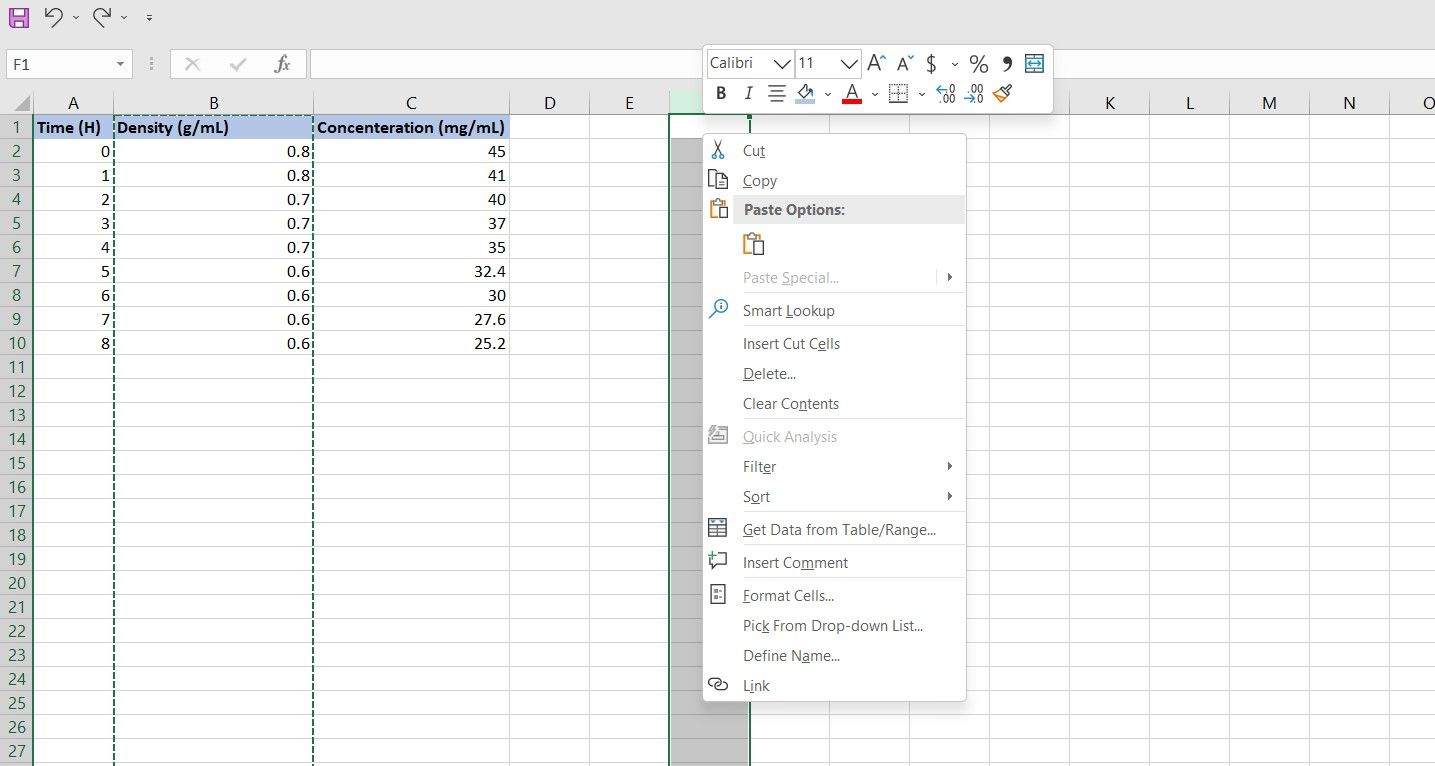
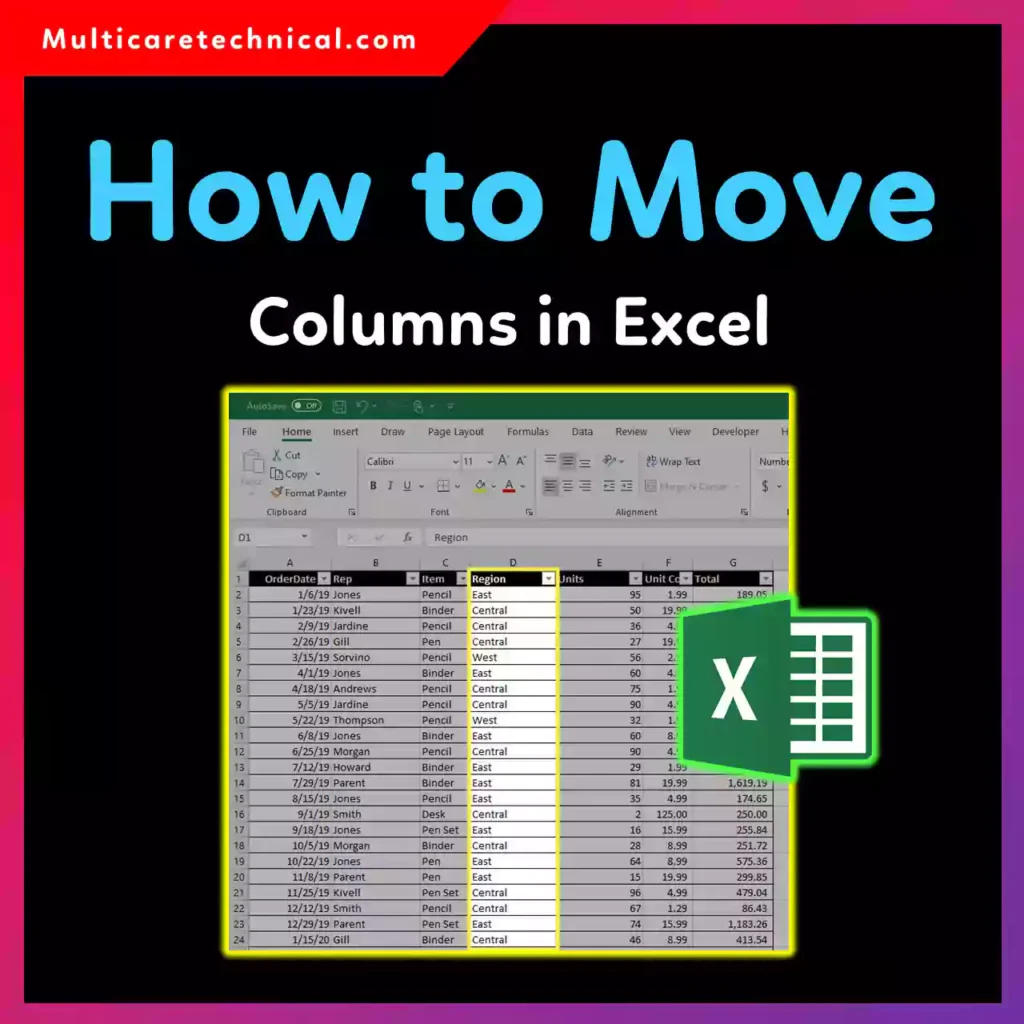
How to move Excel columns can save you a lot of time when rearranging data. Imagine you’ve got a sheet with sales data, but the "Region" column is stuck between "Product" and "Quantity," making it hard to analyze trends. Instead of copying and pasting everything, you can simply drag the column header to its new spot. It’s faster and keeps your formulas intact.
Moving columns isn’t just about aesthetics—it’s about making your data easier to work with. Whether you’re prepping a report or cleaning up a tracker, knowing how to move Excel columns ensures your sheet stays organized. Plus, it’s a skill that pairs well with other Excel tricks, like using tables or conditional formatting, to keep everything tidy.
Rearrange columns for better analysis
If you’re working with a dataset that’s out of order, moving columns is a quick fix. Analysts and project managers benefit most here, especially when dealing with logs or trackers. For example, if you’ve got a sheet tracking tasks with columns like "Priority," "Due Date," and "Status," you might want "Status" front and center for a quick glance.
Set up your sheet with clear headers in row 1 and data starting in row 2. Keep related columns together—like grouping all date fields or all numerical values. This makes it easier to apply filters or sort later. If you’re using a table (Ctrl+T), moving columns within it updates any related formulas automatically.
Here’s a sample task tracker:
| Task ID | Priority | Due Date | Status | Hours Spent |
|---|---|---|---|---|
| 001 | High | 2023-10-15 | Completed | 8 |
| 002 | Medium | 2023-10-20 | In Progress | 4 |
| 003 | Low | 2023-10-25 | Pending | 0 |
To count completed tasks, use =COUNTIFS(Status, "Completed"). This formula returns 1 in this case, since only one task is marked as done.
A common mistake here is merging cells for headers, which breaks the table structure. Always keep headers in a single row and use Center Across Selection from the Alignment tab instead.
Drag and drop with formulas intact
Moving columns with formulas requires a bit of care. If you’ve got a column calculating totals, like =B2C2 for "Total Cost," dragging the column won’t break the formula—Excel updates references automatically. This works best when your sheet uses relative references.
Start by setting up a simple invoice tracker with columns like "Item," "Price," and "Quantity." Add a "Total" column with the formula above. If you move the "Quantity" column, the formula adjusts to =D2E2 if it’s now in column D.
| Item | Price | Quantity | Total |
|---|---|---|---|
| Widget | 10 | 5 | =B2C2 |
| Gadget | 20 | 3 | =B3C3 |
To avoid errors, use =IFERROR(B2*C2, "N/A") in the Total column. This catches any division by zero or missing values, returning "N/A" instead of an error.
One mistake to avoid is hard-coding values. If you type "5" directly into a cell instead of referencing another cell, moving columns won’t update it. Always use cell references for dynamic data.
Use tables for smarter column management
Converting your data range into a table (Ctrl+T) makes moving columns even smoother. Tables automatically adjust formulas and formatting, so you don’t have to worry about breaking anything.
Tables are ideal for logs or checklists where data grows over time. For instance, a project log with columns like "Date," "Task," and "Notes" can be rearranged without messing up filters or totals.
Here’s a sample project log table:
| Date | Task | Notes | Hours |
|---|---|---|---|
| 2023-10-01 | Client Meeting | Follow-up needed | 2 |
| 2023-10-02 | Draft Proposal | Waiting on feedback | 4 |
To sum hours, use =SUM(Table1[Hours]). If you move the "Hours" column, the formula still works because tables use structured references.
A common pitfall is forgetting to expand the table when adding new columns. Always click the table, go to Table Design > Resize Table, and update the range to include new data.
Fix broken references after moving
Even with careful planning, moving columns can sometimes break formulas. If you’ve got a VLOOKUP or XLOOKUP referencing a column you moved, you’ll need to update the formula manually.
For example, if your lookup formula references column C but you moved it to column E, change =XLOOKUP(A2, C:C, D:D) to =XLOOKUP(A2, E:E, F:F).
| ID | Name | Department | Manager |
|---|---|---|---|
| 1 | John | Sales | =XLOOKUP(C2, E:E, F:F) |
| 2 | Jane | Marketing | =XLOOKUP(C3, E:E, F:F) |
To prevent this, use named ranges or tables. Go to Formulas > Define Name, select the range, and give it a name like "Departments." Then use =XLOOKUP(A2, Departments, Managers)—this stays intact even if columns move.
One mistake is not checking for numbers stored as text. If a column with numerical data is formatted as text, formulas might not work after moving. Use Data > Text to Columns to convert it back to numbers.
Try moving a column in your own sheet and adding a conditional formatting rule to highlight values above a certain threshold. It’s a quick way to see how changes affect your data.
Related: How to Use the Cerenia Dose Chart?
You're likely here because you need a quick solution or some clarity on how to use the cerenia dose chart effectively. It's a handy tool, often in the form of a table or diagram, designed to make dosing cerenia, an anti-nausea medication, simple and accurate. This chart is a go-to reference for pet owners and vets alike, providing a straightforward guide to ensuring your furry friend gets the right dose. While the values may vary depending on factors like weight and region, the cerenia dose chart offers a reliable starting point for administering this veterinary nausea medication.
Understanding the Cerenia Dose Chart
The cerenia dose chart is a valuable tool for pet owners and veterinary professionals, providing a quick and easy reference guide for administering the antiemetic medication Cerenia. This chart ensures accurate dosing, which is crucial for treating nausea and vomiting in cats and dogs.
Key Details and Units
The chart typically displays two key categories: animal weight and corresponding dose. Weight is usually measured in pounds (lbs) for cats and dogs, with standard weight ranges from a few pounds to over 100 lbs. The dose is presented in milligrams (mg) and often includes both oral and injectable options, depending on the medication's form.
Interpreting the Chart: A Step-by-Step Guide
- Locate your pet's weight on the chart. Ensure you have an accurate and recent weight measurement, as this is the primary factor in determining the correct dose.
- Find the corresponding dose for that weight. The chart will indicate the recommended dose, typically in a range to allow for slight variations. For example, a 20-lb dog might have a dose range of 20-25 mg.
- Administer the medication as directed. Follow the instructions on the medication label, which will specify whether to use the oral or injectable form. Ensure you use the correct form and measure the dose accurately.
- Repeat as needed. The frequency of administration will depend on the medication's instructions and your pet's specific condition. Always consult your veterinarian for guidance on the appropriate dosing schedule.
Variations and Differences
While the cerenia dose chart provides a standard guide, variations can occur due to several factors. Different manufacturers may have slightly different recommendations, so always check the specific medication's label. Additionally, the chart's weight ranges might not cover all pets, especially very small or large breeds. In such cases, consult your veterinarian for precise dosing instructions. Storage and handling tips can also impact the medication's effectiveness, so always follow the storage guidelines to maintain the drug's integrity.
Remember, while the cerenia dose chart is a helpful tool, it's essential to prioritize your pet's health and well-being. Always seek professional advice if you have any concerns or questions about administering medication.
Remember, the Cerenia dose chart is a handy tool, but it's always a good idea to double-check the specifics for your unique situation. Exact dosages and guidelines can vary, so it's best to consult the relevant resources or seek professional advice when needed.
Feel free to explore our other guides; we've got plenty of practical tips and references to help you navigate various topics with ease. Happy learning, and stay informed!