



Weekly Planner For Macbook Overview
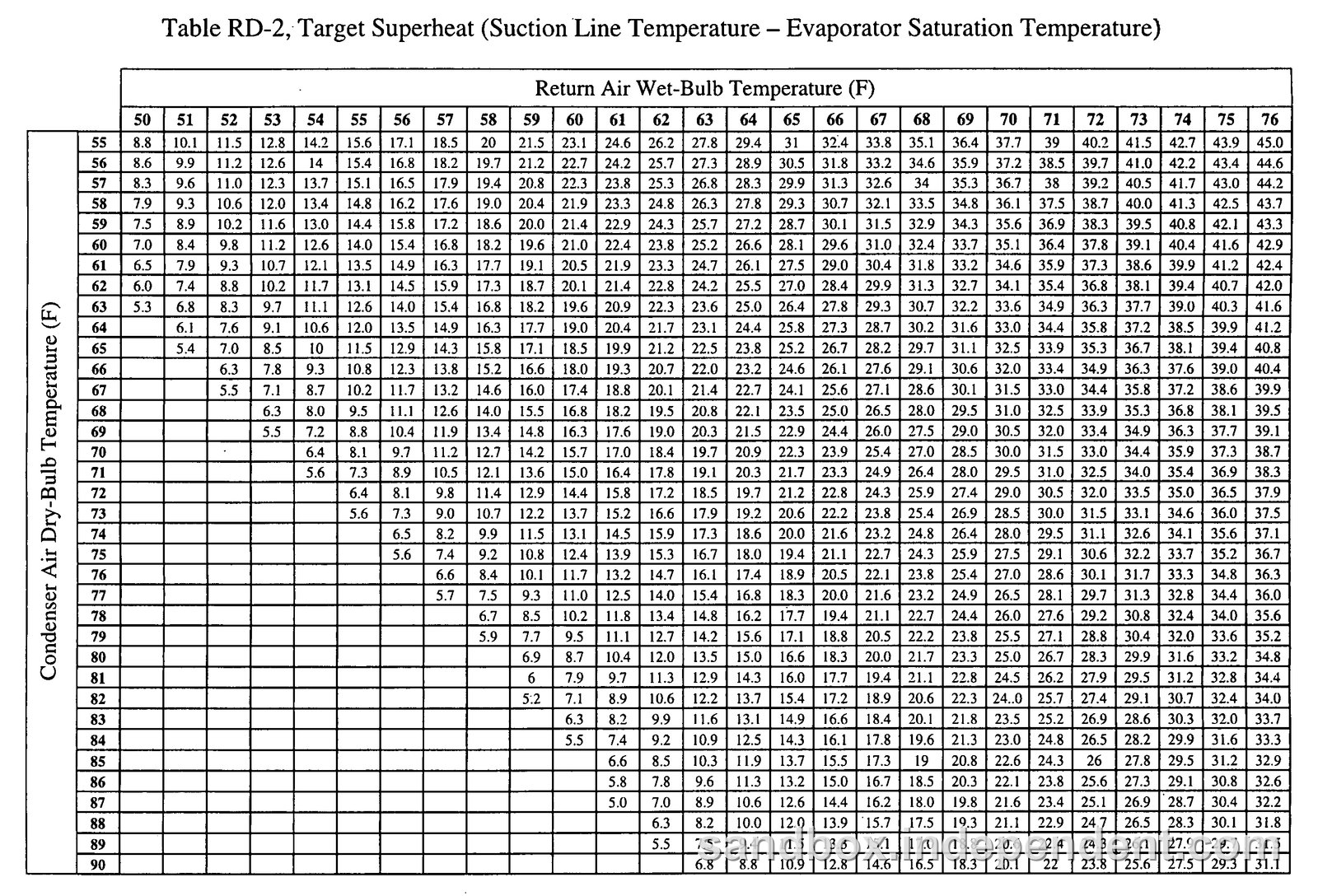
You've likely arrived here with a specific goal: to understand and utilize the pt chart for r-22 efficiently. This chart is a handy tool, offering a quick reference for those seeking precise information on R-22 refrigerant. Whether you're a technician, an engineer, or simply someone needing accurate data, the R-22 pressure-temperature chart provides a clear visual representation of refrigerant properties. It's a go-to resource, offering insights into the relationship between pressure and temperature, and can guide you in various applications, from HVAC systems to refrigeration.
Understanding the PT Chart for R-22
The pt chart for r-22 is a valuable tool for anyone working with this refrigerant, providing a visual representation of its pressure-temperature relationship. This chart serves as a quick reference guide, offering insights into the refrigerant's behaviour under different conditions. By understanding this chart, you can make informed decisions when dealing with R-22 systems.
Comparing Pressure-Temperature Standards and Formats
There are various standards and formats for pt charts, each designed for specific purposes and regions. The chart for R-22 typically follows industry-standard pressure-temperature units, such as psi (pounds per square inch) and degrees Fahrenheit. These units are commonly used in the United States and are familiar to many technicians. However, it's important to note that other regions may use different units, such as bar and degrees Celsius, so always check the chart's legend or key to ensure you're interpreting the data correctly.
Step-by-Step Guide to Reading the PT Chart for R-22
Identify the Pressure and Temperature Axes: The pt chart will have two axes, one representing pressure and the other temperature. These axes are typically labelled clearly, but if you're unsure, refer to the chart's key or legend.
Locate the Operating Point: Determine the pressure and temperature values you need to read. These values will correspond to the refrigerant's state at a specific point in the system. For example, you might be interested in the pressure and temperature at the condenser outlet.
Find the Intersection: Locate the intersection of the pressure and temperature values on the chart. This point represents the refrigerant's state at that specific condition. The chart will provide information about the refrigerant's properties, such as its density, specific volume, and enthalpy, at that point.
Interpret the Data: The chart will often include additional lines or curves representing important parameters. For instance, you might see lines indicating the saturation pressure-temperature relationship, which helps determine if the refrigerant is in a saturated or superheated state. Understanding these lines and their meanings is crucial for accurate interpretation.
Common Misreadings and How to Avoid Them
One common mistake is assuming that the pt chart provides absolute values. While it offers valuable insights, it's essential to remember that the chart represents a generalised relationship. Actual system conditions may vary due to factors like system design, load, and ambient temperature. Always cross-reference the chart with real-time measurements and consider the specific context of your application.
Key Factors Affecting Accuracy and Real-World Use
Several factors can influence the accuracy of the pt chart for r-22. Firstly, the chart assumes ideal conditions, so deviations from these conditions can lead to variations in real-world performance. Factors like system efficiency, refrigerant charge, and component quality can impact the refrigerant's behaviour. Additionally, the chart may not account for all possible scenarios, such as extreme temperatures or specific system configurations. In such cases, it's crucial to consult the manufacturer's specifications or seek expert advice.
Choosing the Right Format for Specific Needs
The pt chart for r-22 comes in various formats, each tailored to different applications and preferences. Some charts provide a comprehensive overview, including multiple curves and lines, while others focus on specific parameters. When selecting a chart, consider your primary needs. If you're primarily interested in saturation properties, choose a chart that emphasises those. Alternatively, if you require a quick reference for superheat and subcooling calculations, opt for a chart designed for that purpose. Customising your chart selection ensures you have the most relevant and useful information at hand.
Well, there you have it! A handy PT chart for R-22 is a great tool to have in your arsenal, offering a quick and practical reference for your needs. Remember, while this guide provides a solid framework, your specific circumstances may require some adjustments.
So, before you put this knowledge into action, take a moment to ensure you've considered all the unique factors relevant to your situation. And don't forget, this page is here for you whenever you need a refresher, so feel free to bookmark it for future use!
Related: How to apply the excel multiply formula for totals?
The excel multiply formula is the basic way to multiply numbers in Excel. This post shows how to use it for single cells, ranges, and simple constants.
You can apply it to multiply a column by a constant or combine it with IF for conditional calculations. If your workbook uses different versions, the syntax stays the same, though some newer functions may be available. Try the shortcut Ctrl+Shift+U to see the formula in action.
Multiply Cells, Ranges, and Constants with the excel multiply formula (asterisk operator usage)
The excel multiply formula lets you multiply a single cell, a range, or a constant using the asterisk () operator. It works the same in all Excel versions and updates instantly after pressing Enter.
To multiply a column, type the formula in the top cell and drag the fill handle down. For large ranges, a dynamic array formula can avoid manual dragging.
Combine the formula with IF for conditional multiplication, e.g., =IF(A2>10, A22, A21). In older Excel, press Ctrl+Shift+U to view the formula in the formula bar.
Requirements Before Using the excel multiply formula (apply to column)
Before you start, ensure your Excel version supports the features you need. Excel for Microsoft 365 and Excel 2019 include the full set of array functions.
All cells should contain numeric values; text will cause a #VALUE! error. If a cell might be blank, wrap the multiplication in IF to provide a default value.
Basic multiplication needs no special subscription. For newer functions like MUL, a Microsoft 365 subscription is required; check workbook trust settings if security prompts appear.
Step-by-Step Guide to Multiply a Column by a Constant
Follow these steps to multiply a column by a constant using the basic formula. The method works across Excel for Windows, Mac, and the web with minor UI differences.
- Select the column you want to multiply by clicking the column header.
- In the first cell of the column, type the constant followed by an asterisk and then the first cell reference, such as =5A2.
- Press Enter to calculate the result, then click the fill handle and drag down to copy the formula.
- For a dynamic array, use =MUL(A2:A100, 3) in Microsoft 365 or enter the array formula with Ctrl+Shift+U in older Excel.
You can also combine the excel multiply formula with IF for conditional results, e.g., =IF(A2>10, A22, A21). Ensure each part returns a number to avoid #VALUE! errors.
In older Excel, press Ctrl+Shift+U after typing the array formula to enclose it in braces. This tells Excel to treat the formula as an array operation.
Common Reasons the excel multiply formula Returns #VALUE! (zero value handling)
The #VALUE! error often appears when Excel cannot perform the multiplication because of incompatible data types. Checking the cells involved is the first step to resolve the issue. A quick way to test is to use ISNUMBER on each operand; if it returns FALSE, the cell likely contains text.
Another common cause is referencing a blank cell without a default value. Blank cells are treated as zero, which can be acceptable, but sometimes you want a specific result instead. Wrapping the multiplication in IF with a condition such as =IF(A2="",0,A2B2) avoids unexpected zeros.
- A cell contains text instead of a number.
- The formula references a blank cell, resulting in zero.
- An array formula was entered without using Ctrl+Shift+U in older Excel.
- Circular reference prevents calculation.
- Using a range that includes a header label that is text.
If the error persists after checking the cells, try saving the workbook and reopening Excel to clear any cached formula issues.
To fix the issue, convert text to numbers using Data > Text to Columns or by adding 0 to the cell, and ensure array formulas are entered with the proper shortcut. After correction, re-enter the formula and verify the result updates correctly.
Use a Dynamic Array Formula to Multiply Entire Ranges (dynamic array formula)
When you need to multiply a whole range without dragging, a dynamic array formula provides a cleaner solution. In Microsoft 365, you can use =MUL(A2:A100, 3) to multiply each element of the range by 3 and spill the results automatically. This approach eliminates the need to copy the formula manually and reduces the chance of misalignment.
If you prefer a formula that automatically expands, consider using the newer excel multiply formula with array handling, such as =MUL(A2:A100, 3). Make sure your Excel version supports the MUL function; otherwise, use the traditional =A2:A1003 array formula entered with Ctrl+Shift+U. Both methods produce the same result but differ in syntax and availability.
Another quick method is to use Paste Special to multiply a selection of cells by a constant without writing a formula. Copy the constant to the clipboard, select the range, right-click and choose Paste Special > Multiply, then OK. This technique is useful for one‑off calculations and avoids formula errors entirely.
Menus can look a bit different depending on your Excel version, but the core steps stay the same. If you’d like more Office tips, feel free to explore the other how‑to articles.
Next time you need to multiply a column, bookmark this page so you can get back to it quickly.
Related: RSMeans Construction Essential Guide For Builders
"rs means construction" is a phrase that might pop up when you're planning a home renovation or building project. It's a mouthful, but it's a useful tool for anyone wanting to understand construction costs. So, let's break it down and see what it's all about!
Understanding RSMeans and Construction Costs
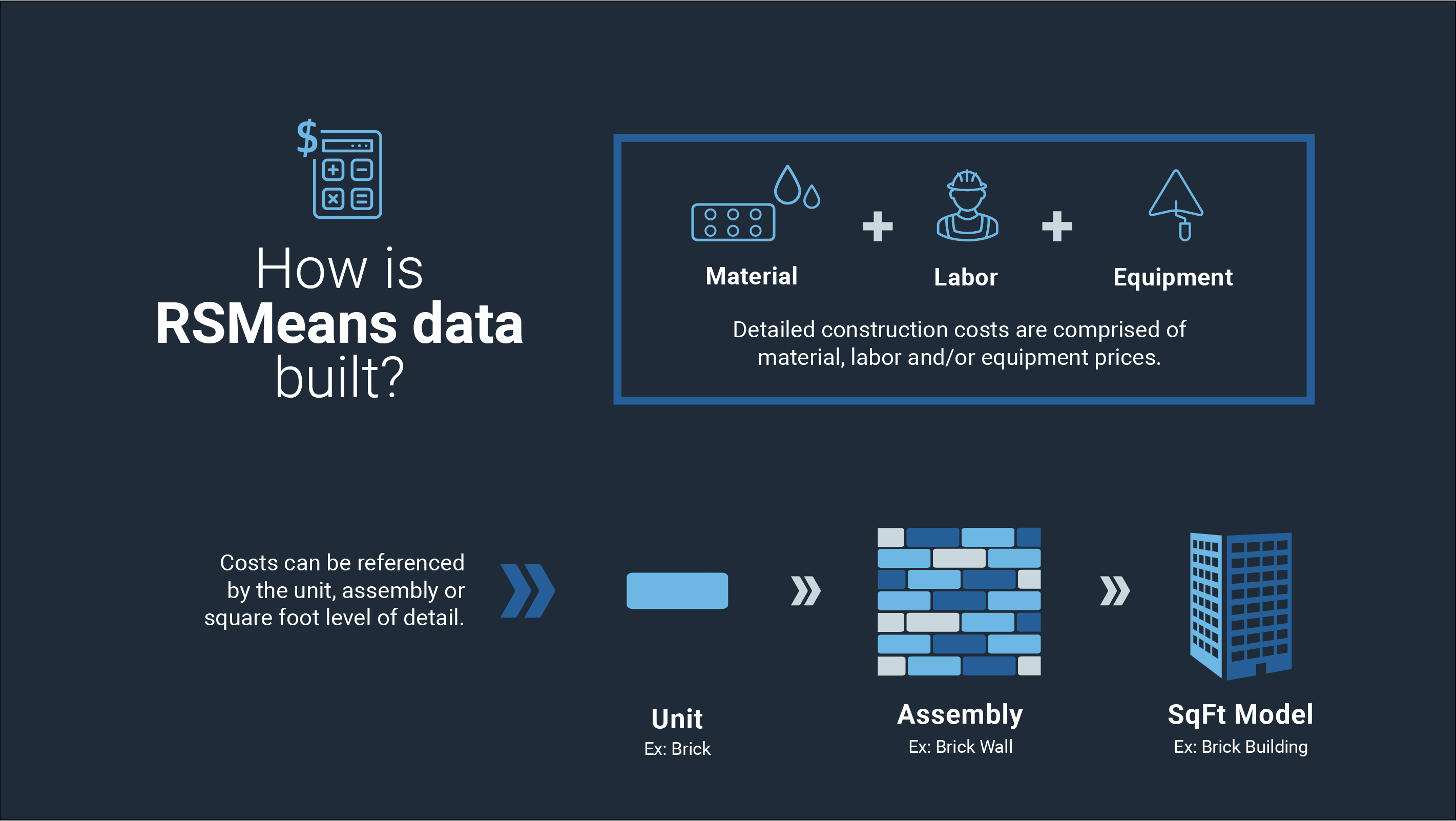
RSMeans is a database and resource for construction professionals and homeowners alike. It provides detailed information on construction costs, helping you estimate and plan your project's budget. This tool is a go-to for many in the industry, offering insights into labor, materials, and other expenses. It's especially handy for comparing quotes and ensuring you get a fair deal.
When using RSMeans, you can get a good idea of what your project might cost. It considers various factors like the size of the project, the materials you choose, and the local labor rates. This data helps you set a realistic budget and understand the costs involved. It's a great way to ensure you're not overspending or underestimating the expenses.
Hiring a Contractor: What to Look For
When it comes to hiring a contractor, RSMeans can be a valuable ally. It can help you understand the typical costs for your project, so you know if a quote is reasonable. Before hiring, always check the contractor's references and licenses. Ask for a detailed breakdown of the costs and what's included in the quote. A good contractor will be transparent and provide this information.
You should also consider the scope of the project and whether the contractor has experience with similar work. Don't be afraid to ask questions and get a clear picture of what you're paying for. It's your project, and you want to ensure it's done right!
Construction Company Names and Branding
Naming a construction company is an important step. It's the first impression you give to potential clients and should reflect your business's values and services. A good name is memorable, unique, and gives a hint at what you do. For example, "BuildStrong", "Renovate Right", or "HomeCrafters" are catchy and descriptive.
When choosing a name, consider registering it and checking domain availability. You want to ensure your online presence is secure and that your name isn't already taken locally. It's a small but crucial step in building your brand and standing out in a competitive industry.
Jobs and Opportunities in Construction
The construction industry offers a range of roles, from estimators who use tools like RSMeans to project managers and skilled laborers. These jobs are in demand, and you'll often find opportunities advertised online or through local trade associations. It's a varied industry, and you can specialize in different areas, whether it's residential construction, commercial projects, or specific trades like plumbing or electrical work.
Data and Tools for the Industry
RSMeans is just one of the many tools and resources available to construction professionals. These tools help manage projects, estimate costs, and keep track of industry trends. For example, cost indexes provide an overview of construction costs over time, helping businesses and homeowners plan and budget effectively. Escalation, another term for cost increases, is also an important factor to consider when planning long-term projects.
Big Companies and the Industry
In the construction world, you'll find a mix of small, local businesses and large, national firms. The size of the company often reflects the scale of projects it takes on. Big companies may have the resources to tackle large-scale developments, while smaller businesses might focus on local renovations and additions. It's a diverse industry, and both types of companies play a crucial role in building our communities.
So, there you have it! RSMeans construction is a useful tool for anyone involved in construction, whether you're a homeowner, a contractor, or a business owner. It's a great way to stay informed and ensure your projects are on track and within budget.