




Zoom Add On For Outlook Overview
Ugh, duplicates in Excel. We've all been there, staring at a massive spreadsheet with rows and rows of data, only to realize there are multiple entries for the same thing. Remove duplicates Excel to the rescue! Let's get into how this handy feature works and why it's a lifesaver for anyone dealing with data.
So, you've got your Excel sheet open, and it's a mess of similar entries. Maybe it's a list of contacts, products, or sales data, and you need to clean it up. The "Remove Duplicates" feature is like a magic wand, but it's not as simple as clicking a button. You've got to set it up right to get the results you need.
First, let's talk about how Excel identifies duplicates. It looks at the values in the cells and compares them. But here's the catch: by default, it only checks the active column. So, if you have duplicate entries across multiple columns, you need to tell Excel which columns to consider. You do this by selecting the range of cells you want to check, then heading to the "Data" tab and clicking "Remove Duplicates." A pop-up will appear, showing you the columns Excel will check. Make sure to select all the relevant columns, and voila! You're on your way to a cleaner sheet.
Setting it Up: A Step-by-Step Guide
Now, let's get into the nitty-gritty. After selecting your range, click "Remove Duplicates," and that pop-up will appear. Here, you can choose which columns to check. But be careful! If you have multiple columns with similar data, Excel might remove entries you want to keep. For example, if you have a contact list with names and email addresses, and someone has the same name but a different email, Excel might see it as a duplicate and remove one entry. To avoid this, you can use a formula like =IF(ISERROR(MATCH(B2,$B$2:$B$100,0)),"","Duplicate") in a helper column. This formula checks if the email address in column B is a duplicate within the range B2 to B100. If it is, it returns "Duplicate"; otherwise, it leaves the cell blank. This way, you can easily identify and keep the entries you need.
Another tip: before removing duplicates, consider using conditional formatting to highlight potential duplicates. This way, you can visually inspect the data and make sure you're not losing important entries. Excel's "Conditional Formatting" feature lets you format cells based on their values, so you can quickly spot and address any issues.
Keeping Your Data Clean
Maintaining a tidy spreadsheet is crucial, and remove duplicates Excel is just one tool in your belt. Regularly review and clean your data to avoid messy formatting and broken cells. Use Excel's built-in tools like SUMIFS for quick calculations and XLOOKUP for finding specific values. These formulas, along with drop-down lists and other features, can keep your sheet organized and efficient.
In a nutshell, remove duplicates Excel is a powerful feature, but it's just one part of the Excel toolkit. With a bit of practice and these tips, you'll be a pro at managing your data and keeping your spreadsheets shipshape. So, next time you open that massive contact list, remember these tricks and tackle those duplicates like a boss!
Related: excel sum formula easy guide for fast totals
Understanding the Excel Sum Formula
The Excel Sum Formula is an essential tool for any Excel user, providing a simple yet powerful way to calculate sums and totals. Its versatility allows users to perform basic arithmetic operations and more advanced calculations with ease. By understanding and utilizing this formula, you can transform raw data into valuable insights, aiding in decision-making processes.
When employing the Excel Sum Formula, you initiate a series of calculations that aggregate data based on your specified criteria. This formula is particularly useful when dealing with large datasets, as it automates the process of adding up values, saving time and reducing the risk of errors. For instance, consider a scenario where you have a dataset containing sales data for various products over a month. You want to calculate the total sales for each product to identify the top-performing ones. The Excel Sum Formula comes to the rescue, allowing you to quickly sum up the sales figures for each product, providing a clear overview of your sales performance.
A Practical Example
Let's dive into a real-world application of the Excel Sum Formula in the context of a sales analysis. Imagine you're a marketing analyst, and you have a spreadsheet with columns for "Product", "Units Sold", and "Price per Unit". You want to calculate the total sales for each product to determine which products are performing well.
Here's a step-by-step guide:
- In a new column, labeled "Total Sales", input the formula
=SUM(Units Sold Price per Unit). - Ensure that the formula correctly references the "Units Sold" and "Price per Unit" columns. For example, if your data starts in row 2, the formula could be
=SUM(B2:B100C2:C100)where B and C represent the columns for "Units Sold" and "Price per Unit" respectively. - Drag the formula down to apply it to each row, calculating the total sales for each product.
Now, you have a column with the total sales for each product, allowing you to identify the top-selling products and make informed decisions regarding marketing strategies.
Common Mistake and How to Avoid It
One common mistake when using the Excel Sum Formula is failing to use absolute references when copying formulas across rows or columns. This can lead to incorrect calculations as the formula may reference unintended cells.
To avoid this mistake, use absolute references by adding a dollar sign ($) before the column and row references. For instance, if you want to lock the reference to column A and row 2, you would use $A$2. This ensures that when you copy the formula, it always refers to the same cell, regardless of its position in the spreadsheet.
Enhancing Your Excel Skills
Excel offers a wide range of features to enhance your data analysis capabilities. One such feature is the drop-down list, which can greatly improve the usability of your spreadsheets. By creating a drop-down list using the Data Validation feature, you can allow users to select from a predefined list of options, reducing data entry errors and ensuring consistency.
Additionally, the IF function is a powerful tool for conditional calculations. This function allows you to check a condition and return different values based on whether the condition is true or false. For example, you can use the IF function to highlight cells that meet certain criteria, automate data validation, or perform dynamic calculations based on specific conditions.
Final Thoughts
The Excel Sum Formula is a fundamental tool for data analysis, offering a simple and efficient way to calculate sums and totals. Its versatility and ease of use make it an indispensable skill for anyone working with data. As you continue to explore Excel's capabilities, you'll discover a wealth of advanced functions and features that will further enhance your data analysis skills. Remember, practice and experimentation are key to mastering Excel, so don't hesitate to dive deeper into its vast toolkit. Happy spreadsheeting and happy data analysis!
Related: RSMeans Cost Data Essential Guide for Builders
RS Means Cost Data has been on my mind lately as I plan a home renovation project. It's an important step to get the right info before you start, so I wanted to learn more.
I discovered that RS Means Cost Data is a valuable resource for anyone in the construction industry, whether you're a homeowner, a contractor, or a business owner. It's a comprehensive database that provides cost information for various construction projects, materials, and labor. This data is crucial for accurate estimating and budgeting, especially when you're considering a remodel or new build.
Understanding the Data
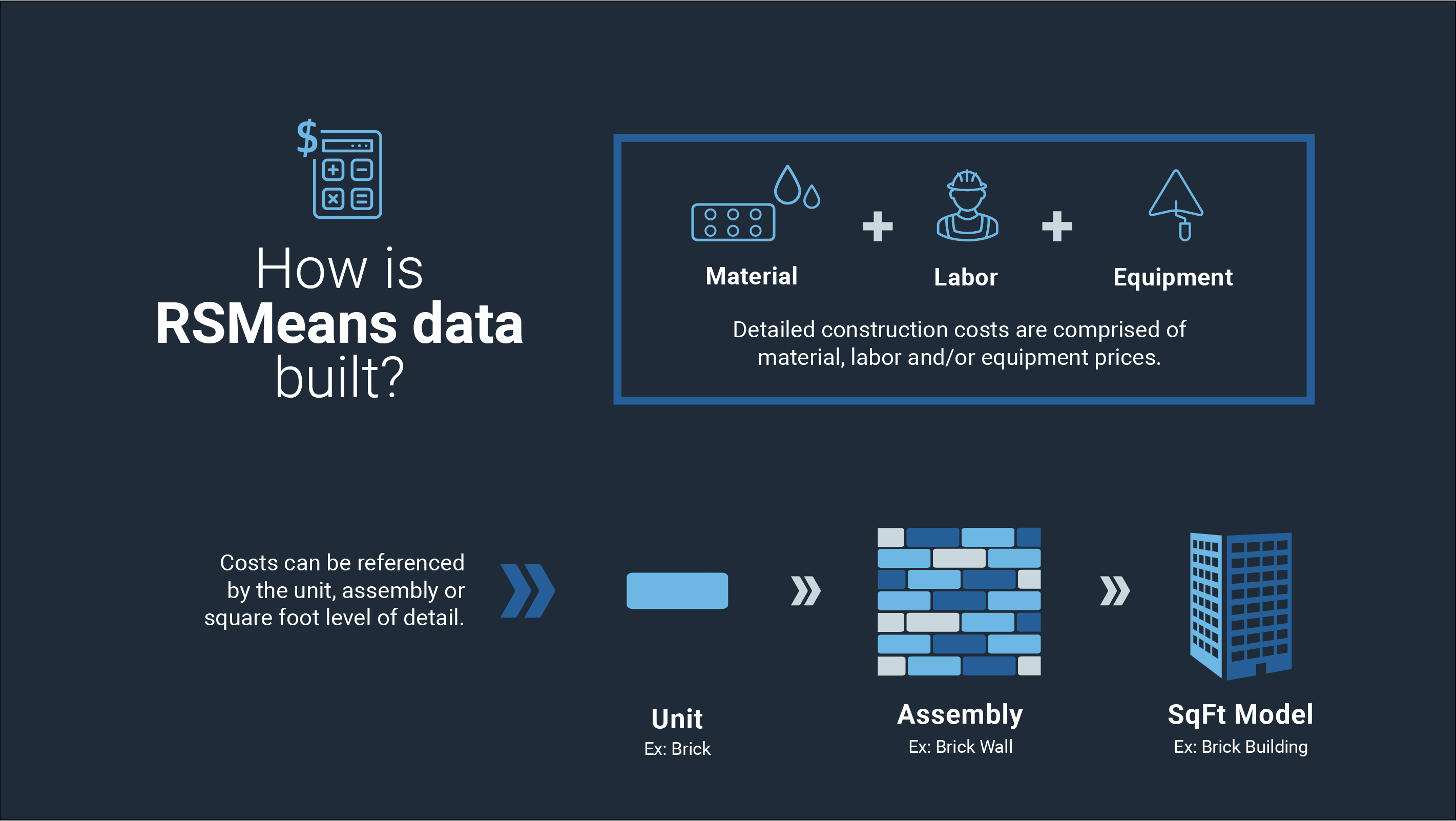
RS Means Cost Data offers a wealth of information, but it's not just a simple list of prices. The database includes detailed cost breakdowns for different construction tasks, materials, and equipment. It considers factors like location, labor rates, and material costs, which can vary significantly. For example, the cost of a bathroom renovation in Atlanta might be different from that in Helena due to regional variations in labor and material prices.
The data is also useful for comparing quotes from contractors. You can use RS Means Cost Data to ensure that the estimates you receive are fair and accurate. It's a great way to avoid overpaying or getting scammed. Just remember that the data is a guide, and actual costs can vary depending on the specifics of your project.
Hiring a Contractor
When it comes to hiring a contractor, RS Means Cost Data can be a valuable tool. It can help you understand the scope and cost of your project, so you know what to expect and can ask the right questions. Before hiring, check that the contractor has experience with similar projects and ask for references.
A good quote should include a detailed breakdown of costs, including materials, labor, and any additional fees. It's also a good idea to get multiple quotes to compare and ensure you're getting a competitive price. Remember, the cheapest quote might not always be the best option.
Company Names and Ideas
For those starting a construction business, choosing a name is an important step. A good name should be memorable, unique, and reflect your business values. Here are a few ideas:
- BuildRight Construction
- HomeCrafters
- Solid Foundations
- Modern Builders
- Eco-Friendly Renovations
Remember to check name availability and register your business locally to avoid any legal issues.
Jobs and Salaries
The construction industry offers a range of roles, from general contractors to estimators and project managers. Salaries can vary depending on experience, location, and the size of the company. For example, an estimator in a large firm in San Francisco might earn a different salary compared to one in a smaller town.
If you're looking for construction jobs, online job boards and local recruitment agencies are good places to start.
Data and Tools
RS Means Cost Data is just one of many tools available to the construction industry. Other resources include cost databases, escalation indexes, and outlook reports. These tools help businesses and homeowners plan and budget for construction projects, providing valuable insights into the industry.
Big Companies and the Industry
Large construction firms often have an advantage when it comes to resources and scale. They might have access to better materials, more specialized equipment, and a larger pool of skilled labor. However, smaller companies can offer personalized service and a more tailored approach.
The construction industry is diverse, and the size of the company doesn't always determine its success or quality of work. It's important to research and choose the right company for your specific needs, whether it's a large corporation or a local, family-run business.
So, whether you're a homeowner planning a renovation or a business owner looking to expand, RS Means Cost Data is a great resource to have in your toolkit. It's a simple yet powerful tool that can help you navigate the construction world with confidence.