

Habit Tracker App Reviews Overview
Many beginners in the world of finance and trading often overlook the power of visual tools, assuming they are complex and intimidating. However, a price charting app is your friendly companion, offering a simple yet effective way to understand market trends. It's not about deciphering a secret code; these apps provide an accessible gateway to interpreting historical price data and identifying patterns.
Understanding Price Charting: A Quick Overview
A price charting app is a powerful tool for anyone interested in stock market analysis and understanding historical price data. It provides a visual representation of price movements, helping investors and traders make informed decisions. This guide will walk you through the basics of reading and interpreting these charts.
Chart Types and Formats: Comparing the Options
There are various chart types commonly used in the financial world. The most popular include line charts, bar charts, and candlestick charts. Each format has its strengths and is suitable for different trading strategies. Line charts offer a simple, continuous view of price changes, while bar charts provide more detail with open, high, low, and close prices. Candlestick charts are popular for their visual appeal and ability to display price patterns.
Step-by-Step Guide: Reading and Interpreting Price Charts
To read a price chart, follow these steps:
- Identify the time frame: Charts can display data for different periods, such as daily, weekly, or hourly. Choose the time frame relevant to your analysis.
- Understand the price scale: The vertical axis represents the price range. Ensure you're aware of the scale and any potential adjustments due to stock splits or dividends.
- Recognize key metrics: Look for important price levels, such as support and resistance, which indicate potential buying or selling opportunities.
- Analyze trends: Observe the overall direction of the price movement. Is it trending upwards, downwards, or ranging sideways?
- Identify patterns: Price charts often display recognizable patterns like triangles, head and shoulders, or double tops. These patterns can signal potential reversals or continuations.
- Use technical indicators: Many charts offer additional tools like moving averages, RSI, or MACD. These indicators can provide insights into momentum, overbought/oversold conditions, and potential entry or exit points.
Common Misreadings and Pitfalls: Avoiding Mistakes
When interpreting price charts, it's essential to avoid common pitfalls:
- Don't rely solely on charts: While charts are powerful, they should be used in conjunction with other analysis methods and fundamental research.
- Be cautious of confirmation bias: It's easy to interpret charts to confirm your existing beliefs. Stay objective and consider all possibilities.
- Understand chart customization: Different platforms offer various customization options. Ensure you're familiar with the settings to avoid misinterpretations.
- Watch out for false signals: Not all patterns or indicators lead to the expected outcome. Always consider the bigger picture and use multiple signals for confirmation.
Key Factors Affecting Chart Accuracy and Real-World Use
Several factors can impact the accuracy and applicability of price charts:
Market volatility: Highly volatile markets can make it challenging to identify clear trends or patterns.
Time frame selection: Choosing the wrong time frame may lead to misinterpretations. Ensure it aligns with your trading strategy.
Data quality: Ensure you're using reliable and up-to-date data sources. Inaccurate data can skew your analysis.
Chart customization: Adjusting chart settings, like adding indicators or changing the price scale, can impact your interpretation.
Market conditions: External factors like economic news, political events, or seasonal trends can influence price movements, affecting chart patterns.
Choosing the Right Chart Format for Your Needs
The choice of chart format depends on your trading style and preferences:
- If you prefer simplicity and ease of interpretation, a line chart might be ideal.
- For detailed analysis and identifying specific price levels, bar charts offer more information.
- Candlestick charts are excellent for visualizing price patterns and understanding market sentiment.
- Consider your trading strategy and the specific insights you seek. Choose a format that aligns with your goals and provides the necessary data.
Remember, price charting apps are powerful tools, but they are just one piece of the puzzle. Combine them with other analysis methods and stay updated on market news to make well-informed trading decisions.
Well, there you have it! We've covered a lot of ground, from understanding the basics to diving into the practical aspects of using a price charting app.
Remember, while this guide provides a solid foundation, every situation is unique. So, before you finalize your charts and references, take a moment to ensure they align perfectly with your specific needs and context. It's a simple step but an important one!
Feel free to explore more of our guides; we've got a range of topics that might just spark your interest and offer practical insights. Happy charting!
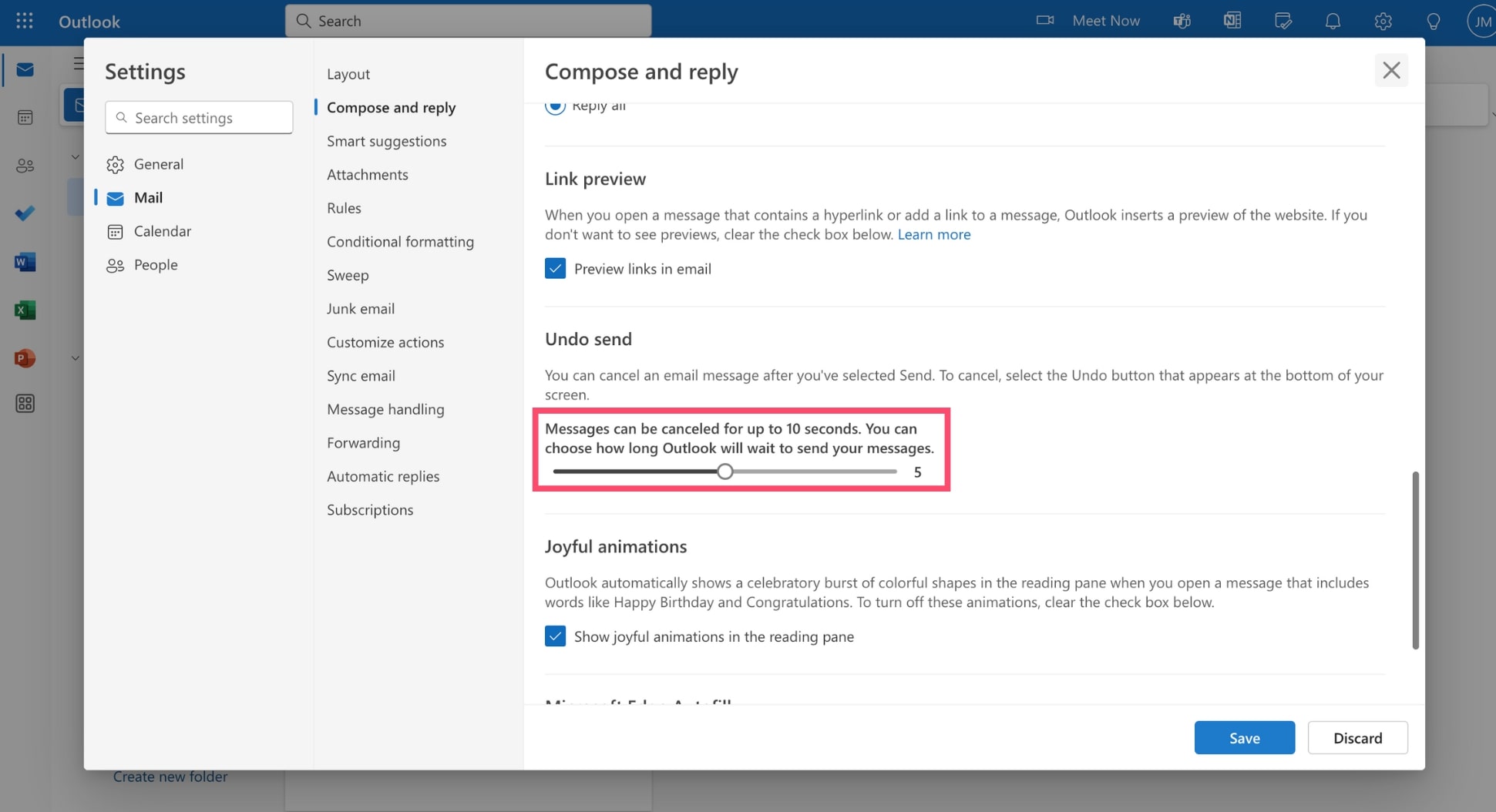
Related: outlook unsend email Simple Excel tracker for recall
The Art of Budgeting: Mastering Your Finances
Understanding the Basics of Budgeting
Budgeting is the foundation of financial health. It involves tracking income, categorizing expenses, and allocating funds to meet both short-term needs and long-term goals. A well-structured budget ensures you live within your means, save consistently, and avoid debt. The core principle is simple: spend less than you earn. However, the execution requires discipline and a clear plan.
Start by listing all sources of income, including salary, side gigs, or investments. Next, categorize expenses into fixed (rent, utilities) and variable (groceries, entertainment). Use tools like spreadsheets, apps, or notebooks to track spending. The 50/30/20 rule is a popular framework: 50% for needs, 30% for wants, and 20% for savings and debt repayment.
Creating a Realistic Budget Plan
A realistic budget aligns with your lifestyle and financial goals. Begin by analyzing past spending to identify patterns. For instance, if you spend $400 monthly on dining out, allocate that amount but consider reducing it gradually. Prioritize essentials like housing and food before discretionary spending.
Worked Example:
Imagine your monthly income is $4,000. Using the 50/30/20 rule:
- Needs (50%): $2,000 (e.g., $1,200 rent, $300 utilities, $500 groceries).
- Wants (30%): $1,200 (e.g., $400 dining, $300 entertainment, $500 shopping).
- Savings/Debt (20%): $800 (e.g., $500 emergency fund, $300 student loan).
Adjust categories based on your priorities. For example, if you’re saving for a house, reduce wants and increase savings.
Common Mistake: Overestimating Income or Underestimating Expenses
A frequent error is assuming consistent income or overlooking irregular expenses. For instance, freelancers might base their budget on a high-income month, only to struggle during slower periods. Similarly, forgetting annual expenses like insurance premiums can derail your plan.
Fix: Use your lowest consistent income as the baseline. For irregular expenses, divide the annual cost by 12 and set aside that amount monthly. Example: A $600 annual car insurance policy requires saving $50 monthly.
Tracking and Adjusting Your Budget
Budgeting isn’t a set-it-and-forget-it task. Regularly monitor your spending to ensure you stay on track. Weekly check-ins help catch overspending early. If you consistently exceed a category, reassess its allocation or cut back in another area.
Tools for Effective Budgeting
Leverage technology to simplify budgeting. Apps like Mint, YNAB, or Excel templates automate tracking and provide insights. For manual tracking, a notebook or bullet journal works well. The key is consistency—choose a method that fits your lifestyle.
Budgeting for Irregular Income
If your income varies, budgeting requires extra planning. Calculate your average monthly income over the past year and use that as your baseline. Allocate funds to a savings buffer during high-income months to cover lows.
Example:
If your monthly income ranges from $2,500 to $4,500, average it to $3,500. Save the surplus during high-income months in a separate account.
Common Mistake: Neglecting Emergency Funds
Many budgets focus on daily expenses but ignore emergencies. Without a safety net, unexpected costs like car repairs can lead to debt.
Fix: Prioritize building an emergency fund covering 3-6 months of living expenses. Start small—even $20 weekly adds up over time.
Budgeting for Long-Term Goals
Incorporate long-term goals like retirement, homeownership, or education into your budget. Use retirement accounts (e.g., 401(k), IRA) and high-yield savings for specific goals.
Example:
To save $20,000 for a down payment in 5 years, allocate $333 monthly. Adjust for interest or investment returns if applicable.
Dealing with Debt in Your Budget
Debt repayment should be a priority. Use the debt snowball (pay smallest debts first) or avalanche (pay highest-interest debts first) method. Allocate at least the minimum payments in your budget, with extra funds toward high-interest debt.
Common Mistake: Ignoring Small Expenses
Daily coffee or subscription services can add up quickly. These small expenses often go unnoticed but significantly impact your budget.
Fix: Track every expense, no matter how small. Cut non-essential subscriptions and limit impulse purchases.
Budgeting as a Family
Family budgeting requires collaboration. Hold regular financial meetings to discuss goals and progress. Teach children about money management by involving them in budgeting decisions.
Example:
Allocate $100 monthly for family outings and let kids decide how to spend it within that limit.
Adapting Your Budget Over Time
Life changes—new jobs, marriages, or children—require budget adjustments. Review your budget quarterly to reflect new circumstances.
Common Mistake: Being Too Rigid
A budget that’s too restrictive leads to frustration and abandonment. Allow flexibility for occasional treats or unexpected needs.
Fix: Include a "miscellaneous" category for unplanned expenses or occasional indulgences.
The Psychological Aspect of Budgeting
Budgeting isn’t just about numbers; it’s about mindset. Celebrate small wins, like paying off a credit card, to stay motivated. View budgeting as a tool for freedom, not restriction.
Example:
Reward yourself with a movie night after sticking to your budget for three months.
Budgeting for Special Occasions
Plan for holidays, birthdays, or vacations in advance. Set aside a small amount monthly to avoid financial stress during these events.
Example:
For a $1,000 holiday budget, save $83 monthly starting in January.
Common Mistake: Relying on Credit for Budget Shortfalls
Using credit cards to cover budget gaps leads to debt accumulation. Interest charges compound the problem, making repayment harder.
Fix: Reduce expenses or increase income to cover shortfalls. If necessary, use a 0% interest credit card temporarily but pay it off before the promotional period ends.
Budgeting for Retirement
Start early to maximize retirement savings. Contribute to employer-matched plans and explore tax-advantaged accounts like Roth IRAs.
Example:
If your employer matches 5% of your salary, contribute at least that amount to get the full benefit.
Final Thoughts on Budgeting
Budgeting is a dynamic process that evolves with your life. Stay committed, be flexible, and focus on progress, not perfection. With time, it becomes second nature, paving the way for financial security and peace of mind.
Related: How to apply the excel multiply formula for totals?
The excel multiply formula is the basic way to multiply numbers in Excel. This post shows how to use it for single cells, ranges, and simple constants.
You can apply it to multiply a column by a constant or combine it with IF for conditional calculations. If your workbook uses different versions, the syntax stays the same, though some newer functions may be available. Try the shortcut Ctrl+Shift+U to see the formula in action.
Multiply Cells, Ranges, and Constants with the excel multiply formula (asterisk operator usage)
The excel multiply formula lets you multiply a single cell, a range, or a constant using the asterisk () operator. It works the same in all Excel versions and updates instantly after pressing Enter.
To multiply a column, type the formula in the top cell and drag the fill handle down. For large ranges, a dynamic array formula can avoid manual dragging.
Combine the formula with IF for conditional multiplication, e.g., =IF(A2>10, A22, A21). In older Excel, press Ctrl+Shift+U to view the formula in the formula bar.
Requirements Before Using the excel multiply formula (apply to column)
Before you start, ensure your Excel version supports the features you need. Excel for Microsoft 365 and Excel 2019 include the full set of array functions.
All cells should contain numeric values; text will cause a #VALUE! error. If a cell might be blank, wrap the multiplication in IF to provide a default value.
Basic multiplication needs no special subscription. For newer functions like MUL, a Microsoft 365 subscription is required; check workbook trust settings if security prompts appear.
Step-by-Step Guide to Multiply a Column by a Constant
Follow these steps to multiply a column by a constant using the basic formula. The method works across Excel for Windows, Mac, and the web with minor UI differences.
- Select the column you want to multiply by clicking the column header.
- In the first cell of the column, type the constant followed by an asterisk and then the first cell reference, such as =5A2.
- Press Enter to calculate the result, then click the fill handle and drag down to copy the formula.
- For a dynamic array, use =MUL(A2:A100, 3) in Microsoft 365 or enter the array formula with Ctrl+Shift+U in older Excel.
You can also combine the excel multiply formula with IF for conditional results, e.g., =IF(A2>10, A22, A21). Ensure each part returns a number to avoid #VALUE! errors.
In older Excel, press Ctrl+Shift+U after typing the array formula to enclose it in braces. This tells Excel to treat the formula as an array operation.
Common Reasons the excel multiply formula Returns #VALUE! (zero value handling)
The #VALUE! error often appears when Excel cannot perform the multiplication because of incompatible data types. Checking the cells involved is the first step to resolve the issue. A quick way to test is to use ISNUMBER on each operand; if it returns FALSE, the cell likely contains text.
Another common cause is referencing a blank cell without a default value. Blank cells are treated as zero, which can be acceptable, but sometimes you want a specific result instead. Wrapping the multiplication in IF with a condition such as =IF(A2="",0,A2B2) avoids unexpected zeros.
- A cell contains text instead of a number.
- The formula references a blank cell, resulting in zero.
- An array formula was entered without using Ctrl+Shift+U in older Excel.
- Circular reference prevents calculation.
- Using a range that includes a header label that is text.
If the error persists after checking the cells, try saving the workbook and reopening Excel to clear any cached formula issues.
To fix the issue, convert text to numbers using Data > Text to Columns or by adding 0 to the cell, and ensure array formulas are entered with the proper shortcut. After correction, re-enter the formula and verify the result updates correctly.
Use a Dynamic Array Formula to Multiply Entire Ranges (dynamic array formula)
When you need to multiply a whole range without dragging, a dynamic array formula provides a cleaner solution. In Microsoft 365, you can use =MUL(A2:A100, 3) to multiply each element of the range by 3 and spill the results automatically. This approach eliminates the need to copy the formula manually and reduces the chance of misalignment.
If you prefer a formula that automatically expands, consider using the newer excel multiply formula with array handling, such as =MUL(A2:A100, 3). Make sure your Excel version supports the MUL function; otherwise, use the traditional =A2:A1003 array formula entered with Ctrl+Shift+U. Both methods produce the same result but differ in syntax and availability.
Another quick method is to use Paste Special to multiply a selection of cells by a constant without writing a formula. Copy the constant to the clipboard, select the range, right-click and choose Paste Special > Multiply, then OK. This technique is useful for one‑off calculations and avoids formula errors entirely.
Menus can look a bit different depending on your Excel version, but the core steps stay the same. If you’d like more Office tips, feel free to explore the other how‑to articles.
Next time you need to multiply a column, bookmark this page so you can get back to it quickly.