



Minecraft Coloring Pages Printable Free Overview
Frustrated by the endless scrolling and unclear charts? You're not alone. Many people seek a quick, reliable reference when dealing with Lyon Charter Twp and its various charts and diagrams. It's a common challenge, and understanding these visuals is crucial for getting things done efficiently.
Whether you're a resident of Lyon Township or just need to navigate the local government's systems, the charts and references can be a real headache. Rest assured, you're not alone in this, and there are ways to simplify the process.
Understanding Lyon Charter Twp: A Practical Guide
Lyon Charter Twp is a unique form of local government, offering a specific set of services and benefits to its residents. This guide will help you navigate the charter township's structure and operations.
Key Details and Categories
The charter township of Lyon operates under a unique legal status, providing a range of services and powers not typically found in standard townships. It's important to understand the key personnel and their roles, as well as the various departments and their functions. The township's administration is headed by a supervisor, who oversees the daily operations and acts as the chief executive. Other key personnel include the clerk, treasurer, and trustees, each with specific responsibilities.
Reading and Applying the Township Chart
The township chart is a visual representation of the Lyon Charter Twp's organizational structure. It outlines the various departments, their functions, and the reporting hierarchy. To read the chart effectively, start by identifying the supervisor at the top, who has overall authority. Below them, you'll find the clerk, treasurer, and trustees, each with their own areas of responsibility. The chart also shows the various departments and their interconnections, helping you understand the flow of information and decision-making.
Variations and Differences
While the charter township of Lyon follows a standard structure, variations can occur due to specific local needs and preferences. Different townships may have slightly different department names or functions, depending on the community's requirements. Additionally, the size and population of a township can influence its organizational structure. Larger townships may have more specialized departments, while smaller ones might combine certain functions. It's important to be aware of these variations when comparing different townships.
Common Mistakes and How to Avoid Them
One common mistake is assuming that all townships operate identically. While there are standard practices, each township has its own unique characteristics. Another pitfall is overlooking the specific roles and responsibilities of key personnel. It's crucial to understand who does what within the township administration to ensure effective engagement and communication. Finally, failing to consider the township's unique services and benefits can lead to missed opportunities for residents.
Practical Tips for Accurate Understanding
When navigating Lyon Charter Twp, take the time to familiarize yourself with the township's website and official documents. These resources provide valuable insights into the township's structure, services, and contact information. Attend township meetings or events to gain a deeper understanding of local issues and engage with community leaders. Building relationships with township staff and officials can also provide valuable insights and assistance.
Double-Checking and Handling Exceptions
While the township chart provides a useful overview, it's important to double-check specific details and exceptions. Certain services or functions may vary depending on the township's unique circumstances. For example, the availability of certain recreational facilities or specialized programs might differ. It's always a good idea to confirm these details with the relevant department or township office to ensure accurate information.
Hey there, we hope this guide has given you a clear understanding of Lyon Charter Twp and its practical applications. Remember, while we've covered the basics, exact details can vary, so always refer to the most relevant and up-to-date sources for your specific needs.
Feel free to explore our other guides; we've got a whole range of topics to help you navigate various concepts and standards. Happy learning, and stay curious!
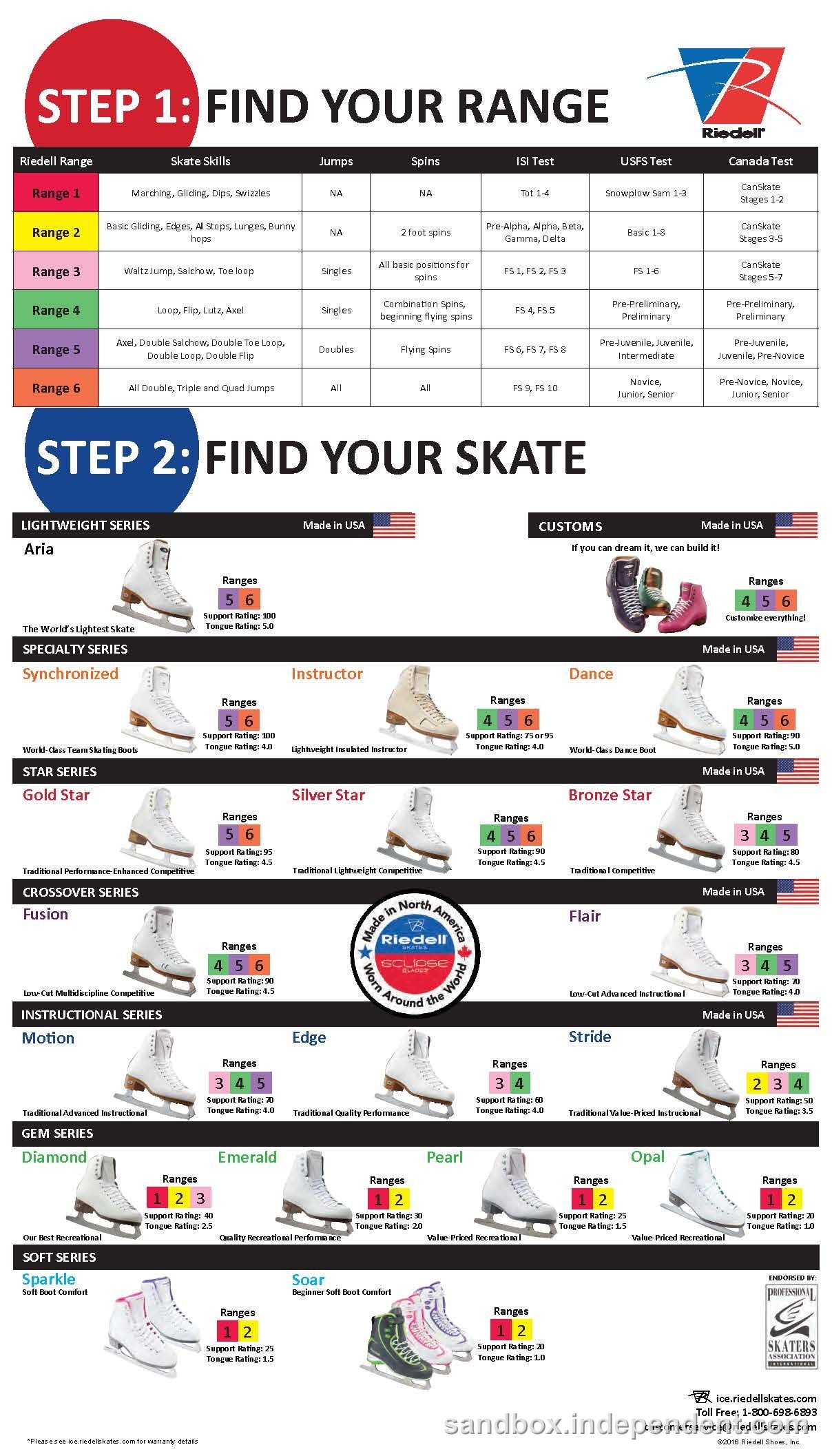
Related: What are Skate Steam Charts?
You've landed on this page, so you're probably seeking a quick, reliable guide to skate steam charts. These charts are an essential tool for anyone working with steam systems, offering a clear and concise reference for steam pressure and its applications. It's a simple yet powerful resource, providing a snapshot of the key values and their uses. The beauty of skate steam charts is their versatility; they can vary depending on your specific needs and context, making them a handy, adaptable reference.
Understanding the Skate Steam Chart: A Quick Overview
The skate steam chart is a valuable tool for anyone working with steam-powered equipment, especially in the world of skating. It provides a visual representation of the relationship between steam pressure and the corresponding skate performance or behavior. This chart is your guide to understanding how steam pressure impacts your skating experience.
Comparing Steam Pressure Standards and Categories
When it comes to steam pressure, there are different units and standards to consider. The most common skate steam charts use pounds per square inch (psi) or bars as the pressure unit. These charts often cover a range of pressures, typically from 0 to 100 psi or 0 to 7 bars, which are the standard operating pressures for most skate steam applications.
How to Use the Skate Steam Chart: A Step-by-Step Guide
Identify the steam pressure you're working with. This could be the pressure your steam generator is producing or the pressure your equipment is designed to handle.
Locate the pressure value on the chart's horizontal axis. This axis typically represents steam pressure and is labeled with the unit of measurement (psi or bars).
Follow the vertical line corresponding to your identified pressure until it intersects with the chart's curve or line graph.
Read the value on the vertical axis, which represents the resulting skate performance or behavior. This could be skate speed, maneuverability, or any other relevant parameter.
Use this information to make informed decisions about your skate setup, maintenance, or adjustments.
Common Misreadings and How to Avoid Them
It's important to remember that skate steam charts are general guides and may not account for every unique skate or application. Here are some common misreadings and how to avoid them:
Overlooking Unit Conversion: Always ensure you're using the correct unit of measurement. If your equipment uses a different unit than the chart, convert the pressure value accordingly.
Assuming Universal Applicability: Skate steam charts provide general guidelines. Always refer to your skate's manual or manufacturer's specifications for exact pressure tolerances and performance characteristics.
Neglecting Environmental Factors: Steam pressure behavior can be influenced by temperature, altitude, and other environmental conditions. Consider these factors when interpreting the chart's data.
Factors Affecting Accuracy and Real-World Use
Several key factors can influence the accuracy of a skate steam chart and its real-world application:
Skate Type and Design: Different skate types and designs may respond uniquely to steam pressure. High-performance skates, for example, might have different pressure-performance curves than recreational models.
Steam Quality and Consistency: The quality and consistency of the steam your equipment produces can impact its performance. Ensure your steam generator is well-maintained and operating optimally.
Environmental Conditions: As mentioned, temperature, humidity, and altitude can affect steam behavior and, consequently, skate performance. Consider these factors when interpreting the chart.
Maintenance and Wear: Regular maintenance and timely replacement of worn-out parts can ensure your skate responds accurately to steam pressure as indicated by the chart.
By understanding these factors and using the skate steam chart as a practical guide, you can make informed decisions about your skate's performance and ensure a safe and enjoyable skating experience.
Well, there you have it! We've covered a lot of ground and hopefully, you now feel equipped to navigate the world of skate steam charts with ease. Remember, these charts are a fantastic tool, but it's always wise to double-check the specifics for your unique situation.
Don't forget to explore our other guides; we have a range of resources to help you master various topics. Happy reading, and keep rolling with those charts!
Related: how to change outlook signature quick steps to update
Need to know how to change outlook signature? This post walks you through the basics in a few easy steps.
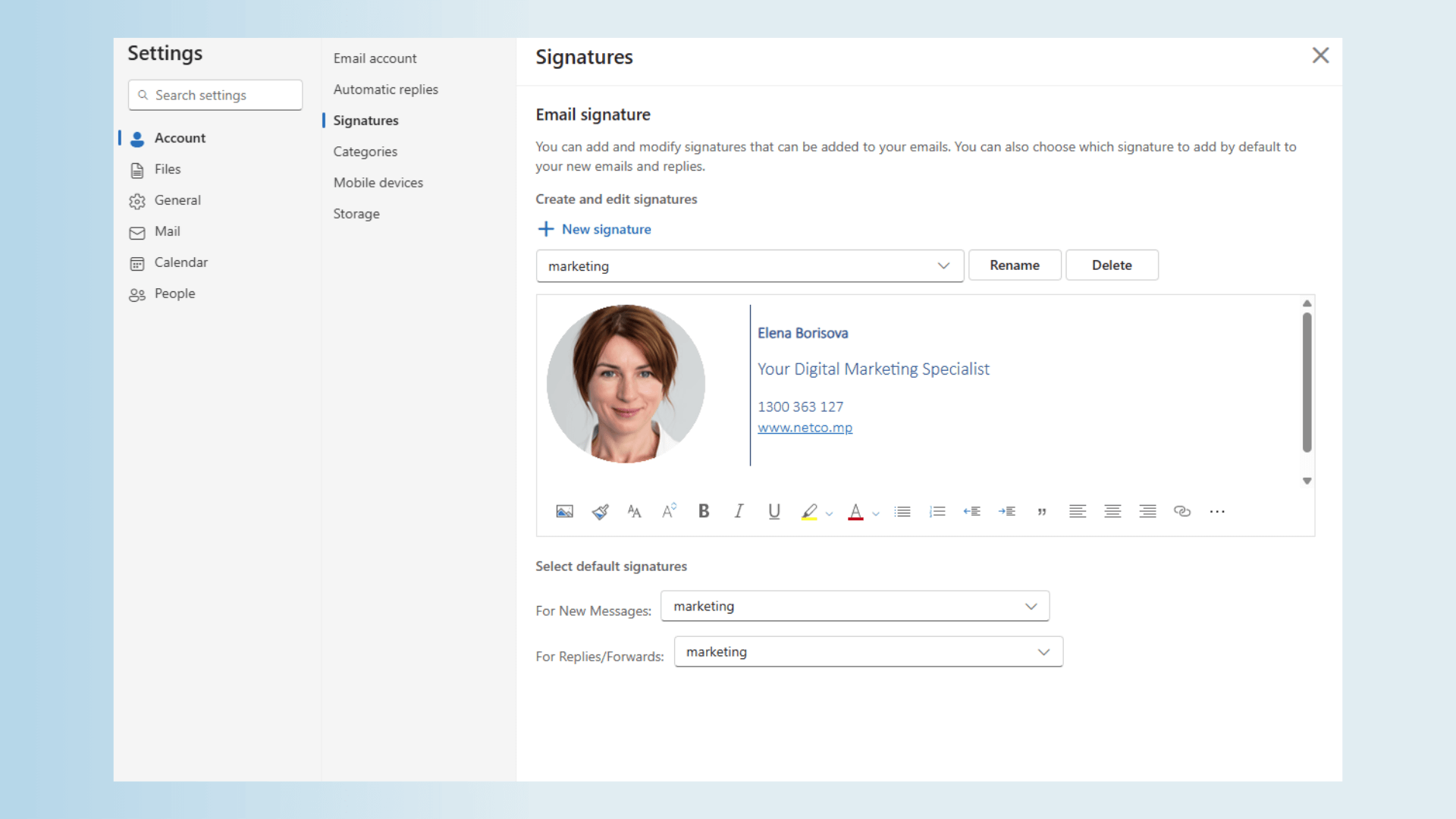
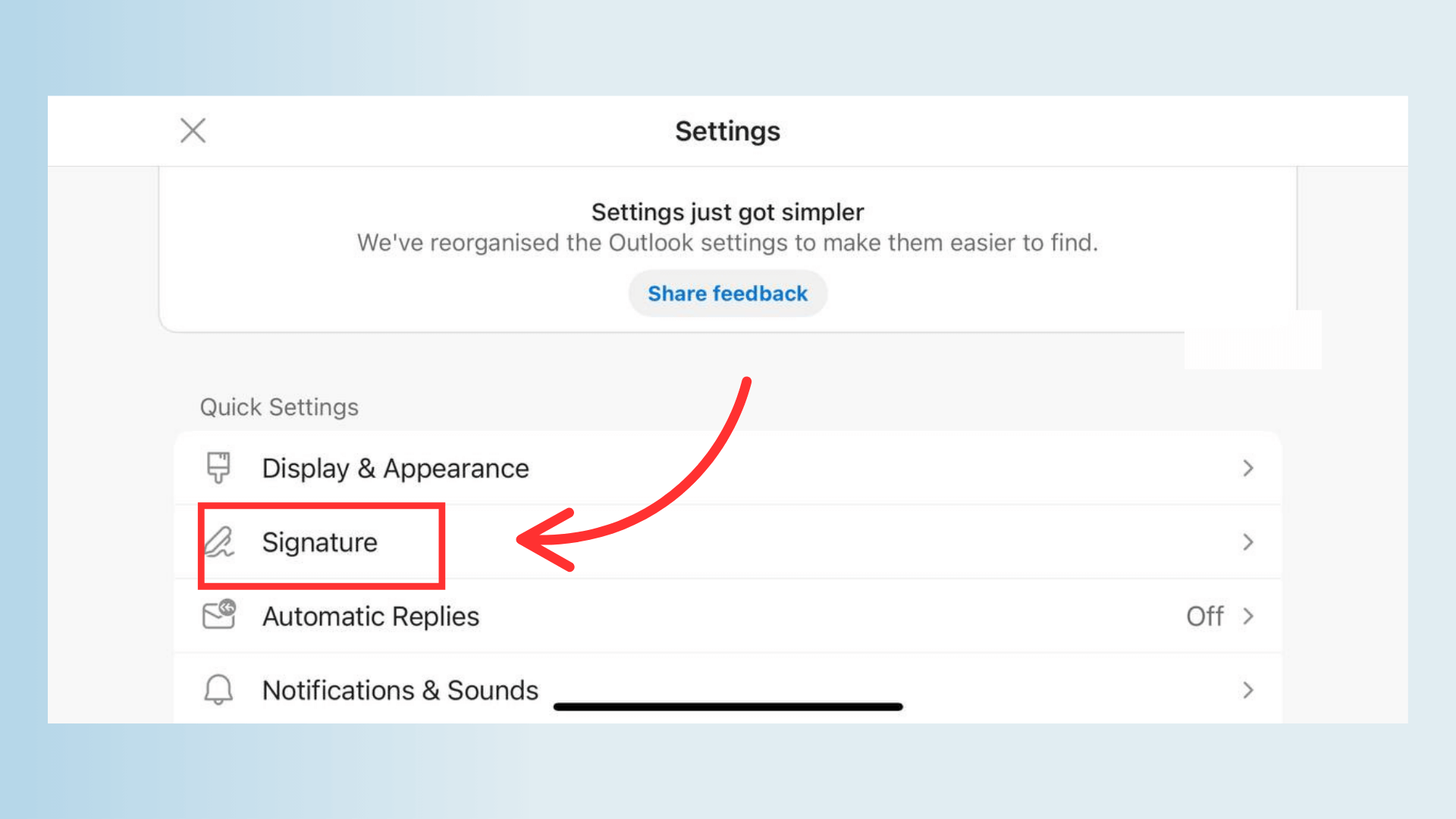
You’ll learn where to find the signature settings, how to edit Outlook signature, and how to set an Outlook default signature for new messages. The steps are similar across recent versions, though some menu labels may vary slightly.
Quick answer: how to change outlook signature and add new signature
You can quickly add a new signature in Outlook with just a few clicks. how to change outlook signature works whether you use the desktop app or Outlook on the web.
The feature is limited to Microsoft 365 or Exchange accounts; POP/IMAP setups do not support signatures at all. If you see a warning that your account cannot use signatures, you need to switch to a supported account type.
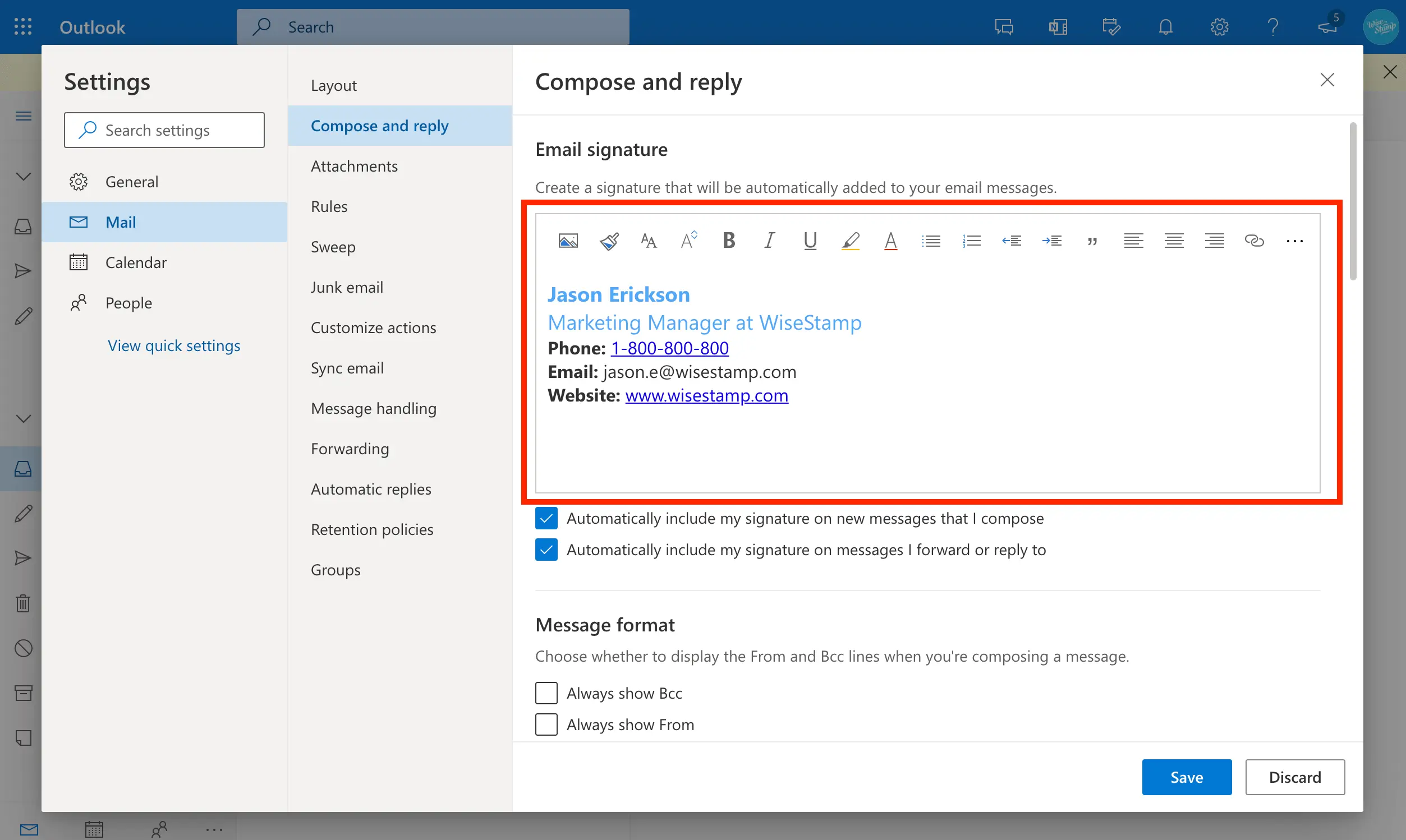
In Outlook desktop, open File > Options > Mail and click Signatures…; in Outlook on the web, go to Settings > View all Outlook settings > Mail > Compose and reply. Outlook default signature is stored in that location and can be edited anytime.
Compare methods by version: edit existing signature for Outlook on the web and Outlook desktop app
The desktop Outlook for Windows has a dedicated Signatures dialog where you can edit existing signature with rich formatting, images, and hyperlinks. You can also set a default signature for new messages, replies, or forwards from the same pane.
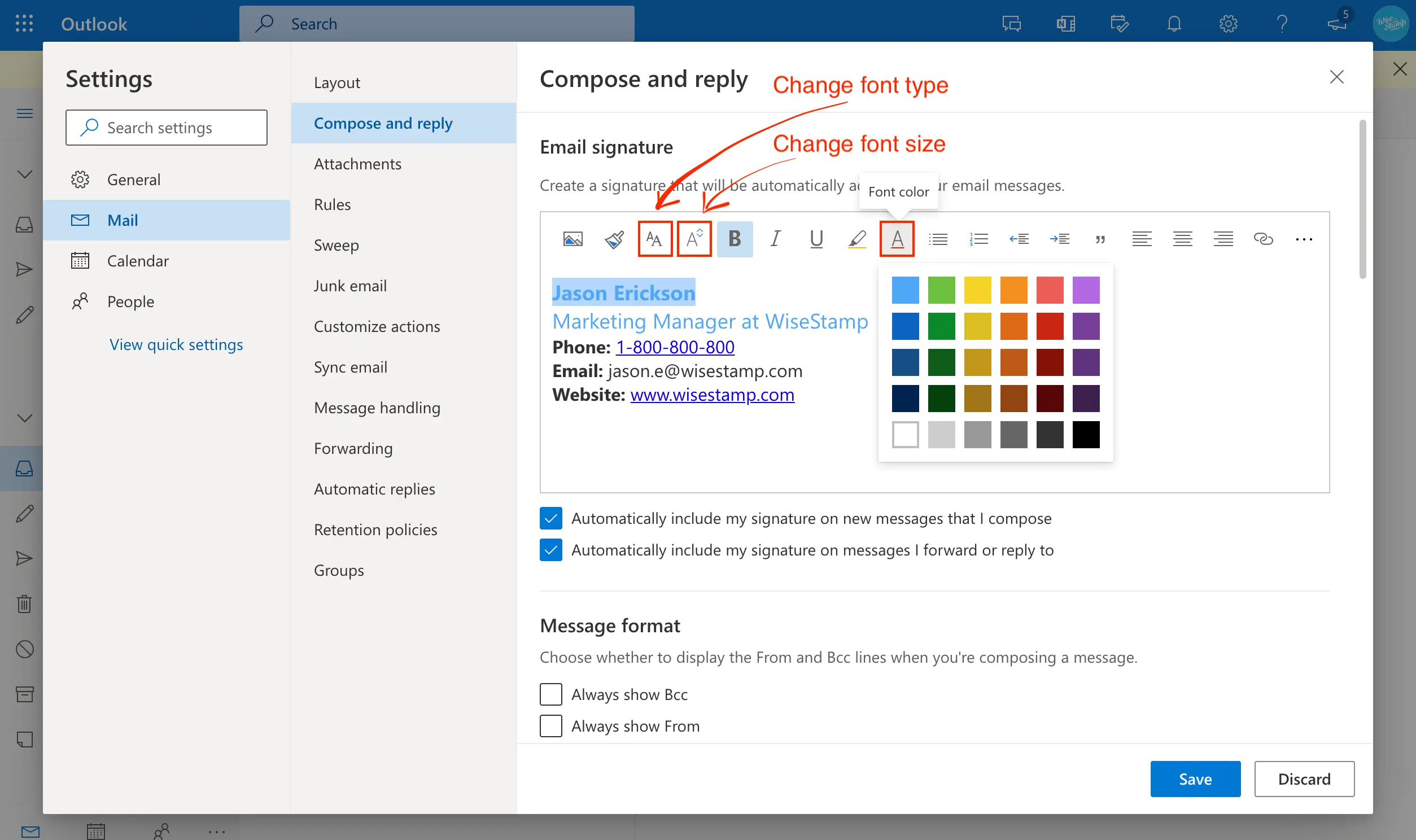
Outlook on the web places the signature in a plain‑text box under Mail settings, and changes sync automatically to all signed‑in devices. The web version renders HTML, so spacing may look slightly different from the desktop client.
Outlook for Mac uses a similar Signatures pane in Preferences > Mail, letting you create and edit signatures with the same options as Windows. Export the signature as an .htm file to move it between platforms without losing formatting.
Step-by-step guide: edit existing signature in Outlook on the web compose window
This guide applies to Outlook for Windows and Outlook for Microsoft 365; the steps are identical. You need an Exchange or Microsoft 365 account, otherwise the Signatures button is hidden.
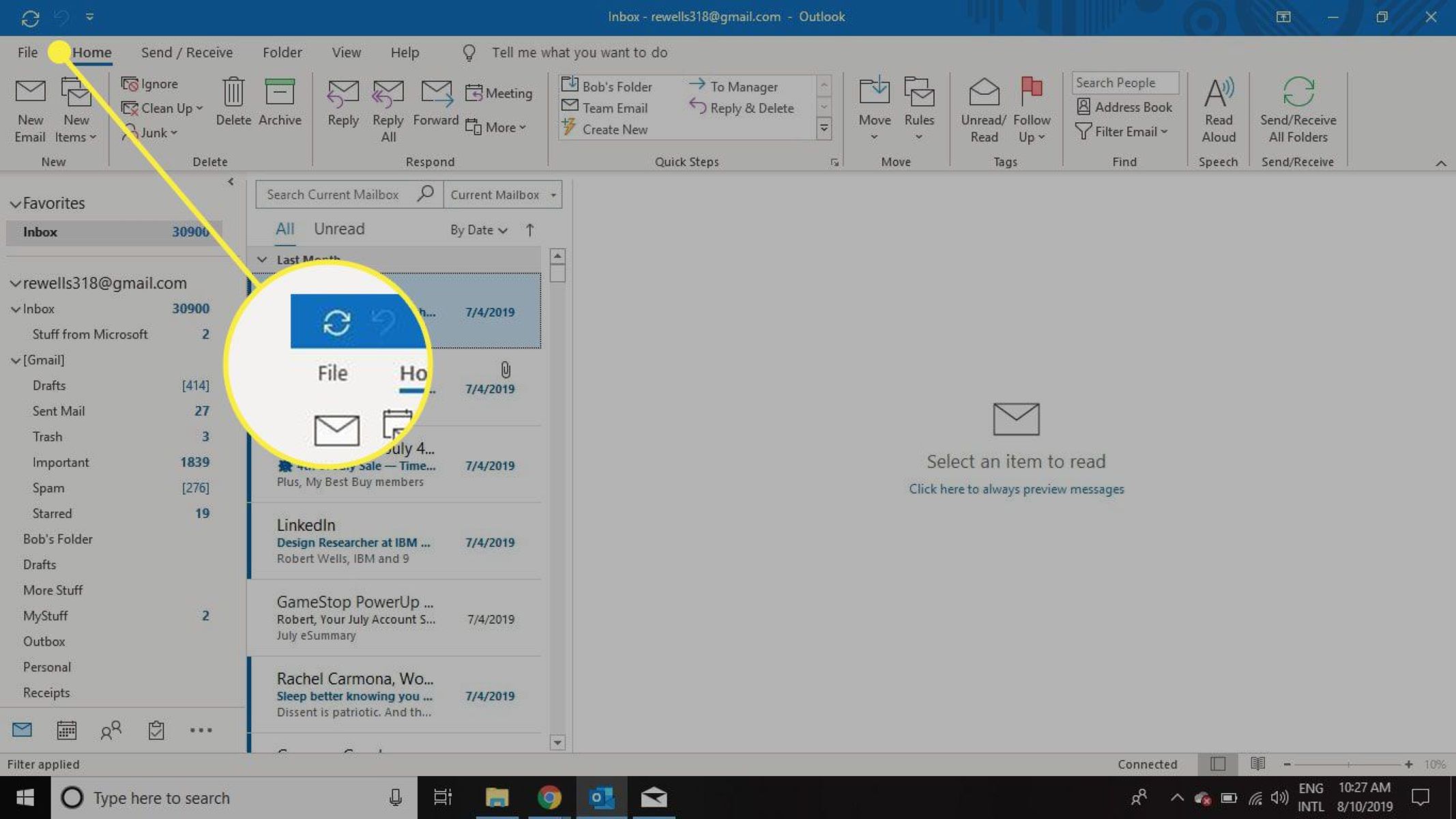
- Open Outlook and click File > Options > Mail.
- Click the Signatures… button to open the Signatures dialog.
- Select an existing signature to edit, or click New to create one.
- Edit the text, insert images, add hyperlinks, and format as desired.
- Under Choose default signature, set it for New messages and/or Replies/Forwards.
- Click OK to save your changes and close the dialog.
After saving, compose a new email to confirm the signature appears at the bottom; test a reply to see the reply‑signature behavior. If it doesn’t show, revisit the steps and verify the correct account is selected in the Signatures dialog.
Common mistakes and fixes: signature not appearing
A common slip is assigning a signature only for replies and forgetting to set it as the default for new messages; always verify both options in the Signatures dialog. The Outlook default signature setting is where you confirm the choice.
If the signature does not appear in Outlook on the web, open Settings > View all Outlook settings > Mail > Compose and reply and make sure the signature box is filled. It sometimes hides behind the More actions menu, so expand that section before saving.
Signatures are unavailable on POP/IMAP accounts, so switch to an Exchange or Microsoft 365 account if you see a notice. Images may be blocked for security; re‑insert them and allow inline attachments, or use plain text if the recipient’s client does not support HTML.
Prevent future issues: Outlook desktop app signature management
Keep your signature in one .htm file and import it on each PC to maintain consistent formatting. Copying the Outlook web app signature from the web version into the desktop compose window also works.
After a Windows or Office update, open the Signatures dialog and verify that your default signature is still selected; a new install can clear the selection. A quick monthly check prevents unexpected missing signatures in important messages.
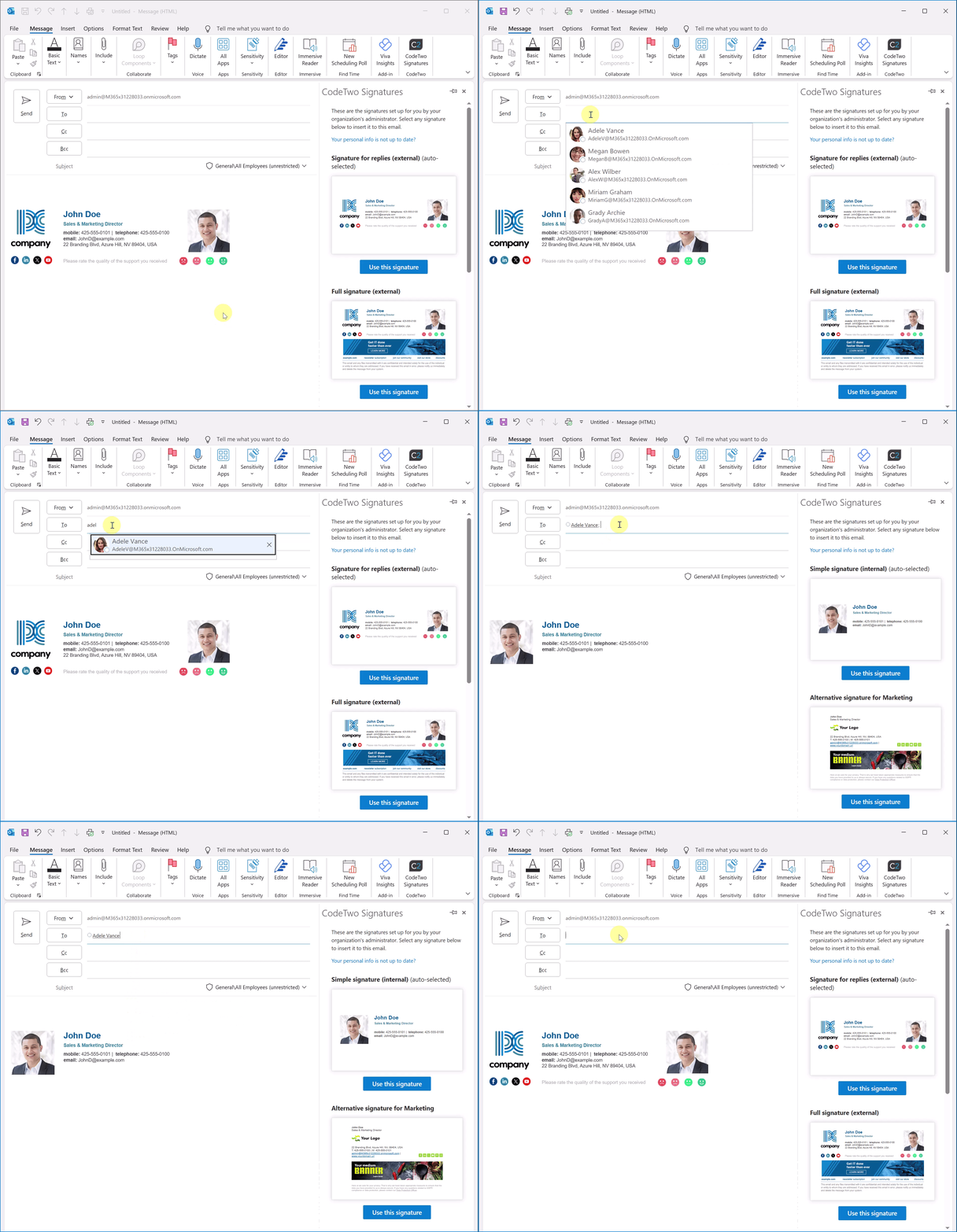
For teams, ask IT to deploy a standard signature via Group Policy or the Microsoft 365 admin center; this ensures everyone uses the approved branding and legal text. Admins can also lock the signature settings so users cannot modify them.
When moving to Outlook on the web, export the desktop signature as an .htm file and paste it into the web compose box; this preserves tables, images, and hyperlinks. Preview the signature to confirm formatting before sending.
Finally, test your signature on several devices and email clients to ensure it appears as intended; adjust the content or switch to plain text if needed. how to change outlook signature becomes routine once you have a reliable workflow in place.
Menus can look a bit different depending on which version of Outlook you’re using, so don’t be surprised if things shift around a little.
If you liked this tip, take a look at the other Microsoft Office guides on the site for more quick fixes and how‑tos.