








Multi Year Monthly Planner Overview
The excel multiply formula is the basic way to multiply numbers in Excel. This post shows how to use it for single cells, ranges, and simple constants.
You can apply it to multiply a column by a constant or combine it with IF for conditional calculations. If your workbook uses different versions, the syntax stays the same, though some newer functions may be available. Try the shortcut Ctrl+Shift+U to see the formula in action.
Multiply Cells, Ranges, and Constants with the excel multiply formula (asterisk operator usage)
The excel multiply formula lets you multiply a single cell, a range, or a constant using the asterisk () operator. It works the same in all Excel versions and updates instantly after pressing Enter.
To multiply a column, type the formula in the top cell and drag the fill handle down. For large ranges, a dynamic array formula can avoid manual dragging.
Combine the formula with IF for conditional multiplication, e.g., =IF(A2>10, A22, A21). In older Excel, press Ctrl+Shift+U to view the formula in the formula bar.
Requirements Before Using the excel multiply formula (apply to column)
Before you start, ensure your Excel version supports the features you need. Excel for Microsoft 365 and Excel 2019 include the full set of array functions.
All cells should contain numeric values; text will cause a #VALUE! error. If a cell might be blank, wrap the multiplication in IF to provide a default value.
Basic multiplication needs no special subscription. For newer functions like MUL, a Microsoft 365 subscription is required; check workbook trust settings if security prompts appear.
Step-by-Step Guide to Multiply a Column by a Constant
Follow these steps to multiply a column by a constant using the basic formula. The method works across Excel for Windows, Mac, and the web with minor UI differences.
- Select the column you want to multiply by clicking the column header.
- In the first cell of the column, type the constant followed by an asterisk and then the first cell reference, such as =5A2.
- Press Enter to calculate the result, then click the fill handle and drag down to copy the formula.
- For a dynamic array, use =MUL(A2:A100, 3) in Microsoft 365 or enter the array formula with Ctrl+Shift+U in older Excel.
You can also combine the excel multiply formula with IF for conditional results, e.g., =IF(A2>10, A22, A21). Ensure each part returns a number to avoid #VALUE! errors.
In older Excel, press Ctrl+Shift+U after typing the array formula to enclose it in braces. This tells Excel to treat the formula as an array operation.
Common Reasons the excel multiply formula Returns #VALUE! (zero value handling)
The #VALUE! error often appears when Excel cannot perform the multiplication because of incompatible data types. Checking the cells involved is the first step to resolve the issue. A quick way to test is to use ISNUMBER on each operand; if it returns FALSE, the cell likely contains text.
Another common cause is referencing a blank cell without a default value. Blank cells are treated as zero, which can be acceptable, but sometimes you want a specific result instead. Wrapping the multiplication in IF with a condition such as =IF(A2="",0,A2B2) avoids unexpected zeros.
- A cell contains text instead of a number.
- The formula references a blank cell, resulting in zero.
- An array formula was entered without using Ctrl+Shift+U in older Excel.
- Circular reference prevents calculation.
- Using a range that includes a header label that is text.
If the error persists after checking the cells, try saving the workbook and reopening Excel to clear any cached formula issues.
To fix the issue, convert text to numbers using Data > Text to Columns or by adding 0 to the cell, and ensure array formulas are entered with the proper shortcut. After correction, re-enter the formula and verify the result updates correctly.
Use a Dynamic Array Formula to Multiply Entire Ranges (dynamic array formula)
When you need to multiply a whole range without dragging, a dynamic array formula provides a cleaner solution. In Microsoft 365, you can use =MUL(A2:A100, 3) to multiply each element of the range by 3 and spill the results automatically. This approach eliminates the need to copy the formula manually and reduces the chance of misalignment.
If you prefer a formula that automatically expands, consider using the newer excel multiply formula with array handling, such as =MUL(A2:A100, 3). Make sure your Excel version supports the MUL function; otherwise, use the traditional =A2:A1003 array formula entered with Ctrl+Shift+U. Both methods produce the same result but differ in syntax and availability.
Another quick method is to use Paste Special to multiply a selection of cells by a constant without writing a formula. Copy the constant to the clipboard, select the range, right-click and choose Paste Special > Multiply, then OK. This technique is useful for one‑off calculations and avoids formula errors entirely.
Menus can look a bit different depending on your Excel version, but the core steps stay the same. If you’d like more Office tips, feel free to explore the other how‑to articles.
Next time you need to multiply a column, bookmark this page so you can get back to it quickly.
Related: US General Contractors Reliable Guide
I was chatting with a friend the other day, and the topic of home renovations came up. It got me thinking about top US general contractors and how crucial it is to find the right one for any construction project. So, let's explore what this term means and how it can impact your building or remodeling journey.
Understanding General Contractors
A general contractor is a professional who manages and oversees construction projects, acting as a key point of contact for homeowners and businesses. They handle everything from hiring subcontractors to ensuring the work is completed on time and within budget. These contractors are the backbone of any construction project, big or small.
When you're searching for a top-notch general contractor, it's essential to consider their experience, reputation, and the services they offer. While some specialize in residential projects, others focus on commercial builds or specific trades like plumbing or electrical work. Knowing their expertise is key to finding the right fit for your needs.
Hiring Tips and Considerations
Finding a reputable general contractor is a crucial step in any construction project. Here are some tips to help you make an informed decision:
- Check their licensing and insurance: Ensure they are properly licensed and insured for your state's requirements. This protects you and your investment.
- Ask for references: Speak to past clients to get an idea of the contractor's work quality and professionalism.
- Get multiple quotes: Compare quotes from different contractors to ensure you're getting a fair price and to understand the scope of the project.
- Understand the contract: Read and understand the terms of the contract before signing. It should outline the project details, timeline, and payment schedule.
- Consider their expertise: Look for contractors with experience in your specific project type. Whether it's a home addition or a commercial build, their expertise matters.
Company Names and Branding
Naming your construction business is an important step in building a brand. A good name should be memorable, unique, and reflect your company's values and services. Here are a few creative ideas to inspire you:
- BuildPro: A strong name suggesting professional building services.
- Crafted Spaces: Emphasizes the creation of unique and tailored spaces.
- Renova Construction: Combining renovation and construction, it hints at a full-service offering.
- Skyrise Builders: Evoking a sense of height and ambition, it's perfect for commercial projects.
- Green Build Group: Highlighting eco-friendly practices, this name appeals to environmentally conscious clients.
- Constructive Solutions: Suggesting a problem-solving approach, it's a great choice for a versatile contractor.
Industry Tools and Resources
The construction industry relies on various tools and resources to ensure projects run smoothly and efficiently. One such resource is RSMeans, a comprehensive database providing cost data and estimates for construction projects. It's a valuable tool for contractors and estimators, helping them price projects accurately.
Additionally, the industry uses cost indexes to track and forecast construction costs over time. These indexes consider factors like labor, materials, and market trends, providing valuable insights for budgeting and planning.
Construction Jobs and Opportunities
The construction industry offers a wide range of career paths, from general contractors and estimators to specialized trades like plumbing and electrical work. Job opportunities are abundant, and the industry is known for its skilled workforce.
When searching for construction jobs, online job boards and industry-specific websites are great resources. Additionally, networking and building relationships within the industry can lead to valuable connections and opportunities.
Wrapping Up
Exploring top US general contractors has given us a glimpse into the world of construction and the vital role these professionals play. From hiring tips to industry insights, I hope this guide has provided some valuable knowledge. Remember, when it comes to construction projects, taking the time to find the right general contractor is an essential step towards a successful and stress-free experience.
Related: How to Read a Cat Growth Chart?
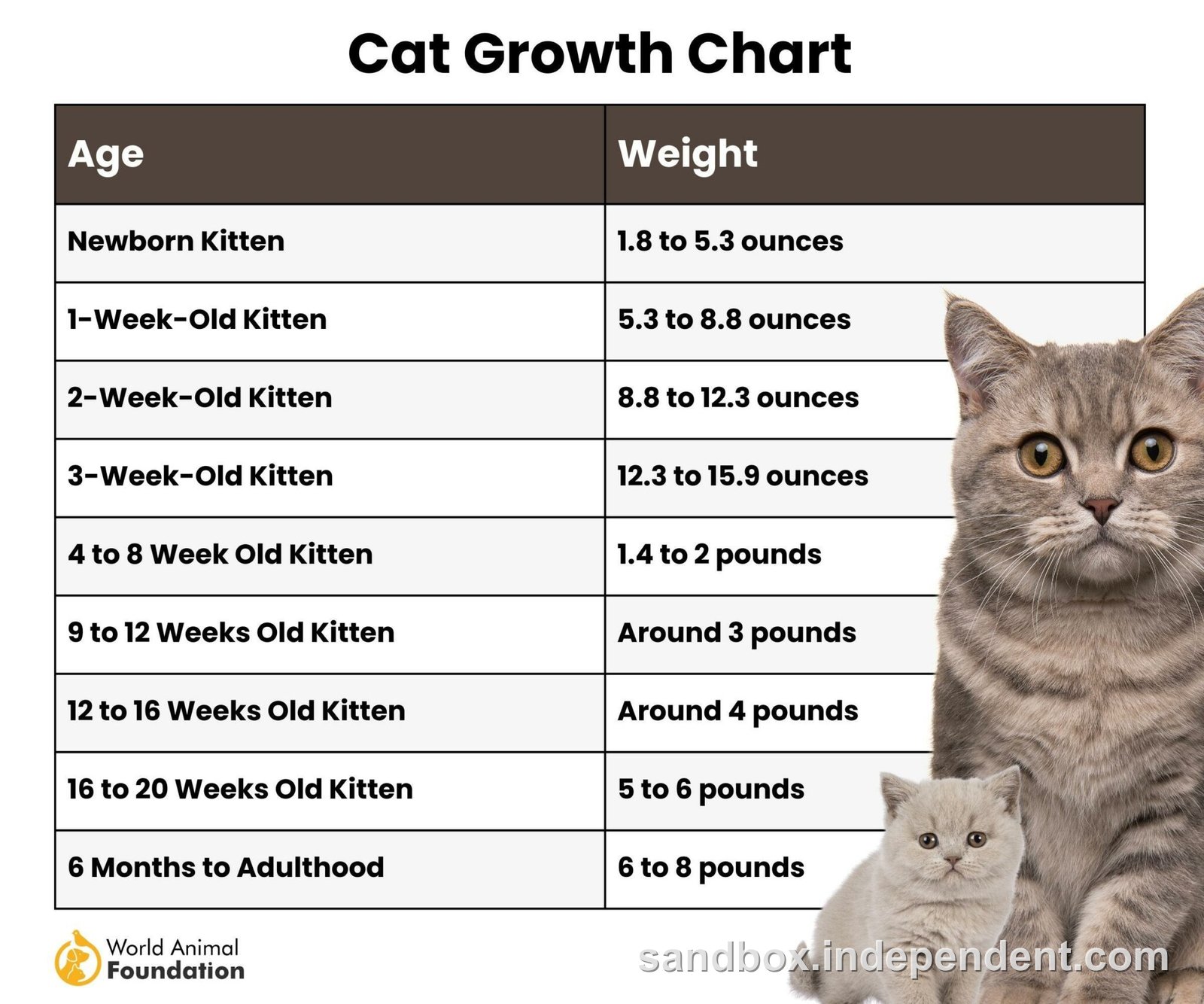
Many pet owners assume that a cat growth chart is a rigid, one-size-fits-all guide, but it's actually a flexible tool with some room for interpretation. While these charts provide a great visual reference, they are not set in stone; they offer a general framework to help you understand your cat's growth and development.
So, when using a cat growth chart, it's important to remember that every cat is unique, and growth rates can vary. These charts give you a handy comparison to ensure your feline friend is on the right track, but they are not an exact science. You might also find charts for specific aspects like cat weight or breed size comparisons, which can provide additional insights.
Understanding Growth Patterns: A Quick Overview
A cat growth chart is a valuable tool for cat owners and breeders, providing a visual representation of a cat's typical growth journey. It offers insights into the average growth rates and sizes cats achieve at different stages of their lives. This chart is a handy reference, especially for new cat parents, as it helps track and understand their feline friend's development.
Comparing Growth Chart Standards and Formats
Cat growth charts typically come in two main formats: weight charts and height charts. Weight charts display the average weight a cat should gain over time, often categorized by age or growth stage. Height charts, on the other hand, illustrate the expected height a cat will reach, usually measured from shoulder to paw. Both charts use standard units of measurement, such as pounds or kilograms for weight and inches or centimeters for height. It's essential to note that these charts provide average values; individual cats may vary slightly due to breed, nutrition, and overall health.
Tracking Your Cat's Development: A Step-by-Step Guide
To use a cat growth chart accurately, follow these simple steps:
- Identify the type of chart you have: weight or height. Ensure it aligns with the measurement you wish to track.
- Locate your cat's age or growth stage on the chart. This is typically represented on the horizontal axis.
- Read the corresponding value on the vertical axis, which indicates the average weight or height for that age or stage.
- Compare this value to your cat's actual weight or height. If your cat falls within the average range, they are likely growing as expected. If they are significantly above or below the average, consult a veterinarian to ensure their health and development are on track.
Common Misreadings and How to Avoid Them
One common mistake when using a cat growth chart is failing to consider the chart's specific standard or unit of measurement. Always ensure you are using the correct chart for your region (e.g., US or metric) and that you understand the units displayed. Another pitfall is assuming the chart represents absolute values. Remember, these charts provide averages, and individual cats may vary. Regularly measuring and comparing your cat's actual size to the chart's values is essential to get an accurate reading.
Key Factors Affecting Accuracy and Real-World Use
Several factors can influence a cat's growth and development, causing variations from the average values on the cat growth chart. These include:
Breed: Different cat breeds have distinct growth patterns and sizes. For instance, a Maine Coon may grow larger than the average values on the chart, while a Siamese may be smaller.
Nutrition: A cat's diet plays a crucial role in their growth. Proper nutrition ensures they receive the necessary nutrients for healthy development.
Health: Underlying health issues can impact a cat's growth rate and size. Regular veterinary check-ups are essential to identify and address any potential health concerns.
Activity Levels: Active cats may develop differently than less active ones. Exercise and play can influence muscle development and overall size.
Environment: The living conditions and care a cat receives can also affect their growth. A stimulating and enriching environment can promote healthy development.
By considering these factors and regularly monitoring your cat's growth, you can ensure they are on a healthy development path and make informed decisions regarding their care.
Well, that's a wrap on our cat growth chart guide! We've covered a lot of ground, from understanding the different growth standards to the step-by-step process of using a chart and avoiding common pitfalls. Remember, these charts are a great tool, but exact values may vary slightly, so it's always good to consult a vet for personalized advice.
Feel free to explore our other guides for more practical tips and insights. We've got a whole collection of resources to help you navigate the world of pet care, so don't hesitate to check them out!