


Planner Printable For Older Overview
RS Means Cost Data has been on my mind lately as I plan a home renovation project. It's an important step to get the right info before you start, so I wanted to learn more.
I discovered that RS Means Cost Data is a valuable resource for anyone in the construction industry, whether you're a homeowner, a contractor, or a business owner. It's a comprehensive database that provides cost information for various construction projects, materials, and labor. This data is crucial for accurate estimating and budgeting, especially when you're considering a remodel or new build.
Understanding the Data
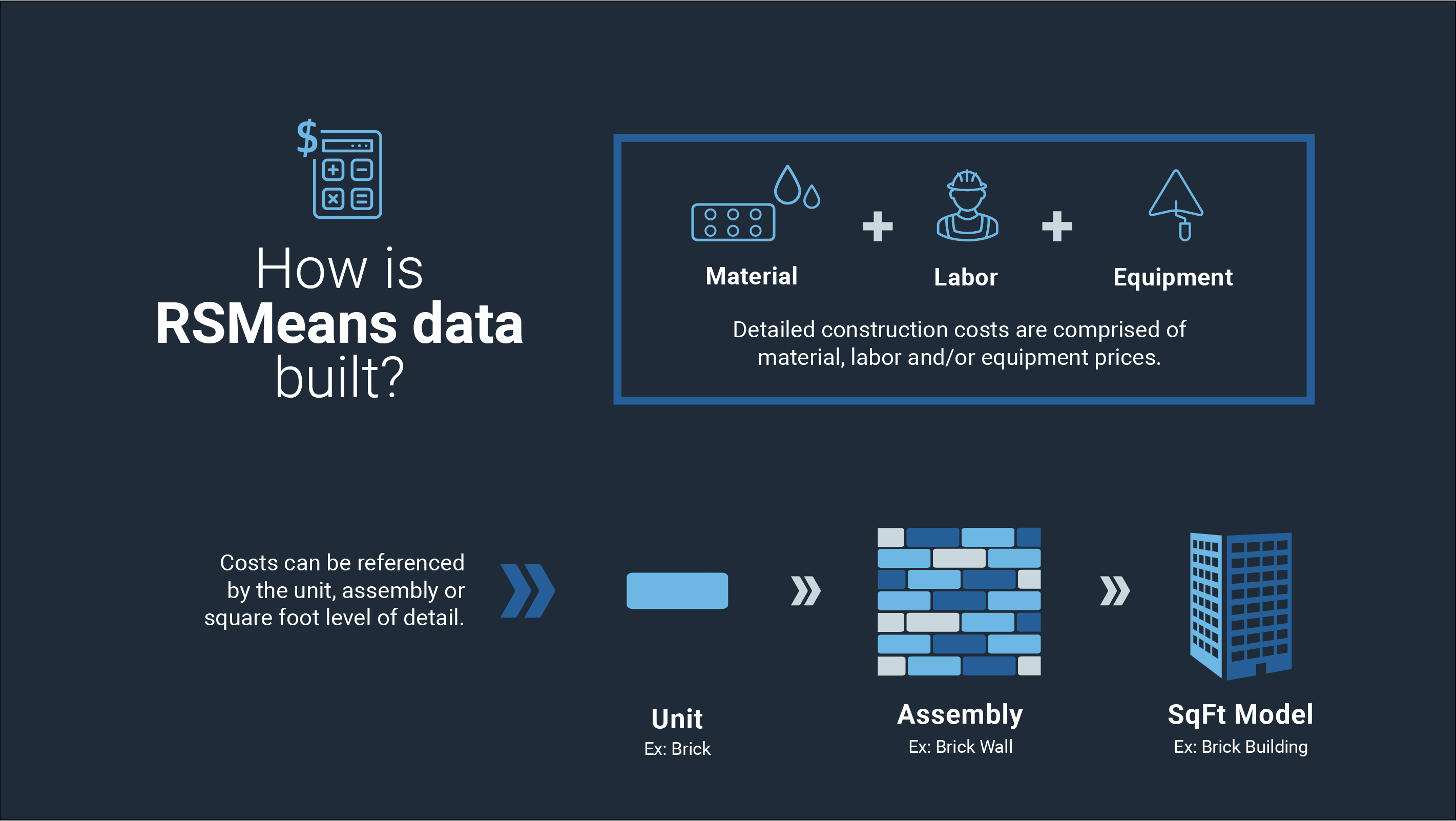
RS Means Cost Data offers a wealth of information, but it's not just a simple list of prices. The database includes detailed cost breakdowns for different construction tasks, materials, and equipment. It considers factors like location, labor rates, and material costs, which can vary significantly. For example, the cost of a bathroom renovation in Atlanta might be different from that in Helena due to regional variations in labor and material prices.
The data is also useful for comparing quotes from contractors. You can use RS Means Cost Data to ensure that the estimates you receive are fair and accurate. It's a great way to avoid overpaying or getting scammed. Just remember that the data is a guide, and actual costs can vary depending on the specifics of your project.
Hiring a Contractor
When it comes to hiring a contractor, RS Means Cost Data can be a valuable tool. It can help you understand the scope and cost of your project, so you know what to expect and can ask the right questions. Before hiring, check that the contractor has experience with similar projects and ask for references.
A good quote should include a detailed breakdown of costs, including materials, labor, and any additional fees. It's also a good idea to get multiple quotes to compare and ensure you're getting a competitive price. Remember, the cheapest quote might not always be the best option.
Company Names and Ideas
For those starting a construction business, choosing a name is an important step. A good name should be memorable, unique, and reflect your business values. Here are a few ideas:
- BuildRight Construction
- HomeCrafters
- Solid Foundations
- Modern Builders
- Eco-Friendly Renovations
Remember to check name availability and register your business locally to avoid any legal issues.
Jobs and Salaries
The construction industry offers a range of roles, from general contractors to estimators and project managers. Salaries can vary depending on experience, location, and the size of the company. For example, an estimator in a large firm in San Francisco might earn a different salary compared to one in a smaller town.
If you're looking for construction jobs, online job boards and local recruitment agencies are good places to start.
Data and Tools
RS Means Cost Data is just one of many tools available to the construction industry. Other resources include cost databases, escalation indexes, and outlook reports. These tools help businesses and homeowners plan and budget for construction projects, providing valuable insights into the industry.
Big Companies and the Industry
Large construction firms often have an advantage when it comes to resources and scale. They might have access to better materials, more specialized equipment, and a larger pool of skilled labor. However, smaller companies can offer personalized service and a more tailored approach.
The construction industry is diverse, and the size of the company doesn't always determine its success or quality of work. It's important to research and choose the right company for your specific needs, whether it's a large corporation or a local, family-run business.
So, whether you're a homeowner planning a renovation or a business owner looking to expand, RS Means Cost Data is a great resource to have in your toolkit. It's a simple yet powerful tool that can help you navigate the construction world with confidence.
Related: How to use a weight chart for yarn?
Many crafters, especially beginners, often overlook the importance of understanding weight chart yarn and how it can impact their projects. While it may seem like a simple reference, it's a crucial tool to ensure your knitting or crocheting turns out just right.
The weight chart provides a clear indication of yarn thickness, and while the values might vary slightly, it offers a consistent guide to help you choose the right yarn for your pattern. Think of it as a roadmap, guiding you to the perfect yarn weight for your next creation, be it a cozy scarf or a delicate lace shawl.
What is a Weight Chart for Yarn?
A weight chart for yarn is a valuable tool that helps knitters, crocheters, and other yarn crafters understand the thickness or "weight" of different yarn types. It's like a map that guides you through the world of yarn, ensuring you choose the right thickness for your project.
Key Details and Categories
The weight chart typically consists of categories or ranges that describe the thickness of the yarn. These categories are often represented by numbers or symbols, and they provide a standardized way to compare and choose yarns. For example, you might see categories like "Lace," "Fingering," "Sport," "Worsted," and "Bulky." Each category has a specific range of thicknesses, and the chart helps you visualize and understand these differences.
How to Read and Apply the Weight Chart
Reading a weight chart is straightforward. First, identify the category or range that best describes the thickness of your yarn. You can do this by referring to the label on the yarn ball or skein, which often includes the weight category. If you're not sure, you can also measure the thickness of the yarn with a gauge tool or by comparing it to known thicknesses. Once you've identified the category, you can use the chart to understand the yarn's characteristics and choose the appropriate needle or hook size for your project. For instance, if you're working with a worsted-weight yarn, you'll typically use a 4.5-5.5 mm needle or a 5.0-5.5 mm hook.
Variations and Differences
It's important to note that weight charts can vary depending on the standard being used. The most common standards are the Craft Yarn Council (CYC) Standard Yarn Weight System, which is widely used in the US, and the International Standard (metric system). These systems may have slightly different categories and ranges, so it's crucial to know which standard your chart is based on. Additionally, some yarn manufacturers may use their own proprietary systems, so always double-check the specific weight category and its range if you're unsure.
Common Mistakes and How to Avoid Them
One common mistake is assuming that all yarns within a category are exactly the same thickness. While the categories provide a useful guide, there can be variations within each range. Always check the specific gauge or thickness of your yarn, especially if you're substituting one brand or type for another. Another mistake is ignoring the recommended needle or hook size. Using the wrong size can result in a project that's too loose or too tight, affecting the overall look and feel of your work.
Practical Tips for Accurate Results
When choosing yarn, always refer to the weight chart and the specific weight category of your yarn. If you're working from a pattern, ensure the recommended yarn weight matches the weight of the yarn you've chosen. If you're substituting yarn, compare the thickness and weight category of your new yarn to the original yarn specified in the pattern. This ensures your project will turn out as intended. Additionally, always check the gauge or tension of your work early on in the project to ensure you're achieving the desired results. If your gauge is off, adjust your needle or hook size accordingly.
Hey there, I hope this guide has given you a clear understanding of weight chart yarn and its practical uses. Remember, while the basics remain the same, the exact details can differ slightly based on your specific needs and the standards you're working with.
Feel free to explore our other guides; we've got a range of topics covered to help you navigate the world of yarn and crafts with ease. Happy crafting!
Related: match formula excel easy guide for data lookups
Match formula Excel can save you hours when you need to find something in a long list. Say you’ve got a sheet with hundreds of product IDs, and you need to know the position of a specific one. Instead of scrolling forever, you type in =MATCH(lookup_value, lookup_array, [match_type]), and Excel does the heavy lifting. It’s not just for numbers—it works with text, dates, and even wildcards if you set it up right.
It’s one of those formulas that feels like a secret weapon once you get the hang of it. Sure, XLOOKUP is flashier, but match formula Excel is faster for grabbing a position, not a value. Plus, it plays well with INDEX for more advanced lookups. If you’re still manually searching for data, this is your cue to stop.
Find positions, not just values
The match formula in Excel is all about locating where something sits in a list. It’s perfect for anyone who needs to map data between sheets or check if an item exists. Marketers use it to match campaign IDs to results, inventory managers track stock locations, and HR teams map employee IDs to departments.
Set up your sheet with two columns: one for your lookup list (e.g., product IDs) and one for the data you’re matching against (e.g., sales numbers). Keep the lookup list sorted if you’re using match_type 1 (exact or next smallest). Add a third column for the formula itself, and a fourth for any error handling with IFERROR.
| Product ID | Sales | Position | Formula |
|---|---|---|---|
| 101 | 250 | =MATCH(101, A2:A100, 0) |
|
| 102 | 300 | =MATCH(103, A2:A100, 1) |
|
| 103 | 150 | =MATCH("104", A2:A100, 0) |
The first formula returns 1 because 101 is the first item in the list. The second returns 5 since 103 isn’t there, but 105 is the next smallest. The third returns #N/A because "104" (as text) doesn’t match 104 (as a number).
Common mistake: Using match_type 1 on unsorted data. Excel won’t throw an error, but it’ll give you wrong results. Fix it by sorting the lookup array or switching to match_type 0 for exact matches.
Pair it with INDEX for dynamic lookups
The real power of match formula Excel comes when you combine it with INDEX. Together, they let you pull values from a table based on a lookup, without hard-coding cell references. This is how you build dynamic dashboards or reports that update automatically.
Create a table with Ctrl+T, then add a separate cell for your lookup value (e.g., "Q1 Sales"). Below it, set up a formula like =INDEX(table_array, MATCH(lookup_value, lookup_column, 0), return_column). Use IFERROR around it to catch missing data.
| Quarter | Region | Sales | Formula |
|---|---|---|---|
| Q1 | East | 500 | |
| Q1 | West | 700 | |
| Q2 | East | 600 |
Formula in D2: =IFERROR(INDEX(B2:B4, MATCH("Q1", A2:A4, 0), 2), "Not Found"). Returns 500 for Q1 East sales.
Common mistake: Forgetting to lock cell references with $. If you drag the formula down, A2:A4 should be $A$2:$A$4 to keep it anchored.
Handle errors and wildcards
Match formula in Excel breaks if it can’t find what you’re looking for. Wrap it in IFERROR to show a custom message instead of #N/A. If you’re working with partial matches, use wildcards by switching to match_type 0.
Add a data validation dropdown in your lookup cell to avoid typos. Go to Data > Data Validation > List, and point it to your lookup array. This keeps inputs consistent.
| Item | Price | Lookup | Result |
|---|---|---|---|
| Apple | 1.50 | p | 1 |
| Banana | 0.75 | n | 2 |
| Cherry | 2.00 | Peach | Not Found |
Formula in D2: =IFERROR(MATCH(C2 & "", A2:A4, 0), "Not Found"). For p, it returns 1 because "Apple" contains “p”.
Common mistake: Storing numbers as text. If your lookup value is 101 (number) but your array has "101" (text), the formula fails. Fix it with Data > Text to Columns > Finish to convert.
Build a lookup tracker
Turn match formula Excel into a reusable tracker by adding conditional formatting and filters. This works great for inventory logs, expense trackers, or project checklists. Highlight matches with Home > Conditional Formatting > New Rule > Use a formula.
Set up a filter on your lookup column (Ctrl+Shift+L) so you can narrow down results. Freeze the top row (View > Freeze Panes) if your sheet is long.
| Task ID | Status | Due Date | Priority |
|---|---|---|---|
| 001 | Done | 2023-10-15 | High |
| 002 | Pending | 2023-10-20 | Medium |
| 003 | Done | 2023-10-25 | Low |
Formula in E2: =IF(ISNUMBER(MATCH(A2, $A$2:$A$4, 0)), "Found", ""). Add conditional formatting to highlight “Found” cells.
Common mistake: Merging cells in your lookup array. Merged cells break formulas. Unmerge them with Home > Merge & Center > Unmerge Cells.
Try building a simple inventory tracker next. Use match formula Excel to flag low-stock items, and pair it with COUNTIFS to tally quantities.